
Recently, I’ve been exploring Claude and figuring out where it actually fits into my workflow. As a freelance tech blogger, I noticed my biggest slowdown wasn’t writing but managing information. I kept searching for notes, organizing drafts, and repeatedly explaining context to AI tools. The writing itself was easy, but the workflow wasn’t.
That’s when I thought of connecting Claude with Notion. Instead of feeding context every time, I wanted Claude to understand my workspace directly. The goal wasn’t automation, but smoother productivity with fewer interruptions, clearer thinking, and a workflow that keeps up with my ideas.
Here’s how I connected Notion with Claude, and how it impacted my daily workflow.
Connecting Notion with Claude
Setting up a secure bridge between Notion and Claude
Before jumping into the steps, the setup needs to be done on both platforms. The connection is basically a permission bridge, allowing Claude to securely read and work with your Notion workspace content. I started on the Notion side first, then completed the connection from Claude.
Notion side setup
- Open Notion settings: I started the setup from the Notion side by opening Notion and navigating to Settings.
- Go to Connections: From the left sidebar in Settings, I selected Connections to view available integrations.
- Explore MCP integrations: Within Connections, I chose the Notion MCP Explore option to see supported external AI tools.
- Connect Claude: From the list of available tools, I selected Connect with Claude to begin linking my account.
Claude side setup
- Open Claude settings: I logged in to my Claude account and navigated to the Settings page.
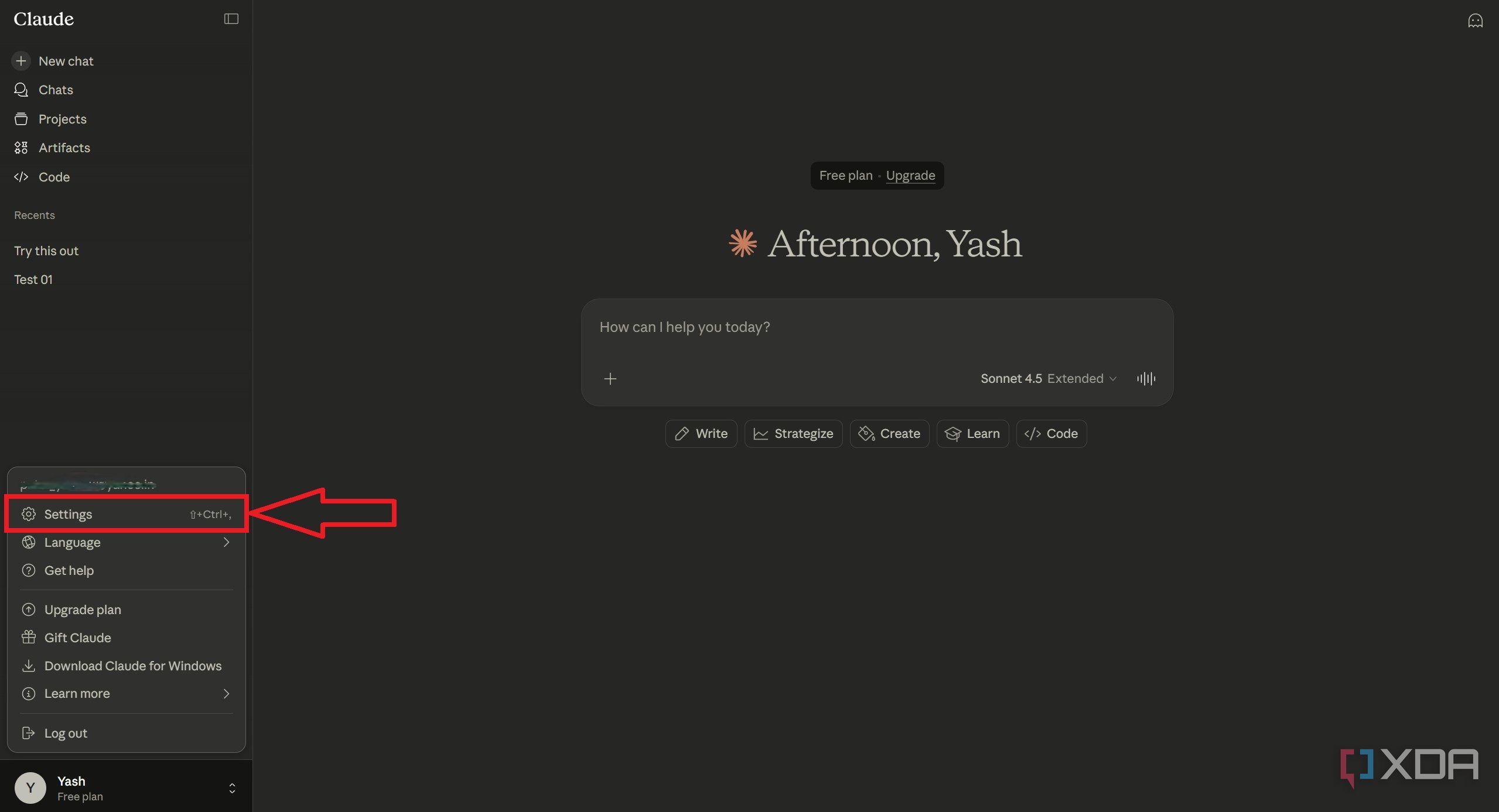
- Browse available connectors: Inside Settings, I opened the Connectors section and selected Browse Connectors.
- Find Notion integration: In the Web category, I searched for Notion and clicked the + icon next to it.
- Start the connection: I then pressed the Connect button to begin linking Claude with Notion.
- Authorize with Notion: Claude redirected me to the Notion login page, where I entered my credentials.
- Select workspace: After logging in, I chose the specific Notion workspace I wanted Claude to access.
This will connect Claude with the specific Notion workspace. Now, you can access your Notion workspace from Claude.
It’s time to test the connection
Making sure Claude could see my Notion content
After finishing the setup on both sides, I wanted to confirm that everything was actually working. So I started with the simplest possible check; I asked Claude to explain my Notion workspace.
Within seconds, Claude responded with a clear overview of how my workspace was organized. It could see my pages, databases, and the structure I had created for managing notes and blog drafts. That immediately told me the connection was successful. I didn’t have to copy-paste anything or manually describe my setup; Claude directly understood my actual workspace.
What stood out the most was the accuracy. Instead of giving generic responses, Claude was referring to real content from my Notion account. It felt less like chatting with an AI and more like working with an assistant that already knew how I organize my work.
At that point, I knew the integration wasn’t just connected; it was usable. Now, the interesting part was figuring out how this could actually improve my daily workflow.

5 reasons why I use anything but Notion as a second brain
There are so many better options
My Notion workflow is more productive with Claude
My daily workflow became faster with Claude's assistance
Once I confirmed the connection worked, my daily workflow inside Notion started to feel productive. Earlier, most of my time wasn’t spent writing; it was spent managing information. I had to open multiple pages, search for old notes, copy content into AI tools, explain context again, and then bring the result back to Notion. Now that the loop is gone.
Claude already understands my workspace structure. When I ask something, I don’t need to describe where things live or what a page contains. It reads my actual notes and responds based on them. That alone removed a lot of repetitive effort.
One big advantage is that I can also create things directly through Claude. I can ask it to create a new database for blog ideas, add properties, or generate tasks for an article workflow. Instead of manually setting up pages and checklists, I just describe what I need, and it prepares the structure inside Notion. It feels less like operating software and more like delegating work to an assistant.
Clarity also improved. My idea pages are usually messy with random thoughts, rough outlines, and half-written sentences. Instead of manually cleaning them, I ask Claude to organize them. It turns scattered notes into a readable structure while keeping my original intent. I still stay in control, but I no longer start from chaos.
Another benefit is continuity. While writing blogs, I often forget what I previously wrote about a topic. Earlier, I had to manually search across folders. Now Claude can quickly understand related notes and keep my writing consistent.
Most importantly, I stay inside Notion. Writing, planning, task creation, and structuring happen in one place, rather than jumping between tabs. The result isn’t that Claude writes for me; it removes the overhead around writing, helping me publish faster and more consistently.

From chaos to cruise control
Connecting Notion to Claude isn't just a technical upgrade; it’s a mental one. By removing the "copy-paste tax" that usually drains a freelancer’s energy, I’ve reclaimed hours of deep work time every week. The real magic isn't in the AI doing everything for you; it’s in having a digital assistant that actually remembers where you put your notes.