
For the uninitiated, time-lapse photography involves taking pictures of the same subject for days, months, or even years, before combining them into a long video. This gives the video a time-lapse effect, where time seemingly passes at a much faster rate.
Requiring solid photography and editing skills, time-lapse films are a great way to showcase the changes occurring in a subject over long periods. But if you’re just starting out, there is no point in spending thousands of dollars on high-end equipment. With a little bit of elbow grease, you can convert your Raspberry Pi into a full-fledged time-lapse camera.
Raspberry Pi 5 review: The holy grail of DIY projects got even better (and rarer)
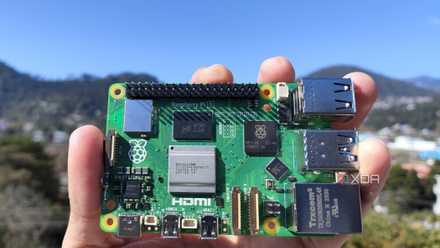
The Raspberry Pi 5 is one of the most powerful consumer-grade SBCs out there. Sadly, its limited stock means you'll have a hard time finding one.
What you’ll need
Since time-lapse cameras aren’t particularly taxing, you use any mainline Raspberry Pi for the project. In fact, even the low-powered Raspberry Pi Zero models are fully capable of capturing and processing time-lapse content. However, you need to be extra careful when plugging your camera module into your RPi Zero, as they are notorious for their fragile plastic connectors that can break off with the slightest pressure.
The choice of your microSD card depends entirely on your camera module. If you’re using an expensive camera that can capture 4K snapshots, you’ll require more storage. I recommend getting at least a 64GB microSD to avoid running out of space. You’ll also need an operating system pre-installed for this procedure. I’ve used the GUI-based 64-bit version of Raspberry Pi OS, but you can also pick the CLI-based Lite edition if you’re only planning to use terminal commands to take the time-lapse snapshots.
Finally, you’ll need a camera that plugs into the CSI/DSI connectors or the USB port of your Raspberry Pi. I used an affordable webcam alongside an old Raspberry Pi camera module for this project, though you should stick to the official RPi camera kits if you want to set up a GUI-based timelapse camera.
The Raspberry Pi 5 and Zero boards utilize smaller DSI/CSI connectors than other models in the uber-popular SBC family. Since most camera modules on the market use standard-size ribbon cables, you’ll require an adapter to fix the camera in the DSI or CSI port of your Raspberry Pi.
-
Raspberry Pi 5
- CPU
- Arm Cortex-A76 (quad-core, 2.4GHz)
- Memory
- Up to 8GB LPDDR4X SDRAM
- Operating System
- Raspberry Pi OS (official)
- Ports
- 2× USB 3.0, 2× USB 2.0, Ethernet, 2x micro HDMI, 2× 4-lane MIPI transceivers, PCIe Gen 2.0 interface, USB-C, 40-pin GPIO header
- GPU
- VideoCore VII
- Starting Price
- $60
-
SanDisk 256GB Ultra microSDXC card
-
Arducam for Raspberry Pi
Building a time-lapse Raspberry Pi camera using terminal commands
Assuming you’ve installed the OS and connected the camera module to your Raspberry Pi, there are different ways you can convert the SBC into a time-lapse camera. While it’s not exactly intuitive or user-friendly, you can execute certain terminal commands to capture a series of images and convert them into a stop-motion film.
1. Open the terminal app.
2. Test whether your camera works by running the hello command from the libcamera library.
libcamera-hello
3. After verifying that the camera module is detected by the RPi, use the libcamera-still command to force the camera to capture photos at repeated intervals.
libcamera-still -t time_value --timelapse interval --width w --height h -o image.format
The time_value variable denotes how long your time-lapse camera will run in terms of milliseconds. The interval value, on the other hand, depicts the time interval between two successive images. Finally, the w and h values showcase the width and height of the images, while the image.format denotes the picture name followed by its format.
For example, if you wish to capture 50 images, with the time interval between every snapshot being 1 second, you can enter the following values:
libcamera-still -t 50000 --timelapse 1000 --width 640 --height 480 -o image_%03d.jpg
4. Once you’re done taking the pictures, you can convert them into a time-lapse video using the ffmpeg command:
ffmpeg -framerate frame -i image.format video.format
Where frame is the frame rate of the video, image.format is the file name of the snapshots used as input, and video.format is the name of the video created with said pictures. We’ve used the following command to create a file called mytimelapsevideo.mp4 with a frame rate of 2FPS.
ffmpeg -framerate 2 -i image_%03d.jpg mytimelapsevideo.mp4
The images created by libcamera and the video compiled by ffmpeg will be stored inside the Home directory of your microSD card.
Building a time-lapse Raspberry Pi camera using RPiCamGUI
Although you don’t need to install additional software to use the libcamera library, it’s not very user-friendly. For those looking for a simple GUI time-lapse camera app, I recommend setting up the RPiCamGUI project created by developer Gordon999.
1. Execute this command in the terminal to install Python3.
sudo apt install python3 -y
2. Next, install the OpenCV library and all its image-processing tools using the install command:
sudo apt install python3-opencv -y
3. Grab the RPiCamGUI project files with the curl command.
curl -fsSL https://raw.githubusercontent.com/Gordon999/RPiCamGUI/main/RPiCamGUI.py -o ~/RPiCamGUI.py
4. Run the app with the following command:
python3 ~/RPiCamGUI.py
5. Tweak the Duration, Interval, and No. of Shots options before clicking on the Capture Timelapse button.
You can also modify the image type, resolution, and other settings to customize the time-lapse images. The images will be stored in the Pictures folder of the Home directory.
6. Assuming you haven't captured any other images in the Pictures folder, you can use the '*.format' tag with the ffmpeg library to convert all the snapshots in the folder into a time-lapse video.
ffmpeg -framerate 2 -pattern_type glob -i '*.jpeg' movie1.mp4
Building a time-lapse Raspberry Pi camera using your webcam
If you’re not keen on spending money on a Raspberry Pi camera module, then you can use your old webcam to create a timelapse camera. Unfortunately, neither the libcamera library nor the RPiCamGUI app were compatible with your run-of-the-mill webcams.
As such, we’ll use the fswebcam library to create time-lapse films on the Raspberry Pi. While there’s no easy-to-setup GUI app for your webcam, fswebcam is pretty simple if you’re well-versed with the terminal interface.
1. Open the terminal once again, and install fswebcam with this command:
sudo apt-get install fswebcam -y
2. Using the lsusb command, ensure your webcam is detected by your Raspberry Pi.
lsusb
3. Likewise, capture a picture using fswebcam to confirm the package works with your webcam.
fswebcam myimg.jpg
4. Run this command to capture the images for your time-lapse video:
fswebcam -l 5 --no-banner image-%Y-%m-%d--%H-%M-%S.jpeg
Here, the number adjacent to -l gives the time interval between two snapshots, while the --no-banner flag disables the fswebcam watermark from appearing in the photos.
5. Finally, you can use the ffmpeg command to convert these images into a video:
ffmpeg -framerate 2 -pattern_type glob -i '*.jpeg' movie1.mp4
Capturing minute details with your Raspberry Pi time-lapse camera
The time-lapse camera project becomes a lot more fun once you start adding more parameters to the terminal commands. Owners of Raspberry Pi camera modules can also experiment with the multiple toggles and settings available in the RPICamGUI app.
If you’re planning to put your Raspberry Pi and camera modules to good use, then a time-lapse camera isn’t the only project you can build! With a little bit of tinkering, you can turn the versatile SBC into a highly-capable security camera that’s capable of raising alerts upon detecting motion.

10 simple Raspberry Pi projects for beginners
You don't need to be a DIY god to create these projects with your Raspberry Pi