
The 100% disk usage error is a problem that occurs quite regularly on older PCs that still use hard drives (HDD) as their boot drive. This kind of error is more commonly seen on Windows 10 desktops, but has also been known to affect Windows 11 devices.
The error/bug pushes the performance of the hard drive to 100%, it then stays there consistently and becomes a major bottleneck taxing your system. The strange thing is that in this case, the drive will sit at 100% whether you are idle on the desktop or writing new data on the drive. If this error is affecting your hard drive, then follow along below to fix it in a few steps, if turning the computer off and then on again hasn't worked for you.

How to fix the SSD not recognized error in Windows
Discover how to resolve this frustrating issue
What causes 100% disk usage on a storage device?👁 Screenshot of the This PC folder in File Explorer
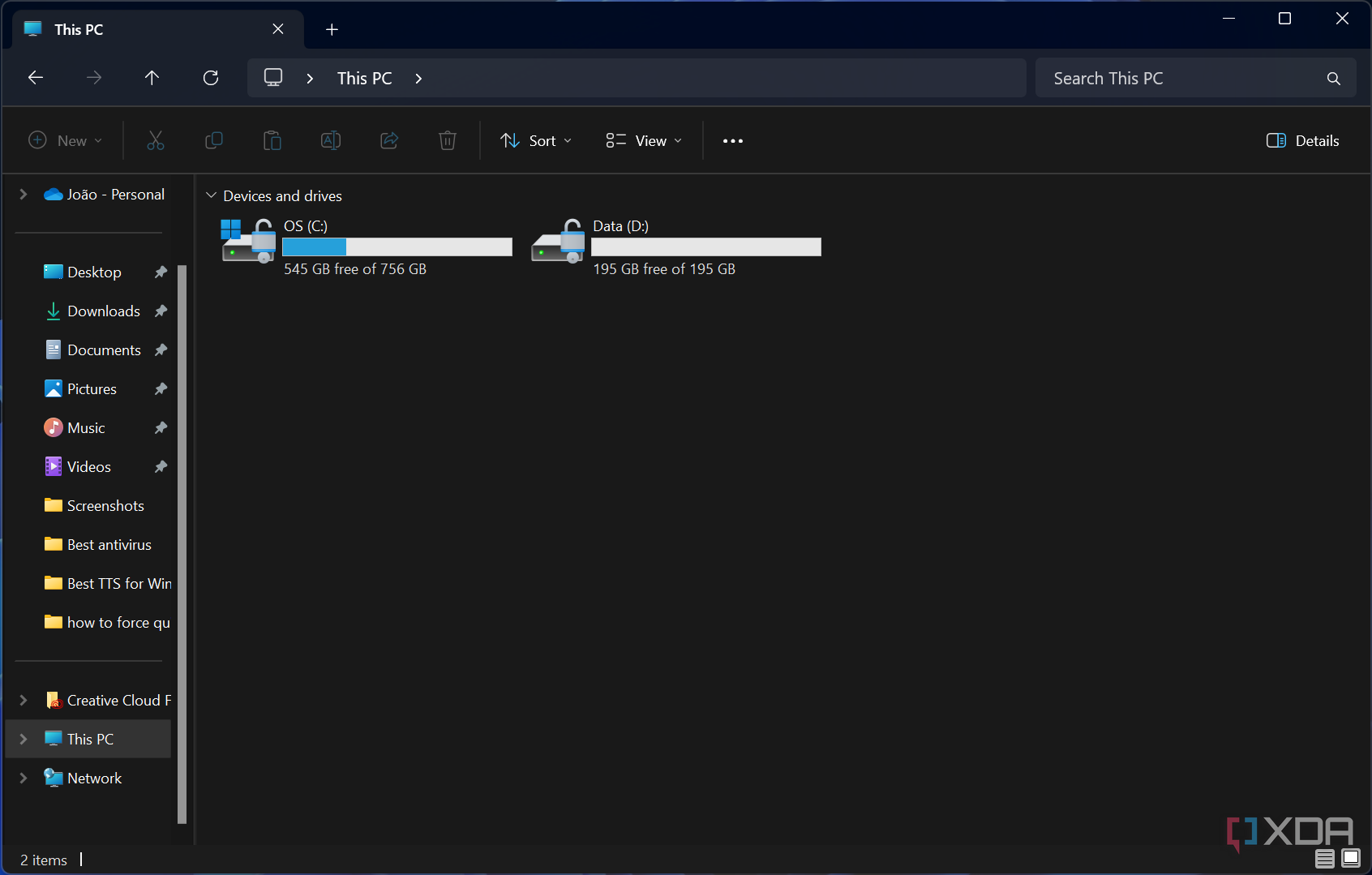
100% disk usage could be caused by almost anything. It could be that your PC just needs an OS update, maybe your hard drive is getting old, or it may need to be optimized or defragmented. This issue seems to be affecting older PCs that are on Windows 10 and still use a hard drive (HDD) as the boot drive.
In general, it is recommended to upgrade your PC with a new SSD, even if it's only 250GB size, just so that your operating system runs more smoothly. You can always use the HDD for extra storage, applications, and games. If the PC is not worth the upgrade right now or works as well as it needs to, then there are a few resolution steps you could try that may fix the problem.
The error itself is not particularly damaging, but constantly using the drive at 100% will still cause the hard drive to overheat, crash, or not work correctly over time. If you use your hard drive at 100%, it can also cause your other hardware, like your PC fans, to work harder to cool the PC.
How to spot performance issues in Task Manager
To start with, you will need to know how to look for buggy processes or unnecessary resource-intensive applications that may be running in the background. Most importantly, you'll need to constantly check back into the performance and process tab with the task manager.
- Search for and open your Task Manager.
- Open the Performance tab. Click on each Disk tab and look at the utilization percentage.
- Next, open the Process tab. Click on the disk tab at the top, and look at which processes are using the most resources.
- Make sure to check both of these tabs again after each tutorial section below, to see if the numbers improve.
How to use Error Checking and Disk Optimization on a storage drive
If you have an older storage device (HDD or SSD), or you have been using it for a long time, then it might be time to Check for errors and Optimize your drive.
How to scan for errors on your drive
- Go to the This PC tab in File Explorer and find the affected drive.
- Right-click on the drive and select Properties.
- Click on the Tools tab.
- Then, under the Error Checking section, select the Check option.
- Click on Scan Drive and wait for the scanning process to start.
- Scanning the drive could take a few minutes or hours, so you'll just have to wait for it to finish.
How to optimize and defragment a drive
- After you've scanned your drive, click on Optimize and a new window will pop up.
- Select the drive that has a 100% usage error, then click Optimize on the drive.
- Under the Scheduled Optimization section, click on the Change Settings button.
- Uncheck the box that says Run on a schedule and then press OK.
Disabling key services on older gaming PCs
If you are using an older PC for gaming and not much else, then you may want to disable a few background functions that you'll no longer need. To start, you will need to search for and open the Services application.
- Disable the Connected User Experience and Telemetry service. The Connected User Experience and Telemetry service is a function that many have called malware or spyware for years. This Microsoft service runs in the background and collects information that it can then use in other applications or services on your PC. Regardless of this claim, it has shown the possibility of fixing a 100% disk usage problem by disabling it. Luckily, it doesn't affect any major systems.
- Disable the SysMain/SuperFetch service. The SysMain, previously known as the SuperFetch service, works by loading multiple “key” applications (Edge/Google/Launchers/Startups) in the background so that when you click on an app it will load faster. It has also been known to contribute to 100% disk usage. Disabling this service can lower your background disk usage, but other applications will take slightly longer to load onto your PC.
- Disable the Windows Search service. This step is Not Recommended if you plan on using your PC for any general work tasks in the future. The Search function is a core service, so disabling it may cause issues when you are navigating through the Windows menus. If you are only gaming or using a specific set of applications on the PC, then you don't need this service.
How to disable services on Windows
The process for disabling the service will be the same for all three services, so just follow steps 2-4 for the services you'd like to disable. Don't forget to check the disk's performance after you disable each service.
- Scroll down the Services list, then double-click on all the Connected User Experience and Telemetry / SysMain / Search services.
- Change the Startup type from Automatic to Disabled.
- Now click on the Stop button underneath the Service status tab.
- Click on Apply and then on OK.
Your disk usage should be normalized!
If all the steps worked correctly, then your hard drive shouldn’t be stuck on 100% usage anymore, or at the very least it should have lowered its disk usage substantially. If the problem happens again or there are other potential issues with your drive, then it's advisable to back up your data and look into buying an SSD for your PC. Or, at the very least, your hard drive could use a complete reformat and fresh installation of Windows.