
If you’ve used a Windows PC in the past few years, you’ve interacted with OneDrive. This cloud storage solution from Microsoft is built into Windows 10 and newer systems, and if you signed in with a Microsoft account when you first set up your PC, you’re likely already set up to use the software. OneDrive, like most cloud backup programs, can be tough to troubleshoot when things aren’t working as you expect them to, or if your files aren’t synced when they should be. There are some steps you can take to get the software back up and working as it should.
Check your settings
Some settings can delay synchronization
The first place to start is the Settings in the OneDrive app. OneDrive is likely already present in your system tray as a cloud icon. Make sure you’re signed in to OneDrive using the right account. You’ll need to use the same account on another device to sync your files, so make sure it didn’t default to an alternate account, causing a discrepancy. If your OneDrive icon has a pause symbol on it, you should see a message that the files are not currently syncing in the OneDrive window. Click on the message to resume syncing.
Next, enter OneDrive Settings by clicking the gear icon and then Settings in OneDrive. Click Sync and Backup on the left-hand side of the Settings window. There will be an option to pause syncing while in battery saver mode, as well as one to pause it if you’re on a metered connection. If these are selected, and you want to leave them selected, then make sure your PC isn’t presently in battery saver mode by clicking the battery icon on your system tray. Also, make sure you’re connected to an internet connection that isn’t metered. You can see whether or not a connection is marked as metered or not in the connection properties of your internet connection.
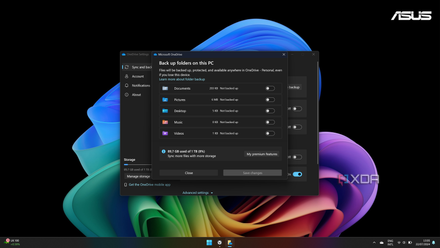
If everything looks right so far, but your files still aren’t syncing, make sure you’ve selected the containing folder in your backup settings. In the same OneDrive Settings as before, with Account selected, click the Choose folders button. Here you will be able to choose which folders will sync to OneDrive. Make sure the location of the file you wish to sync is selected. By default, this should include your Desktop and Documents folder.
If you’re trying to back up a file from a portable drive, like a USB flash drive, you’ll need to move it into a OneDrive folder. You can right-click the file, select OneDrive, then Move to OneDrive to quickly add it to your primary OneDrive folder. You could also manually paste it into a folder that is synced to OneDrive. After that, the information should begin to synchronize.
Restart the app
Have you tried turning it off and on again?
Even though it’s a bit of a meme, turning it off and back on can help solve some issues and will force OneDrive to re-establish its connection. To exit OneDrive, click the OneDrive icon in the system tray, then click the gear in the top right of the window. Expand the Pause Syncing option, then select Exit OneDrive. This should close the application and stop the syncing process. The files stored on your PC will remain available.
Then restart OneDrive by searching for the program and opening it. If you have the luxury, you could also restart your PC and OneDrive will open again on its own (presuming you haven’t manually disabled OneDrive as a startup app on your PC). If you weren’t using OneDrive when you first set up your PC, you may have prevented the app from opening and may have to enable it again. The easiest way to check is the Startup Apps section in Task Manager.
You can also try unlinking your PC in OneDrive's Settings. Once you do this, the app will ask you to sign in again, so you can make sure your account is signed in correctly. Luckily, files saved locally will stay on your system and will still be available once you sign back in.
Check your system
Are your files accessible?
One other thing to keep in mind is that files can be synced if they’re in use. For example, if you’re working on a Photoshop file or typing in a Word document, it won’t be synced until you close the file. Once you close the application, the file should resume syncing.
If you’re waiting for files to download to your PC, make sure you’ve got enough space available. OneDrive won’t be able to sync if there’s not enough space to download the full file. You should clear some space on your PC to get the files to sync. That doesn’t always mean you have to delete files, there may be other ways to reclaim some space.
Keep a local copy of important files
If you’ve got important files that you want to ensure will be available locally, you can. If you right-click a file in a OneDrive synced folder, there will be an "Always keep on this device" option. This will prevent OneDrive from removing the local version of this file to free up space on your PC. Keep in mind that if you do this with a lot of larger files, you can use up quite a bit of your computer's storage space in a hurry. Still, it’s nice that Microsoft makes it easy to keep a local copy of your files so you can be sure you’ll have the most important files if an internet connection isn’t available.
If OneDrive isn't working well for your needs, there are a handful of strong OneDrive alternatives to consider.
How to turn off OneDrive folder backup in Windows 11
Windows 11 comes with an annoying feature that automatically backs up and syncs certain folders with OneDrive. Here's how to turn it off.