
If you have just bought a new PC, or you are pressing a spare machine into action for serious audio and video work, you will need to ensure it’s up to the task at hand. Windows can suffer from audio and visual dropouts or glitches due to system latency. This can ruin the quality of live streams and recordings.
Thankfully, there are tools to check and analyze whether your PC is up to the task. Once we have gathered the required information, I’ll explain the things you can do to improve its performance.
What is latency, and how does it affect audio and video work?
Windows is, by design, a multitasking operating system, meaning that it is designed from the ground up to divide its time between many competing processes and functions. This includes running system services in the background, keeping you connected to a network, managing system power, and running your applications. It can get busy.
The result of this congestion is that applications, drivers and services can cause system delays, which can affect audio and video quality in the form of pops, clicks, stuttering and even freezing. This can be either mildly annoying or utterly ruin the output quality of an audio or video production.
This isn't entirely a fault with Windows itself, but rather in the way that audio and video streams are not given dedicated real-time system access. Latency occurs when Windows cannot provide timely or uninterrupted access to hardware or system resources required by music or video applications to produce glitch-free output.
Which PCs are suitable for audio and video work?
Due to the diversity of the PC ecosystem, there are no fixed rules which determine if a machine will be suitable for this type of work. I’ll start with the bad news first. There are PCs in the world which are never going to be suitable for work of this kind. In my own experience, I have encountered PCs which cannot be updated or tweaked in any way to run audio and video without dropouts. Those machines have been unsuitable for this work regardless of their CPU core count, CPU speed, memory size, or system drive type. I believe this is due to a combination of poor drivers, chip sets, and underlying firmware interfaces coming together to create a high degree of latency.
The good news is that many new PCs are either suitable out of the box or can be updated and tweaked in small ways to improve latency response. Dedicated music production forums and websites can be found which provide PC model recommendations from experience, or even exhaustive lists to show which machines perform the best.
Just because a PC once had good latency performance and is on a list, doesn't mean it is still a good performer. Only testing can reveal how well it works for you.
How to evaluate your PC for latency
The application I prefer to use for benchmarking a PC for audio and video suitability is called LatencyMon, and it's free to download a home edition. So, head over to Resplendence.com and download the latest version and install it.
Testing process
To start with, begin a test without making any changes to your PC, leave any audio or video kit you’d normally use plugged in, but initially don't have your music or video software up and running yet.
Keeping things simple at this stage will allow us to diagnose the system's shortcomings.
For this test to be useful, you ought to leave the test running for as long as possible to gauge how stable the PC will be for you. Consider leaving it for the time that you would need to rely on it for a critical streaming or audio recording session.
I’d recommend a test of at least an hour at the very minimum.
- Reboot the machine you wish to test, and once it’s logged in, give it about 10–15 minutes to settle down before launching LatencyMon.
- Launch LatencyMon and click on the green arrow on the top menu bar to begin monitoring.
- At this stage you’ll see green to red bars moving which show results for DPC latency, ISR execution time, and hard page faults. You’ll also be offered a conclusion which is updated constantly, showing whether your system is doing okay or is having some problems.
- Once you have collected data for a sufficient amount of time, click the red square button on the top menu bar to stop monitoring.
Analyzing the results
If your system experiences issues with DPC, ISR or Page Faults, then LatencyMon will show this in the conclusion section. It will also offer up some sound advice (no pun intended) on things you can do to resolve it. I’ll focus on the key results tabs below.
Main tab results
From the Main tab you will be able to see what has caused the biggest issues. In the example I have created, I see the NVIDIA video driver has caused the highest reported DPC execution time. In this case, it isn't too extreme, but on certain systems you may see these bars reaching red. Either way, the system is now getting a result which indicates that we might experience problems when it counts.
Drivers tab
You can head over to the Drivers tab and take a look at the highest execution times, DPC counts, and ISR counts for drivers. Here you can see any problematic drivers which are causing latency. In the example I have recorded, we can see more information about the NVIDIA driver performance along with an entry for LatencyMon itself. LatencyMon causes its own impact on the system due to its need to monitor, but it is nothing to worry about.
You don’t need to worry too much about drivers from Microsoft. Many of these are core system drivers and may experience issues due to third party drivers, which are causing the problems. Just focus on the non-Microsoft drivers that are high on the list for the time being.
Processes tab
In the Processes tab, you can use this as a useful reference for which processes or applications are causing hard page faults. The more you have running on a PC, the more focus they will steal from your important video and audio applications. In this view, we're focused on the hard page faults that each process is creating. Excessive page faults generated by some processes will cause a negative impact on audio and video quality.
With drivers and processes, if you are in any doubt as to who made them or what application uses them, there are company and product columns to reference. If that doesn’t help, then you can always search online to find out what exactly a process or driver is.
Some processes are essential and must keep running, like Windows Defender, for example. It’s best to focus on applications and services that we can control by either switching off services or not running non-essential applications.

How to lower CPU usage: 6 reliable ways to keep performance in check
Try these troubleshooting tips on your laptop or desktop.
Practical steps to resolve issues
After making changes to your system, you should go back and use LatencyMon to check your results before continuing. There is no need to complete every single step in this guide before retesting your system. You may be able to nail it with just a few of these suggestions.
Problematic devices
Some internal and external devices in your system may be impacting latency more than others.
While looking at results from LatencyMon, you may notice that tcpip.sys features highly. This can be caused by your PC's Wi-Fi card, as these tend to take up system resources. If you have the option to use an Ethernet cable connection instead, they don't generally cause as many issues.
You can try temporarily disabling Wi-Fi in the following way.
- Go to Start, type Device Manager.
- Navigate to network adapters and right-click on the name of the network adapter you wish to disable and select disable device.
- If you wish to enable it again, follow the same steps as above but instead select enable device.
Update problem drivers
If you see evidence of certain drivers causing issues, the most logical thing to do is to try and update them. Look for updates directly from the manufacturer’s website. Check out our excellent guide which shows you how to update your drivers in various ways.
Revert to older, more stable drivers
In a reverse approach, you can also seek older drivers to install. Newer is not always better, as every update is a change. It’s quite possible for a manufacturer to introduce something which causes instability. Going back to the manufacturer's driver website, you should see earlier drivers listed which you can test and use if they work out better. Below I have inserted an article which covers rolling back graphics card drivers. The section which covers driver roll back using the device manager applies to all drivers which have been updated.
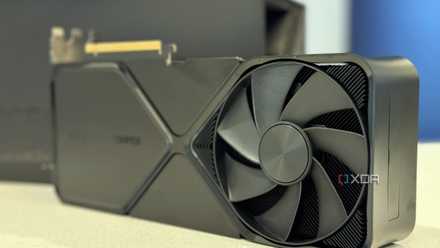
How to roll back Nvidia drivers on your Windows PC
Not all driver updates are good for your PC, so it's important to know how to roll them back.
Consider manually installing and updating drivers
Windows increasingly offers automatic updates for drivers and firmware through Windows Update. If you are trying to keep a stable system, these automatic driver updates may mean you are unaware of updates. This in turn might mean you end up with problems when you least expect them. Microsoft has made the process of excluding driver updates from Windows updates a little tricky and, as such, we'll need to use the group policy editor.
How to disable Windows update driver updates
On your keyboard, press the Windows key + R and type gpedit.msc and hit the enter key or the OK button.
On Windows 10
Navigate to the following location and complete the following steps.
- Go to Computer Configuration → Administrative Templates → Windows Components → Windows Update.
- Double-click on the entry called Do not include drivers with Windows Updates and then click Enabled. Click OK and close the remaining windows.
On Windows 11
Navigate to the following location and complete the following steps.
- Go to Computer Configuration → Administrative Templates → Windows Components → Windows Update → Manage updates offered from Windows Update.
- Double-click on the setting called Do not include drivers with Windows Updates and then click Enabled. Click OK and close the remaining windows.
The upside is that you will be responsible for updating your drivers and firmware manually, so you can control when this happens. The downside is that this is a job that is ridiculously hard to keep on top of if you are doing it driver by driver. There are many good reasons why firmware and drivers should be updated regularly.
If you do decide to go this route, then I would recommend re-enabling these automatic driver updates via Windows update periodically so you can at least control when this all happens. Or better yet, use a manufacturer's dedicated updating tool to selectively update your system's drivers so you can select what you want to download yourself. Dell, HP, and Lenovo are just a few companies that provide their own driver update tools.
Applications and services
Everything running on your system has the potential to cause interruptions to audio and video throughput. Use the following principles on your audio and video production PC to ensure it performs well.
- Only install the essential applications you need for audio and video work.
- Avoid installing devices which are not essential for your audio and video work. Many peripherals come with additional software and services which may impact performance.
- Uninstall all non-essential software and clean up the PC you wish to use as your main workstation using our guide.
- Don’t run software you do not need while you are using critical audio and video applications.
Disable the Windows search indexer service
You can also try temporarily disabling the Windows search service, which has been known to cause problems with system latency. The Windows search indexer is useful for helping to find your documents and emails, so it’s only worth disabling if it causes you problems. If this does help, then you can just disable it when needed and re-enable it after a streaming or audio production session.
- You can do this by pressing the Windows key + R and then type services.msc and click OK.
- Find the Windows Search entry, double-click on that and select Disabled from the startup type drop down menu.
Adjust power saving settings
In a bid to keep energy use down, Microsoft and hardware makers dynamically control how much power your system uses. This is great for saving electricity, but the technologies involved either at the hardware level or at the operating system level can mean interruptions to audio and video as the system scales up and down its power use.
Windows power settings
If your system still isn’t behaving after adjusting drivers, applications and services, it’s time to look elsewhere. Changing your Windows power settings to high performance can stop interruptions caused by these dynamic changes in power scaling.
On Windows 10
- Using the keyboard, press the Windows key + R and type control and hit enter or OK, then click on Power Options.
- There you should be able to choose a high-performance power plan. Your options may vary. Just try to pick the one which has high performance as a description.
On Windows 11
- Click on the Start menu.
- Navigate through Settings → System → Power & battery.
- Go to the Power mode drop-down.
- Select Best performance from the drop-down menu.
Manufacturer utilities for adjusting power
On many PCs, manufacturers may have their own system configuration software which may allow for adjustment of power settings which go beyond what Windows provides.
It’s worth checking those utilities out to see if they offer anything additional for adjusting performance.
Adjusting UEFI/BIOS power settings
Well, if you arrive at this point and still have concerns, then all other testing and adjustments have been made, but you’re still not seeing good system stability. The last thing you can try is to adjust the underlying power reduction technology. This will mean higher power use, noise, and heat, but on some PCs this has been the only way to drastically improve latency on several systems I have tested.
- On Intel systems, you can disable and test the Intel speed step, enhanced Intel speed step and CPU power management.
- On AMD systems, you can also try disabling CPU power management, but on AMD systems, performance is suitably controlled via the Windows power settings.
To reboot Windows and get into UEFI/BIOS settings
- On Windows 10, go to Start → Settings → Update & security → Recovery.
- On Windows 11, go to Start → Settings → Recovery.
- Click the button to Restart now.
- You will then be presented with the Windows recovery options. Select Troubleshoot → Advanced options → UEFI firmware settings → Restart.
After this, you should be in your system UEFI/BIOS where you can find your system's power options and selectively disable Intel speed step/enhanced Intel speed step, and you can also disable CPU power management.
Still having problems?
The steps and testing provided above should have improved your PC’s audio and video latency. If you are still facing issues, then I’d recommend checking out the in-depth documentation for LatencyMon as well as seeking further information on dedicated forums which are specific to your PC model. You can also check dedicated forums for audio and video producers for advice and tips.
Everything checks out
All being well, you should end your testing sessions with everything showing green, without seeing DPC or ISR routines exceed 2000 microseconds. When this is the case, you should be good to continue and run the tests again, but this time while completing your normal workload if possible.
It’s important to test your machine under the same conditions it will be under while using your audio and video hardware. If it passes those tests, your machine should be ready for doing real-time audio and video work.