
The taskbar in Windows 11 (and previous versions) is a great way to keep your programs and apps organized, but those of you who prefer a cleaner desktop might have it set to auto-hide instead. That leaves the taskbar off the bottom of the screen, and it will only slide back into view once your mouse cursor is brought near the edge. At least, that's the intended behavior, but what if it stops working that way? Even on the newest AI PCs, the taskbar can occasionally misbehave, even after you've restarted your computer. If so, some basic troubleshooting should get your computer's taskbar working again.
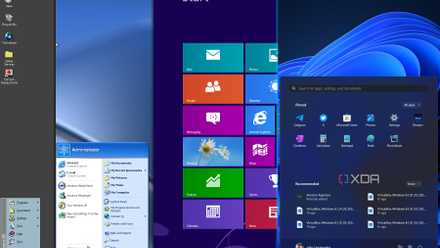
Evolution of the Windows Start menu: How we got to where we are today
The Start menu has been a staple of Windows for nearly 30 years. Here's how it's evolved in that time.
How to fix issues with the taskbar auto-hiding
It's usually a quick fix
If you've set your Windows taskbar to auto-hide, it can be confusing if it stops doing so, or even worse, if it doesn't appear as it should when you put your mouse at the edge of the screen. After all, the taskbar is one of the more important parts of the Windows UI, enabling you to access the Start menu, run programs, and perform other actions with minimal clicks. Often, a restart of Task Manager will fix the issue, or re-setting the option for auto-hiding the taskbar.
- Press Ctrl + Alt + Del and select Task Manager from the list. You could also press Win + X, or right-click the Start menu if the taskbar is in view, then select Task Manager from the list.
- Find Windows Explorer in the list of programs, and right-click on it. Then select Restart from the pop-up menu, and wait for Windows Explorer to restart.
- Sometimes Restart doesn't work, so try End Task, then navigating to Run new task, enter explorer.exe then click OK.
Ensure the taskbar auto-hide settings are enabled
If the taskbar is still not auto-hiding, it's time to ensure that the settings are correct. Even if the auto-hide setting is enabled, try turning it off and then back on again.
- Right-click on the taskbar (if able) and select Taskbar settings.
- Or, if you can't see the taskbar, press Win + X then select Settings from the list, and navigate to Personalization > Taskbar to get to the same menu options.
- Click on the Taskbar behaviors section to expand it. If you want the taskbar to auto-hide, make sure the checkbox next to Automatically hide the taskbar is checked. Go a step further to un-check it, pause, then re-check it to refresh the setting. Or if you prefer to look at the taskbar at all times, make sure the checkbox is empty.
Time for some in-depth troubleshooting of the taskbar
If none of the usually-reliable steps fix the issue you're having with the taskbar, there are some other things you can try to get it to auto-hide as you prefer. The first thing is to re-register the taskbar with Windows, which should put it back in a freshly installed state and sort out whatever is blocking the auto-hide behavior.
- Open the Start menu and search for Windows PowerShell. Click on Run as administrator, then click Yes on the confirmation dialog that pops up.
-
Paste the following command into the PowerShell window and press Enter.
Get-AppXPackage -AllUsers | Foreach {Add-AppxPackage -DisableDevelopmentMode -Register “$($_.InstallLocation)AppXManifest.xml”} - Once the command has run, you can close the PowerShell window.
Check if any apps need your attention
The Windows taskbar might remain visible when one of the active apps or programs running needs your attention. This is simple to check, as the app icon on the taskbar will be glowing. Click on the glowing app icon, and deal with the notification or other task that it wants you to accomplish. The taskbar should go back to hiding automatically once that's done.
The taskbar might also be prevented from hiding if one of your apps is frequently sending notifications. If so, you'll need to investigate which app it is and limit its notification settings. So, once you know which app is putting notifications on the bottom-right of your taskbar, open that app and see if its settings pages have a way to disable unwanted notifications.
If not, you'll have to block it from using the notification area in Windows Settings. Our in-depth guide to customizing notification settings in Windows 11 is linked below, but the short version is to open Settings, navigate to the Notifications tab, and find the app that's sending unwanted notifications and select the toggle next to it so that it grays out and disables notification access for that app.

How to customize notification settings on Windows 11
Notifications can be useful, but also overwhelming at times. Here's how you can customize notification settings in Windows 11 to your liking.
Run DISM and SFC to fix any lingering issues
The taskbar not behaving as intended could be a sign that system files are missing or corrupted. Windows has two tools to fix this: System File Check (SFC) and Deployment Image Servicing and Management (DISM). Running these tools will check your system for any files with issues, and then download fresh copies of any files it finds that aren't working properly. Once you've run both tools, restart your PC and see if the taskbar auto-hides as you prefer.
And if that doesn't work, try looking for issues with Windows Updates that could fix the issue. Our guide also has the steps for doing a System Restore, which you will want to check out if none of these other troubleshooting steps work to restore your taskbar to its auto-hiding self.
Auto-hiding the taskbar gives your desktop an uncluttered look
While I prefer to look at my taskbar at all times, I can appreciate the sleek, uncluttered desktop view when the taskbar auto-hides. Now, if that expected behavior stops for any reason, you should be able to get things working again. The taskbar isn't just for showing your currently used programs, or easy access to the Start menu. You can customize it with third-party apps to get additional functionality, and then maybe you won't want to hide it so much.

This third-party app adds features to the taskbar that Windows 11 users have wanted for years now
Microsoft has left Windows users bereft of some of Windows' best customization options. Fortunately, there's a mod for that.