
Some of the most significant changes made to Windows 11 by Microsoft are visual ones, like changing the way the Start menu and taskbar appear. For some users, that's great news, as it makes the operating system feel modern and fresh.
But while some (myself included) might think Windows 11 is a big step up from Windows 10, others might miss the more stylized look of older versions like Windows 7. Thankfully, you can make a few alterations to make your new laptop look a lot more like Windows 7. Most of this will require third-party tools, but there's at least one thing you can do without having to get any apps. Let's take a closer look.
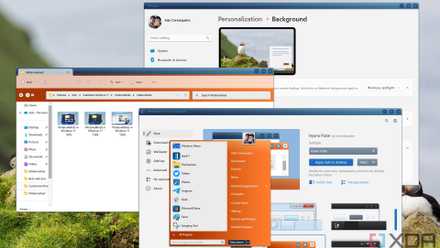
You can make Windows 11 feel like home — here's how to customize it
Windows 11 is a great operating system, but not everyone has to like how it looks out of the box. Here's how you can change
How to make Windows 11 look like Windows 7 without third-party apps
Unfortunately, Windows 11 doesn't have a lot of options built in to make it look like Windows 7, but at the very least you can fix up the icons on the taskbar and align them to the left, like they were before. Here's how:
- Open the Settings app.
- Select the Personalization tab.
- Select the Taskbar option.
- Turn off the toggles for Widgets and Task view, as well as disable the Search bar, to make your taskbar look as clean as it did back in Windows 7.
- Select the Taskbar behaviors option to expand it.
- Use the dropdown menu beside Taskbar alignment to select the Left alignment option.
How to make Windows 11 look like Windows 7 with third-party apps
Moving your Start menu to the left is all fine and well, but if you want your PC to look like Windows 7, you're going to need some third-party apps. And thankfully, there's more than one option catering to that specific need.
Make your Start Menu look like Windows with Start11
If you want your Start menu to look more like the Windows 7 style, you have a few options. The most prominent one is Stardock's Start11. To use it, follow thse steps:
- Visit the Stardock website and download Start11.
- Launch the installation file for Start11 from your downloads folder.
- Agree to the license agreement and click the Next button.
- Confirm the installation location and click the Next button.
- When the application launches, choose the Left aligned option for the taskbar.
- Then, confirm your Start menu theme is set to the Windows 7 option.
- After that, you're all set using a Windows 7 start menu.
You will need to pay up to keep using Start11 after 30 days, but if you like the results, it's totally worth it, plus it's a one-time payment.
If you want a free alternative, another great option is OpenShell. This is a free and open-source solution for replacing your Start menu, and it can do something similar. Here's how to use it:
- Download OpenShell from GitHub and run the installer.
- When you open the Start menu for the first time, the OpenShell settings will open. Select Windows 7 on the main page.
- Switch to the Skin tab.
- From the dropdown menu, choose Windows Aero.
- If you want, also enable the Reduce glass color option in the list below the menu.
- Click OK.
Your Start menu will now look a lot more like Windows 7's design.
Another cheap (but not free) alternative is StartAllBack, which also has an option for a Windows 7-like Start menu.
How to make your operating system look like Windows 7 with WindowBlinds 11
WindowBlinds is another Stardock customization app, and this one can change the look of your operating system in general, like app windows or the taskbar. It's an expensive app, at $20, but if you're okay with that, here's how it works.
- Download WindowBlinds from the official website and launch the installation file for WindowBlinds 11 from your downloads folder.
- Agree to the WindowBlinds 11 license agreement and click the Next button.
- Confirm the installation location and click the Next button.
- After WindowBlinds 11 launches, select the Download more styles tab.
- Find the Aero 11 style in the list, and press Download. This is the most similar theme to stock Windows 7.
- Return to the Styles tab and click Apply style to desktop.
- Now, your operating system will look like Windows 7.
Download the official Windows 7 wallpaper
The last thing you may want to do before finishing your Windows 7 theme is download the official Windows 7 wallpaper. This is an optional step, but it definitely helps complete the look. Here's how.
- Download the official Windows 7 wallpaper from here.
- Find the image in your Downloads folder.
- Right-click the image and click Set as desktop background.
Do you still prefer the Windows 7 look?
After you've completed all these steps, your Windows 11 PC will look a lot like a Windows 7 machine. You might be scared to try Windows 11 at first, but these steps will go a long way in making you feel right at home, plus you get a lot of new features from having a newer version of Windows. If you're familiar with Windows 7, it might make sense for you to take these steps to make your great PC look like what you remember.
-
Stardock Start11 v2
- OS
- Windows 11/10
-
WindowBlinds 11