
Designed to offer unparalleled convenience, smart home devices are perfect when you want to automate the tedious aspects of your living space. But once you’ve decked out your home with the coolest IoT devices and smart gadgets money can buy, managing them can be quite a hassle, especially if your paraphernalia includes offerings from different manufacturers.
That’s where Home Assistant shines thanks to its huge list of compatible devices and solid automation facilities. What’s more, if you’re running Proxmox on your server PC, you can deploy a virtual instance of Home Assistant to avoid relegating an entire machine to HASS.
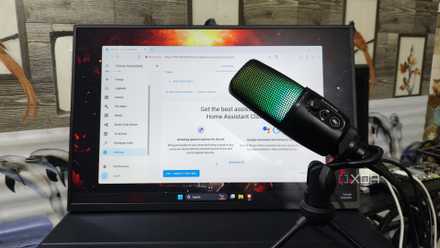
I control Home Assistant with my voice – here’s how you can too
Level up your smart home experience by adding voice control functionality to Home Assistant
Running Home Assistant as an LXC instance
Unlike VMs, containers work well when you want to reduce the performance overhead, and the same holds for a containerized instance of Home Assistant. Thanks to the Proxmox VE-Helper Scripts repository, you can have a HASS LXC container up and running within a few seconds.
- Navigate to the Shell tab of your preferred Proxmox node.
-
Paste this command into the terminal interface and hit Enter.
bash -c "$(wget -qLO - https://github.com/community-scripts/ProxmoxVE/raw/main/ct/homeassistant-core.sh)"
-
Alternatively, you can run the following command to host a more scalable container at the expense of consuming more resources:
bash -c "$(wget -qLO - https://github.com/community-scripts/ProxmoxVE/raw/main/ct/homeassistant.sh)"
- Press Yes twice and wait for the script to spin up the Home Assistant container.
- Enter the IP address displayed within the terminal into another browser window to access the Home Assistant web UI.
Running Home Assistant inside a virtual machine
While there are a couple of workarounds involving Docker containers, hosting HASS inside a container deprives you of the add-on store. Additionally, installing Home Assistant as an operating system inside virtual machines simplifies backup and update procedures while providing greater isolation compared to a containerized instance.
Unlike your typical VM, where you can use the ISO file to boot into the installation wizard for the OS, Home Assistant requires you to download the .qcow2 file and follow a longer procedure to deploy HASS… Or you could just use the Proxmox VE-Helper Script to automate the entire process.
- Once again, select your favorite Proxmox node and open its Shell tab.
-
Enter the following command into the Shell UI:
bash -c "$(wget -qLO -https://github.com/community-scripts/ProxmoxVE/raw/main/vm/haos-vm.sh)"
- Tap Yes twice to initiate the VM creation process.
- Once the Completed Successfully message appears, select the newly-created virtual machine and head to its Console window.
- Wait for the OS to boot up before using the IP address displayed in the terminal to launch the Home Assistant web UI.
Configuring the Home Assistant web UI
Whether you’ve installed HASS inside a virtual machine or are running it as a containerized app, you can follow the same steps to set up the web UI and add your favorite smart home gadgets to the Home Assistant server. We have a dedicated guide covering every aspect of Home Assistant, but here’s a general outline of the procedure:
- Once the Preparing Home Assistant message disappears, press the Create My Smart Home button.
- Enter the Name, Username, and Password before tapping Create Account.
- Set the Location and Country of your system.
- Ignore the Data Collection options if you don’t want to send your private information to HASS and hit Finish.
- Inside the web UI, click on the Settings tab before choosing Devices & services.
- Select the Devices header and press the Add Device button.
- Pick the Brand of your smart device and enter the network information, device ID, and other details of your paraphernalia.
Building a Home Assistant server using your Proxmox machine
When you’ve added all your home devices to HASS, they’ll show up under the Dashboard and you can configure trigger-action scripts for them inside the Automation & scenes menu of the Settings tab. If you are concerned about exposing insecure smart gadgets to your home network, you can use Proxmox’s VLAN utility to isolate them on a separate subnetwork.

10 of the best add-ons for Home Assistant
Boost the capabilities of your smart home with these amazing Home Assistant plugins