
Backing up your data is one of the most important tasks in the modern age yet many overlook or don't care enough about it. Should an issue arise with their cloud storage provider or physical media, that's when regret hits and the 3-2-1 backup rule would have solved everything. This same rule should be applied across your entire family of electronic devices, whether a desktop PC, smartphone, or even network-attached storage (NAS).
Why you should perform regular backups
Having a single copy of data is considered wreckless in the technology world. That one photo, document, or other file could become corrupted, accidentally deleted, or stored on a failed drive. Unless you have success using a data recovery service, that data is lost forever. Backups are vital in protecting your data against accidental deletion, drive failure, or other scenarios outside of your control. In the world of cloud computing, more of our data is stored on servers owned by third parties.
We have no control over these servers, their networking infrastructure, and everything else in between their platform and our hardware. That's where the 3-2-1 and other backup rules come into play. By creating and storing copies of your data, you are protecting yourself against loss and even ransomware. Not only should you back up data to multiple storage devices, but it's recommended to store data in different locations. Cloud storage platforms can count as one location, another being your home.

What is the 3-2-1 backup rule?
I have adhered to the 3-2-1 backup rule for years and continue doing so today. It ensures I have multiple copies of all my data, including work, media, and even my Steam PC game library. Should I lose one copy, another two will be available for replacement. I'm also protected against hardware failure with two storage devices used. If you're unfamiliar with the 3-2-1 backup rule, here's a quick breakdown:
- 3 data copies.
- 2 storage devices.
- 1 backup stored off-site.
Create at least three copies of your data. Store all the copies on two storage devices, and keep one off-site. A storage device could be a desktop PC, a NAS, an external drive, or a cloud storage service. The latter could also count as an off-site location due to it being outside your home or office. Using this 3-2-1 backup rule will ensure you don't lose any data from unexpected scenarios.
A NAS can be configured with a redundant array of inexpensive disks (RAID), which can serve as protection against data loss through automatic recovery.

What is RAID (and how to set it up in a NAS)
RAID is worth checking out if you desire fast transfer speeds or want to protect your data against drive corruption (or even both, at the same time)
How to follow the 3-2-1 backup rule
Backing up your Windows PC, smartphone, NAS, or other device is straightforward and doesn't take long. Most hardware can even back themselves up automatically. We've created some guides on backing up a Windows 11 PC, a NAS, an iPhone, and an iPad. Android devices can be backed up too! I always recommend using a NAS at home for storing lots of data and backups. It's a good way to centralize the backing up of multiple devices, which can be handy for busier households.
How often you should back up devices depends on how frequently files are created or edited. I recommend a weekly schedule and backups should be kept for at least a month or two, just in case you need to revert to an older version for some reason. By following the 3-2-1 backup rule, you will protect yourself against natural disasters, human error, and cyberattacks. No backup strategy is perfect and even some are calling this 3-2-1 plan into question. If you want to be extra safe, follow a 4-3-2 rule with four copies, three storage devices, and two off-site locations.

How to use File History to backup your data automatically on Windows
Did you know Windows has a built-in tool to back up your files automatically?
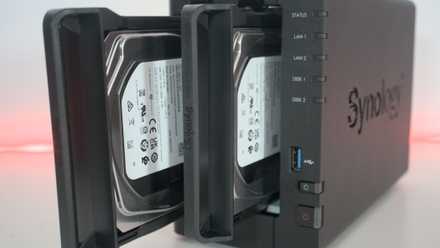
How to back up a NAS
Backing up a NAS is a bit of a complicated endeavor, and it's not really as simple as just plugging in an external drive and saving your data.

How to back up your iPhone or iPad with iCloud
Paranoid about losing your iPhone data? iCloud Backup is a secure and hassle-free feature that can solve your worries.