
Computers are useful for a lot of things, and even when you're no longer using them for your usual computer tasks, you can repurpose them into something else. One such option is to use your computer as a digital photo frame, which is easier than you might think. If you want to know how to do it, we're here to help with that.
The best way to do this on a Windows 11 (or older) computer is to create a screen saver. This used to be especially useful for preserving CRT screens by avoiding static images on screen for extended periods (hence the name screen saver), but now, you can use it to create a photo frame. Let's take a look at what you need to do.
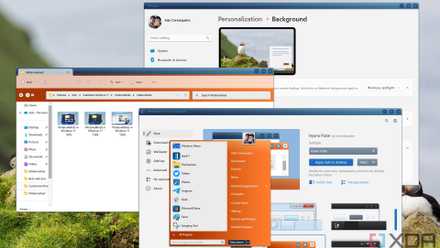
You can make Windows 11 feel like home — here's how to customize it
Windows 11 is a great operating system, but not everyone has to like how it looks out of the box. Here's how you can change
Adding pictures to the computer
First things first, you're going to need pictures to display on the photo frame. How easy this is depends on where your photos are, but you can use an SD card to copy photos from a camera, or use a cloud service to sync them from your phone. A tool like Quick Share from Google also makes it easy to send files from your phone to your PC without having to use the internet.

Google's Quick Share solution for Windows is better than Microsoft's
Nearby Sharing should have been the best way to share files on Windows, but Microsoft was too slow to capitalize.
Using a cloud service can make things easier though, especially if you keep syncing images to it automatically. For example, you can sync an album through OneDrive so that it automatically downloads new pictures as you add them.
What matters most here is ensuring that all the pictures you want to display are in the same folder. You can have pictures in sub-folders, too, but make sure you only have pictures you want to see inside the main folder you're going to be choosing.
Setting up a screen saver
Once the pictures are on your computer, you simply have to enable the screen saver in Windows to use the pictures you want. Here's how it works:
- Open the Start menu and start typing Screen saver.
- Choose the Change screen saver option (it should be the first result).
- In the dropdown menu, change the screen saver to Photos.
- Click Settings.
-
In the new window, click Browse and search for the folder wherew you stored the pictures you want to use.
Since OneDrive integrates with Windows 10 and 11, you can also search choose a OneDrive folder. However, you'll want to select the folder beforeahand and choose the Always keep on his device option to ensure the files are available to use.
- Use the dropdown menu to choose how fast pictures should change (Slow, Medium, or Fast).
- Click Save.
- You shouldn't need the Wait option, as it's set to the lowest value by default (1 minute). This determines how long you ahve to wait before the screen saver kicks in.
- (Optional) If you want to require a password for using the computer at any time, check the On resume, display logon screen.
- (Optional) Under Power management, click the Change power settings link and search for a Power saver plan. This will help reduce power consumption from your PC while using it as a photo frame, but not every computer has this option.
- Click OK to save your settings.
You should now be able to see your photo slideshow after the timeout period. However, you also need to ensure your computer won't go to sleep while it's idle.
Prevent the screen from turning off
After you set a screen saver, you may notice that your computer will turn off the screen after a few minutes, making the whole digital frame kind of pointless. This is because the screen saver setting kind of conflicts with Windows'power saving features, which turn the screen off after a period of inactivity. For the digital frame to work, you have to turn these settings off. Here's how:
- Open the Settings app (you can find it in the Start menu).
- Go to System and then choose Power & battery (or just Power, if you're using a desktop PC). If you're using Windows 10, choose Power & sleep.
- On Windows 11, expand the Screen and sleep setting (also called Screen, sleep & hibernate timeouts in Windows 11 version 24H2).
- Change the When plugged in, turn off my screen after dropdown menu to Never.
- Do the same for the option labeled When plugged in, put my advice to sleep after.
This will make it so that your computer screen stays on indefinitely, so you can enjoy your digital photo frame as it was intended.
Tips for using your PC as a digital photo frame
While you can easily use your PC as a digital photo frame, it is worth noting that laptops use quite a bit more power than dedicated photo frames, so it's a good idea to try and save power where you can. That's why we recommend following step 10 above and setting the power plan to Power saver.
If that option doesn't exist, you can still reduce power consumption by going into the Settings app and navigating to System > Power & battery. Here, you should set the Power mode to Best power efficiency. On Windows 10, you can click the battery icon on the taskbar and use the slider to adjust the power consumption.
Another good idea is to use automatic brightness if your computer supports it. In the Settings app, under System > Display, expand the Brightness section and make sure Change brightness automatically when lighting changes is enabled. This can help save some power as well.
One final recommendation is ensuring you have no other apps running on the PC. Using Task Manager, turn off startup tasks for apps you may have installed but aren't using. If you're using OneDrive photos, you'll want to keep the OneDrive process starting with the system. You might also want to turn on Do not disturb to make sure you don't get annoying notifications out of nowhere.
Add some personality to your home
If you have an old laptop lying around that you no longer use (or even better, a Windows tablet), turning it into a photo frame is a great way to repurpose it. It may be a bit more power-hungry than a dedicated photo frame, but at least there's no additional upfront cost, and the screen is likely much bigger than any photo frame you might buy.