
You’ve definitely heard of IP addresses; they essentially give you a digital address where other people online can find you. What you may not know is that when you connect to your router or mesh network, your device gets an IP address that other devices on the same network can use to find you, too. This local network is called a subnet, and it uses a range of private IP addresses specific to your network.
Depending on what kind of device you use, if you check what IP address you’re using according to your computer, laptop, or phone, chances are it will show you your local IP address. This usually starts with ‘192.168’, and is a private IP address within your local network. In other words, this IP address only exists within the confines of your home network, and nobody outside of your home network can contact it without first going through your router.
While most people don’t ever need to worry about what their IP address is in their home network, there are a few reasons why you may want to start using static IP addresses on your devices at home to improve your network management.

Why you should use a static IP address in your home network
Make local networking easier with dedicated IPs
Configuring your network to use static IP addresses
You'll need to make sure there are no IP conflicts
Before getting into assigning static IP addresses to the devices on your network, you first need to understand what your router's DHCP is and how it functions within your network.
DHCP stands for Dynamic Host Configuration Protocol, and it's a network management protocol used by routers to automatically assign IP addresses to devices connected to the network. When a device, such as a computer, smartphone, or smart home device, connects to your network, the DHCP server in your router assigns it an IP address from a pool of available addresses. This process ensures that each device has a unique IP address and can communicate effectively within the network without manual configuration.
That's not all the DHCP does, though. The DHCP server also manages an IP's lease times. This means that each IP address assigned by DHCP is temporary and can change over time. While this dynamic assignment simplifies the process of connecting new devices to the network and ensures efficient use of IP addresses, it can lead to some challenges in network management. For example, if a device’s IP address changes, it may become difficult to access it remotely or to configure network settings consistently.
Understanding DHCP is incredibly important because when you decide to use static IP addresses, you are essentially opting out of the DHCP-assigned addresses for those devices. Instead of allowing the DHCP server to assign an IP address automatically, you manually assign a fixed IP address to each device. This fixed address does not change over time, providing a consistent and reliable way to access the device within your network.
Because you are no longer using the DHCP to assign IP addresses to devices, you'll need to make sure that none of your devices have a conflicting IP address. Devices with the same IP address may experience intermittent connectivity problems, frequently connecting and disconnecting, resulting in poor network performance. On top of that, one or both of the conflicting devices might lose their connection to the network entirely, and when they try to resolve the conflict, can cause network congestion and instability for other devices on the same network.
Most routers will allow you to disable the DHCP, so we'd recommend doing that if you want to give all of your devices a static IP. Otherwise, a new device could connect and take an IP address from another device. Some routers will allow you to change the range of IP addresses the DHCP will assign out, so you could modify this either to ensure that you have a reserved block of IPs that you can use.

Best routers for gaming in 2024
Keep pings low and consistent with a router designed for gaming.
Why you may want to use static IPs in your home network
They're great for networking enthusiasts
Using static IP addresses instead of relying solely on DHCP can offer several advantages, particularly in scenarios where you need a consistent and reliable connection to one device on a network. A common example of this would be the management of servers within a business environment. Servers, such as web servers, email servers, and file servers, provide services that need to be accessible at all times. Assigning a static IP address to these servers ensures that their IP address remains constant, making it possible for other devices and users to contact them reliably. For instance, if a web server’s IP address changes due to DHCP, users may experience downtime or connectivity issues when trying to access the website.
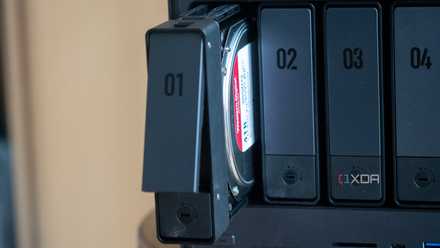
However, static IP addresses aren't just for businesses. If you have a NAS deployed at home, for example, you may want to look at giving it a static IP address. Otherwise, if its IP address changes on your network, you may have to try and guess what IP address it has moved to. If you use something like Jellyfin on a NAS on a Chromecast, it can be cumbersome to go and change the address that the Chromecast contacts to access your library.
While most users will never need to even think about static IP addresses in their home network, home networking enthusiasts should strongly consider them. They can make things a lot easier, and you can ensure that all of your devices are consistently contactable across the wider network.
8 incredible projects I completed with just my NAS
A NAS is a gateway into the world of computing, and it can teach you a lot.
How to set a static IP address
We'll show you on Windows, but it's easy on other platforms, too
If you've decided you want to go and give static IP addresses to all of your devices, it will depend on the operating system and the device you're using. We recommend checking out your device manufacturer's guides on how to do it, but on Windows, it's very easy.
- Right-click on the network icon in the system tray (bottom-right corner) and select “Open Network & Internet settings.”
- In the Network & Internet settings window, click on “Advanced network settings.”
- Click on the network connection you want to configure (usually “Ethernet” or “Wi-Fi”) and select “View additional properties"
- In the Properties window, select "Edit" beside IP assignment.
- Enter the IP address you want to assign, the Subnet mask (typically 255.255.255.0 for most home networks), and the Default gateway (usually the IP address of your router, e.g., 192.168.1.1).
- Enter the Preferred DNS server and Alternate DNS server addresses (often the same as the Default gateway or your preferred DNS service, such as Google DNS with 8.8.8.8 and 8.8.4.4).
- Click “OK” to close the Internet Protocol Version 4 (TCP/IPv4) Properties window.
That's it! So long as the IP address you chose doesn't conflict with any other devices, that will now be the IP address your computer uses on your home network. You can undertake similar steps for other devices depending on how it's done on them, but the concept is the same. It will make it significantly easier to manage your network if you want to play around with networking, and I highly recommend giving it a try!