
Google Photos is fantastic for backing up your devices to the cloud and saving memories for later enjoyment. The problem is it's owned and managed by Google, one of the largest tech firms in the world. That's perfectly fine for availability as there's hardly ever a time when Google Photos is unavailable due to a technical issue, but it means you're relying on the company to continue storing your media and protecting it against potential attacks. Not to mention there's always the potential for a free tier to be adjusted or removed altogether.
Many of these cloud services, Google Photos included, have limited storage space. It's servicable to get you up and running, but once you add more than one device to the backup plan and venture out to take plenty of photos and videos with friends and family, you can quickly find yourself running out of space. That's where a Synology NAS can solve all your issues. It brings all your media storage to your home, offers plenty of storage (depending on the drives used), and is almost free after purchasing everything.
I grew tired of relying on Google Photos and decided to build my own solution with a Synology NAS. Here's how it went.
What is Immich?
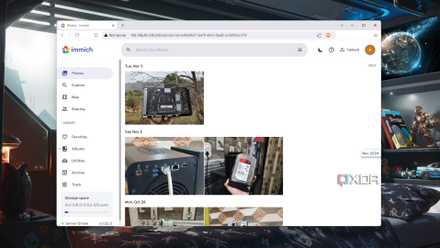
Immich is a free and open-source alternative to Google Photos, iCloud, and Microsoft OneDrive, and one that's a fully self-hosted image cataloging and backup solution. Like Synology Photos, Immich will let you upload photos and videos from any supported device, be it a PC or smartphone. The major difference between Immich and Synology Photos is the ability to install Immich on any device, making it a great option if you're not fully attached to the Synology ecosystem, even if you own a Synology NAS.
If you've ever backed up your media to cloud storage, you'll feel right at home with either Immich or Synology Photos. I've found Immich to work better thanks to its faster speeds and enhanced reliability, but that's not to say Synology's in-house developed solution isn't worth trying — It's also available for free to Synology NAS owners. As well as bringing media to local ownership, it's important for me to continue enjoying premium functionality, such as AI-powered facial recognition for registered names.
Immich ticks all the boxes by allowing this as well as multi-platform support, automated photo and video backups, geotagging, and more. It's also great at playing media from almost every device, something other image storage solutions can struggle with.

How buying a NAS can save you money vs. cloud storage
You can save money if you stick with it for long-term data storage.
Immich vs. Synology Photos
Synology Photos is a pretty good photo management suite. It does the job if you simply wish to have somewhere to stash some photos and videos. Where it falls short is if you wish to do anything else. I found the app to be horrifically sluggish with uploading data from mobile devices and it sometimes just refused to work, especially with various file types. Being a first-party app, it was also difficult to work on solutions since everything is locked down by Synology. All I could respond to family support requests was, "I hope the next version improves things."
Immich is developed for free and is available as an open source alternative to Synology Photos and Google Photos. Its facial recognition tech is far more robust and reliable than Synology's, and everything feels considerably more snappy after you've uploaded media and the software finishes its initial pass. With a larger library, I find Immich to be much more responsive when navigating through albums and the UI is sleeker, making it easier for even those less tech-savvy to use without sending support requests.
How I made my own photo hosting platform with Immich
Ditch Google Photos, iCloud, and OneDrive for this incredible (free!) backup solution.
How to set up Immich on Synology NAS
Installing Immich on Synology NAS isn't as simple as firing up Package Center and searching for it. DSM doesn't come supporting Immich out of the box like it does other apps within Synology's repository. That's okay as we can install Immich using a Docker container, the preferred method for any OS.
You will need at least 4 GB of RAM for Immich to work properly, though the developers recommend 6 GB for best performance.
Ready to get started? Here are all the steps you'll need to follow in DSM 7.2:
- Log in to your Synology NAS using your preferred browser.
- Install Container Manager from Package Center, if not already present on the system.
- Create a docker folder somewhere on your NAS. Inside this folder, create an immich-app folder and two subfolders: postgres and library. (Note that these need to be lowercase.)
- Download the docker-compose.yml and example.env files.
- Open docker-compose.yml with your favorite text editor.
- Search for and comment out start_interval: 30s. (Add an # before the line — This is because Container Manager doesn't support the docker healthcheck parameter.)
- Edit the example.env file, using the official install guide as a reference.
- Copy both files to your Synology NAS, within the immich-app folder.
- Rename example.env to .env.
- Open Container Manager.
- Click Project.
- Click Create.
- Eneter immich-app as the name.
- Click Set path.
- Navigate to your immich-app folder.
- Click Select.
- Click OK.
- Navigate through the install wizard.
- Click Done.
Once the NAS finishes installing the Docker container, you'll see the project up and running in Container Manager. If all went well, you can now load your Synology NAS IP into a new browser tab with the port 2283 appended (for 192.168.1.3, you'd enter 192.168.1.3:2283). Immich will now ask for some basic information to create an admin account and you'll be good to go! The platform will be ready to accept incoming data transfers and you can create user accounts for everyone within the household.