
Did you know that whenever you use your smart TV, its manufacturer tracks nearly everything you do and then uses that information to deliver targeted ads and sell your data to third-party vendors?
If you're like me and value your privacy, there's a simple way to stop automatic content recognition (ACR), a type of smart TV ad-tracking technology that collects nearly everything about your viewing habits. If you're not familiar with ACR, here's a quick explanation — it's constantly running in the background while you're watching content and identifies TV shows and movies you watch, whether you're using a streaming service like Netflix or Disney+, a game console like the PS5 or Xbox Series X, or Verizon's Fios TV One cable box — yes, even devices plugged in through HDMI are still tracked. Wild, right?
When ACR is on, thousands of images are captured while you watch content and then cross-referenced against a database of advertisements and media. No, major television manufacturers such as Hisense, Samsung, LG, Sony, and more didn't start pushing smart, internet-connected TVs several years ago due to the rise of streaming apps and overall consumer demand. As is often the case, there's an ulterior motive at play — and it involves selling your data.
While targeted ads aren't the worst thing ever and can, at least in some situations, be less annoying than random ads appearing on your TV that have nothing to do with your interests (I actually appreciate them sometimes), the data ACR collects can potentially be exploited in nefarious ways if it falls into the wrong hands, given the technology collects your email address, IP address, and in some cases, even your home address.
With that in mind, here are the steps I took to turn ACR off on my Hisense TV, and how to get rid of the constant tracking with popular television brands like Samsung, LG, and Sony.
In most situations, the option to turn ACR off is found in your television's privacy settings, but that isn't always the case. The setting to flip ACR off can also be really buried in multiple menus, which is more than likely intentional on the part of TV makers.
While I can confirm that the steps to turn ACR off should be identical across modern Hisense TVs that run Google TV as their OS, the method of turning ACR off with other TV manufacturers could be slightly different than what you'll find below (I don't own these TVs, so those steps are mostly based on research and past experience).

This simple trick fixed my laggy smart TV
If your smart TV's operating system is stuttering, clearing its cache is often a quick way to speed it up.
Stop TV manufacturers from tracking you
It usually only takes a few steps
How I ditched ACR on my Hisense U8H TV (Google TV)
- Press the Home Button on your TV's remote to navigate to the Main Menu.
- Highlight Privacy and click on it.
- You'll now see an option called Ads.
- A weird, text-filled screen will appear that takes a few seconds to load. Now, select Delete Advertising ID to stop ACR from tracking you.
Kill off ACR with your Samsung TV
- Head to Settings.
- Next, click on General & Privacy.
- Select Terms & Privacy.
- Look for Viewing Information Services.
- Uncheck I Agree.
Getting rid of ACR takes a few more steps with LG TVs
- Press the Home button on your remote to get to the Home screen.
- Next, select Settings (you can do this on your remote).
- Now that you're in the side menu, select Settings.
- Move to the General option.
- Now navigate to System and then Additional Settings.
- Find the Live Plus option.
With LG TVs, you can also turn off even more ad tracking features under Additional Settings.
- Tap the Home Button on your remote and select Settings.
- Select Advertisement under the Additional Settings Menu.
- Flip Limit AD Tracking to on.
Removing ACR from Sony TV's is a straightforward process
- Press the Home Button on your remote to get to your TV's main menu.
- Find the Settings option.
- Select Initial Setup.
- Locate Samba Interactive TV (this is Sony's name for ACR).
- Turn off Samba TV.
Turn off tracking on your Roku-powered TV (TCL)
- Tap the Home Button on your Roku TV remote and select Settings > Privacy.
- Select Advertising.
- Look for Limit Ad Tracking and select it
- Uncheck Personalized Ads.
You can also take advantage of an additional option on Roku TVs that ensures even more privacy.
- Press the Home Button on your remote control.
- Select Settings in the main menu.
- Look for the Privacy option.
- Find Smart TV Experience and select it.
- Uncheck the option labeled Use Info from TV Inputs.
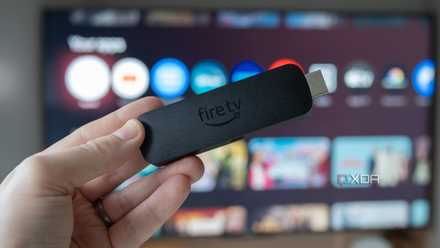
4 settings I changed right away on my new Fire TV Stick 4K Max
Amazon's relatively cheap streaming stick has several settings turned on by default that can be frustrating.