
When it comes to accessing your files across your network, many people may share a drive or set up a server or NAS running a popular Linux distro. However, one way to share files across your network that you might have forgotten about is to use a spare USB port on a Wi-Fi router. For this demonstration and proof of concept, I am using a thumb drive, but it’s possible to plug in any-sized USB drive, provided there is enough power to run it. I have even used large Western Digital My Book drives with a dedicated power source.
If your Wi-Fi router has a USB port and you have a spare drive with a decent amount of storage, you can use it. In certain instances, it is better than spending money on a full NAS system or wasting time repurposing a legacy computer into a server. This option doesn’t require a NAS and is easier to maintain.
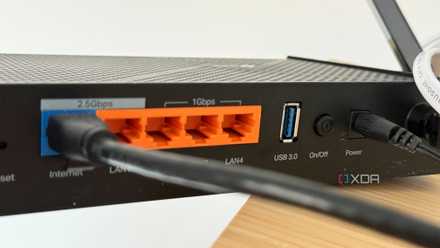
Most people ignore their router's USB port, but it's perfect for one surprisingly useful thing
Don't sleep on your router's USB port
Set up your USB drive for sharing across the network
A few switches and you’re done
Sharing your USB drive from your router requires more than just plugging it in and gaining access. You need to enter your router’s settings and configure a few storage options first. Each router varies, but the steps are straightforward regardless of the brand.
Start by plugging your USB drive into an open port on your router. I am using a TP-Link Wi-Fi router — which my ISP techs seem to despise — but I have always had great results with them. Once the drive is connected, dial in to your router from a PC on your network — usually using 192.168.1.1 or 192.168.0.1 — and log in. It’s also important to note that some routers can be accessed via a URL, such as http://tplinkwifi.net or https://routername.local.
Locate the USB, storage, file sharing, or network storage section. I turned on a few settings, including the local file-sharing option. The name varies among routers. You should see “Samba sharing,” “Network Neighborhood,” or even “Windows File Sharing.” I also enable Local FTP and sometimes Internet FTP for remote access when I am away from home base.
If leaving it for local file access, I recommend leaving Internet FTP off for better security. Also, while here, it’s important to note that the drive’s name is shared. In this instance, it’s called “TP-Share” by default on this router, but it can be renamed to anything. The drive credentials are required to access it later from a Mac or PC.
TP-Link Archer AX80
TP-Link Archer AX80 Wi‑Fi 6 router with fast speeds, strong coverage, and multi-gig connectivity.
Access files from File Explorer
Via File Explorer
To access the shared drive across Windows systems on my network, I can open File Explorer and type in the router’s IP address and the drive letter. Make sure to type \\192.168.1.1\ShareName\[USB] with the correct IP and drive letter. To avoid entering the password each time, I have Windows remember it since I’m not on a shared computer. It’s also possible to map the drive, but on Windows, File Explorer is bad with networked drives. They will often disappear, but adding it is the same as mapping a drive on Windows.
Enter the router's username and password, and your drive with the files will appear. You can preview, edit, and copy them to your PC or another drive — just as you would on a server or a connected PC.

Gain access from a Mac
Use Finder and SMB
Since I have a Mac on my network, there are times when I need to have access to the shared drive connected to my router. Connecting it is a bit different, but the idea is similar. You use Finder and the Server Message Block (SMB) file-sharing protocol, both of which are used on macOS and Linux.
Save on Storage & Networking deals for home file sharing
Open Finder, and select Go -> Connect to Server. Type the router’s IP address, followed by the drive letter you want to access, and click Connect. Type in SMB://192.168.1.1/ShareName, where you replace 192.168.1.1 with the correct router IP, share, and USB drive letter. Once the connection is established, you will have full access to the files on the drive connected to your router for use as needed.
TP-Link AXE5400 Tri-Band Router (Wi-Fi 6E)
If you want a great Wi-Fi 6e router but don't want to spend a whole lot of money, check out this one from TP-Link.
Easy access to files without constructing a NAS
Now, there is no doubt that this method is a “poor man’s NAS,” and in technical terms, it isn’t a NAS in the true sense of the word. However, if all you need to do is share a few files between machines across your network, the USB port you forgot about is the way to do it.
Even if you connect a large drive, it won’t deliver the functionality of a NAS, for example, but it gets the job done for light workloads and lets you share files with your kids, spouse, and other household members. If you live alone, it saves you from having to set up another server and dial in to access the files you want.