
A local LLM isn’t really something I planned on setting up. But after reading some of my colleagues' experiences with setting up theirs, I wanted to give it a go myself. The privacy and offline benefits of running a large language model on your own machine are also quite appealing. I’ve actually recently used NotebookLM to help me learn the ropes of self-hosting, so I considered using it for my first local LLM setup, but went with Perplexity instead.
Perplexity felt like the best option because it explains things in plain language and in whatever format I instruct it to, pulls in reliable sources for me, and can adjust the difficulty when I hit a wall. I honestly wasn’t looking for a deep technical breakdown, at least not to start with. I just needed something that could give me recommendations and then walk me through the setup. Here’s how it went, from the perspective of someone who’s new to local LLMs…
Setting up Perplexity as a local LLM guide
Configuring the AI and setting myself up for success
The cool thing about AI research tools like Perplexity is that you can customize them to extract exactly what you need in a language you understand. To start with, I created a new Space just for learning about local LLMs - I did this because you can apply broad customization to a space that can hold multiple threads at once. You can find this right above the text box, labeled custom instructions. I provided details of my experience level, that I wanted Perplexity to act as a guide, and how I wanted it to break down the steps for me. You can also include this information in single prompts, though.
Then I asked Perplexity what local LLMs are to begin with, just so I actually understand what it is and does. Through these first couple of prompts, I also learned that many of them are used with command-line tools, which require quite a bit of technical know-how. So I asked Perplexity for the simplest beginner-friendly tools to start setting up an LLM, and its top recommendation was LM Studio due to having a graphical UI.

I turned to NotebookLM to set up a self-hosted LLM — here's how it went
Can NotebookLM guide me to my first self-hosted LLM?
Setting up LM Studio
It’s as easy as it claims to be
LM Studio is a super simple install. However, I recommend ensuring you have the hardware specs before getting it - you’re going to need at least 8GB of RAM, though 16GB is recommended. LM Studio installed without a hitch and it was kind enough to ask me my experience level before getting started. At this point, I pretty much had an empty shell that I couldn’t really do anything with. So I asked Perplexity for some quick instructions on how to get a model on LM Studio.
If you’re setting this up for the first time too, head to the search icon in the left panel, go to the Model tab, and search for the AI model you want. The list of options will show you how many likes and downloads each model has, what it supports (such as image input), the creator, download size, and quantization. It will also give you a warning if it doesn’t think your computer can handle the model. I went with OpenAI’s gpt - it was smaller than I expected (around 11 GB) and it didn’t take that long to download.
4 open‑source apps I use to run AI locally
Local LLMs and image generators are surprisingly useful
Using my local LLM
I ran into a couple of snags at first
Once my model was downloaded, I loaded it in LM Studio and immediately ran into an issue - my memory shot up to 97%. This isn’t necessarily always cause for concern, but once I heard my fans ramping up I decided to eject the model. So I told Perplexity my dilemma and asked it what to do. It guided me to the Limit Model Offload toggle, which you will find by going to Settings > Hardware. This keeps the model from spilling into system RAM when your GPU runs out of VRAM, and it ended up solving the issue for me - my PC was quiet from then on.
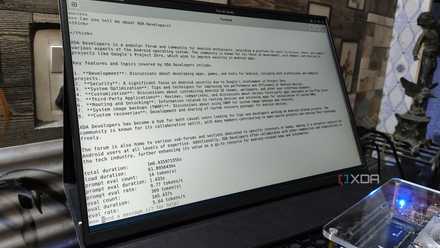
And that was pretty much it. Before getting started, there are some things you can configure via the settings wrench icon. You can give the model a system prompt, which controls how the model behaves. And, depending on your model, you can also add presets, control the response length, and more. My first prompt to my gpt model was about local LLMs, and the response was in a language I understood, complete with a table of contents.

6 ways anyone can use LM Studio and a local LLM on their PC
Most people can find a use for a local LLM on their PC, and here's how I use mine.
I finally joined the local LLM club
When I read about how people use their local LLMs, I always felt a mix of curiosity and intimidation. But after actually managing to set one up with the help of Perplexity, it’s clear that running a local model isn’t as out of reach as it seems. It keeps your data private and lets you chat offline, so you can experiment freely without worrying about cloud limits or privacy leaks.