
You can launch your favorite apps from the Windows taskbar or scroll through the Start menu to find what you want. The taskbar is more efficient. However, have you thought about using a launcher specific to your apps? There are some good launchers out there that offer more functionality than finding apps.
For example, I am partial to the Everything app for finding items on my PC. Still, after using Listary for a while, I am changing my mind since it offers some cool functionality not included with Everything. It combines an app launcher and a file and folder search utility. It’s also light on system resources and responsive. It can also improve your productivity since Windows Search is still slow and unreliable in Windows 11. It also includes some superb File Explorer integration and allows you to search in a directory by simply starting to type. You aren’t always required to use the feature, but it's an excellent tool for improving productivity when you need it. Here's a look at other reasons you should use Listary on Windows.

8 reasons to stop using Windows Search and use Everything instead
Windows search can be a drag. For a better search experience, check out Everything from Voidtools.
6 Find and launch apps
Easy app launching from a central location
Like other launcher apps, it lets you quickly find and launch apps from its search field. Press Ctrl twice to open it and start typing in the name of the app you’re looking for. Even if you have a typo and misspell the app, it should pop up to launch it. What’s more, the launcher feature you use to fire up apps isn’t just for that. It will also find specific files and folders and open files in their default app.

7 app launchers that will speed up your productivity on Windows
Launch apps with the press of a key
5 Streamlined search experience
Easier than Windows Search
Unfortunately, the built-in Windows search feature has never been known to be responsive or accurate. You often need to search for files and folders multiple times with different criteria. Whether from File Explorer, Start, or the search box on the taskbar, the Windows search experience is often slow or freezes up. Listary, on the other hand, provides a fluid search outcome, finding your data virtually instantly.

Having trouble with Windows search? Try these fixes
When finding your files just isn't working right
4 Search for files is easier
Search and open files and folders quickly with Listary
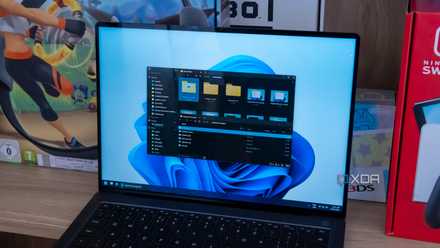
If you have a lot of files and folders, searching within File Explorer for them can be daunting. However, Listary has a File Explorer-like interface that allows you to search easily within directories for files and folders within specific directories on Windows. It provides fast access to recently used and searched items in your main directories or within a particular access time. It might not be as great an Explorer replacement as FreeCommander, but it does a decent job. The UI is basic but lets you find files and folders and open them with ease.
You can finally try one of the best File Explorer alternatives
It's time to ditch Windows File Explorer!
3 Helpful settings available
Tweak Listary to work best for your workflow
Another benefit of Listary is the number of settings. You can tweak the app to work what’s best for you. For instance, you can change keyboard shortcuts, actions, commands, web search options, appearance, etc. To access the launcher's settings, double-click an empty area of the desktop or in File Explorer and select Options from the context menu. If a feature in settings isn’t available with the free version, it will let you know that it is only available with a pro license.

5 reasons to use PowerToys on Windows 11 to simplify your workflow
Here are some essential PowerToys to use on Windows 11 to simplify your workflow.
2 File Explorer integration
Search directly for files with Listary
One of the appealing features of Listary is the ability to search while in a specific directory in File Explorer. You can use Listary to find and open a file's location. You can also open File Explorer and simply start typing, which is helpful for your workflow. You don’t need to type in the search field in the top right corner, but just start typing, like with the Start menu. Listary will pop up, look for the file or folder you are querying, and open it. It’s also worth noting that you can also double-click an empty area in a directory to bring up a Listary context menu with features like the ability to move between apps seamlessly.

6 ways File Explorer has gotten better on Windows 11
It's not all bad when it comes to Windows 11
1 The cost can’t be beat
It’s free for personal use, and pro is affordable
You can never go wrong with free apps that work as advertised, and Listary does. So, you get basic features like the ones shown above with the free Listary app. It’s also important to note that you can upgrade to a pro version, which includes a dark theme, custom filters, index shared network drives, advanced search syntax, and more. So, if you only need the basic launcher and search functionality from Listary, you can use it at no cost. The first month also allows limited access to pro features. But if you like it and want the advanced features, it is affordable at $20 for a lifetime license.
Listary
Launch your apps and find items faster with Listary
If you are looking for an easier way to find and launch apps and locate files and folders more efficiently, the free version of Listary will complete the job. It finds results as quickly as other launcher apps, as you would expect. However, I still think Everything is faster since it has a more text-based approach. You can do different searches and launch tasks using a centralized command center. So, whether you are a basic user disillusioned by Windows search performance or a power user, you will find help using the Listary app. The File Explorer integration alone makes it at least worth trying.