
In the summer of 2023, Logitech made an important acquisition to round out its peripherals range: Loupedeck, a startup that specializes in customizable controllers for creatives to use in their work. Now, we're seeing the first Logitech-branded device from that merger, the $200 MX Creative Console. With the company's pedigree for making some of the best mice and other input devices, my expectations were pretty high. I've also been a long-time fan of Loupedeck, and own almost every one of their devices, so seeing the device the two came up with together is a neat feeling.

Cooler Master MasterHUB review: A modular control panel for creative professionals
With its versatile design and fully-customizable modules, the MasterHUB is the perfect companion for content creators
For the most part, the MX Creative Console has lived up to expectations. The two parts of the hardware work together in harmony to make editing easier without having to remember key combinations that might change between apps. The software is a combination of Logitech's Logi+ front-end and Loupedeck's back-end for assigning actions, macros, and other functions to the keypad and dial. Part programmable keyboard, part editing console, it's a streamlined way to edit photos, videos, and audio, as long as you're inside the Adobe ecosystem. That's because the plugins available at launch are predominantly for Adobe products, which is fine as long as Logitech continues to build out the ecosystem like Loupedeck did before the acquisition.
Part programmable keyboard, part editing console, it's a streamlined way to edit photos, videos, and audio
Oh, and a quick word about that. Existing Loupedeck device owners will still get access to the software suite, as Logitech tells me the Logi+ and Loupedeck software packages are only different on the front end now. Expect an updated version shortly, for however long they decide to continue support.
About this review: Logitech sent me the MX Creative Console for the purposes of this review. However, the company did not see the article before publication and had no input into its content.

Logitech MX Creative Console
Get hands-on with the creative process
- Connectivity
- USB-C (button controller) and Bluetooth (dial)
- Integrations
- Photoshop, Lightroom Classic, Premiere Pro, Audition, After Effects, Teams, Spotify, Apple Music, and more
- Programmable Buttons
- Yes
The Logitech MX Creative Console is a hands-on way to control your computer or running apps with customizable buttons and a tactile dial. The hardware is top-notch, and support for Adobe programs is robust but a lack of plugins for the wider creative community holds it back somewhat.
- Delightful dial for controlling in-app settings
- Customizable buttons that auto-switch based on program
- Long battery life from two AAA batteries on the dial
- Plugin selection could be more robust
- No option to daisy-chain the dial to the display to save on batteries
Pricing, specs, and availability
The Logitech MX Creative Console was announced on September 24, 2024. It is available in pale gray or graphite, costs $200, and will ship in October 2024. That price includes the dialpad, the 9-button customizable keypad and its stand, and a USB-C to USB-C cable. It can be purchased from Amazon and other large retailers or directly from Logitech. With your purchase, you also get three months free of Adobe Creative Cloud.
Logitech MX Creative Console
- Connectivity
- USB-C (button controller) and Bluetooth (dial)
- Integrations
- Photoshop, Lightroom Classic, Premiere Pro, Audition, After Effects, Teams, Spotify, Apple Music, and more
- Programmable Buttons
- Yes
- Wireless
- Bluetooth (only for the dialpad)
- Keypad
- Nine programmable buttons and two fixed-function for changing pages
- Modules
- 1x 9-key LCD display module, 1x Dialpad
- Price
- $200
What I liked
Responsive controls and fine-tuned fidelity while editing
The Logitech MX Creative Console has two parts, both built at the level of quality the MX line is known for. The keypad has nine customizable, full-color display keys and two paging buttons to switch between up to 15 pages per profile. That's 135 different customizable keys per profile, which can be specific to one app or generalized for Windows or macOS use. Then there's a dialpad, with an aluminum dial with friction bearing, a horizontal roller, and four customizable buttons. This dialpad is wireless, either over Bluetooth Low-Energy (BLE) or a Logi Bolt receiver (not included), and runs off two AAA batteries (Logitech tells me this can last for up to a year before needing replacement).
The MX Creative Console's hardware is fantastic, giving you granular control over your creative software.
While I open multiple creative programs every day, I always dread editing my images. That's because the standard way of changing values for brightness, exposure, and other Lightroom needs is by dragging a tiny slider. It's no understatement that I hate this process, as it's either finicky by dragging the mouse or slow by using the arrow keys. The MX Creative Console makes it a cinch, first by opening the Actions Ring to select which adjustment layer I want, then by using the sublime aluminum dial to get the exact point I want. If I'm not sure, the top two buttons on the dial are Undo and Redo, so I can flick between the original and my adjustments and see how the changes please me.
It's made editing feel fun again. Before, I leaned heavily on the auto adjustment features, which can get pretty close to what I intended, but they strip out any artistic choices. Now I want to spend hours in Lightroom and Photoshop pouring over my images to see what I can create, if I just had the time to do so. The hardware is top-notch, and as I've used every Loupedeck device and many other control surfaces, it's easily among the best.
Plenty of customizability (and more plugins on the way)
When the right plugins are installed, the MX Creative Console automatically switches profiles as you switch between apps, even if you have multiple creative tools open at once. You can go straight from proofing and batch processing in Lightroom straight to Photoshop without missing a beat, with the controller knowing which app is actively being used. The standard plugins for each have a predefined list of the most commonly used actions to show up on the keypad, but you can add almost any functions you need from supported apps, thanks to the deep API support inside the Logi+ software.
Logitech knows how to make control surfaces feel right under the fingertips, and the dial pad is superb
What I didn't like
👁 logitech mx creative console next to beige keyboard
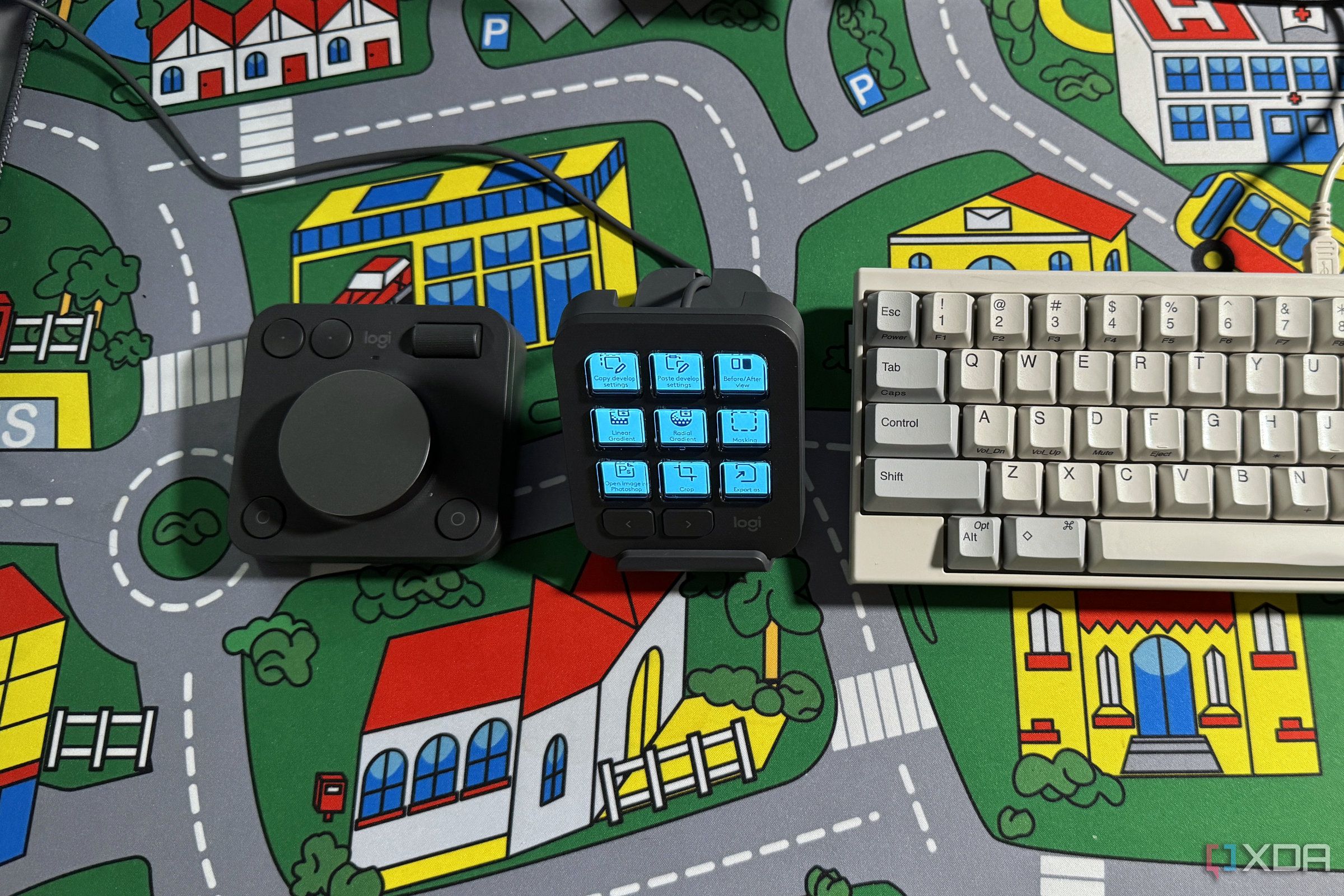
The MX Creative Console's hardware is fantastic, giving you granular control over your creative software. Where it falters somewhat is in the software support, namely the number of compatible plugins at launch for creative tools. It's good to see OBS Studio and Streamlabs Desktop support straight out of the gate, as livestreamers would likely love this device to control their transitions and other broadcasting features. Likewise, it launches with a decent smattering of Adobe Creative Cloud apps, like Photoshop, Audition, Lightroom Classic, Premiere Pro, and After Effects.
What's missing is direct support for creative tools other than Adobe. Maybe that's unsurprising, as the device ships with a code for three months of Creative Cloud to get you used to Adobe's approach. But with this being the Loupedeck's spiritual successor in many ways, where is the huge library of plugins those devices had to play with? Things like Affinity Photo and DaVinci Resolve are both hugely popular creative tools that would benefit from the MX Creative Console. I hope to see the plugin library increase over time, making what is currently an awesome controller for Adobe users into a more widely usable tool.
The only other minor quibble I have is with the dialpad's connectivity. I like that it's Bluetooth and can also connect to a Logi Bolt receiver, but that receiver isn't included in the box. Other significantly cheaper Logitech devices come with the receiver included, so at this price point, I feel it should have been included. Maybe that's an easy one for Logitech to fix.

These are the best Adobe Photoshop alternatives I have used for free
Farewell, Creative Cloud subscription!
Should you buy the Logitech MX Creative Console?
You can dial up your enthusiasm for the MX Creative Console if:
- You already use Logitech MX devices and want more control over the software you use
- You are a creative professional who prefers manual controls
- You want a feature-laden macropad with solid software support
You can press pause on the MX Creative Console if:
- You use image creation software that isn't from Adobe
- You already have a Stream Deck, Loupedeck, or other macropad
The Logitech MX Creative Console is one of the best creative tools I've used, and it continues the Loupedeck legacy. Logitech knows how to make control surfaces feel right under the fingertips, and the dialpad is superb. Thanks to the Actions Ring button, the dial pad puts the most common creative tweaks right where you need them. The macropad has a large library of functions that can be mapped to it, and multipart macros can also be put together easily. While it's missing support for many popular creative tools, those will likely be added as time goes on, as the missing ones all had plugins for the old Loupedeck software. Even so, the most popular Adobe packages are all supported, making this a fantastic controller for creative professionals.
Logitech MX Creative Console
Get hands-on with your creative process
- Connectivity
- USB-C (button controller) and Bluetooth (dial)
- Integrations
- Photoshop, Lightroom Classic, Premiere Pro, Audition, After Effects, Teams, Spotify, Apple Music, and more
- Programmable Buttons
- Yes
The Logitech MX Creative Console is a hands-on way to control your computer or running apps with customizable buttons and a tactile dial. The hardware is top-notch, and support for Adobe programs is robust but a lack of plugins for the wider creative community holds it back somewhat.