
Windows 11 and 10 both come with a feature called desktops, which used to be called virtual desktops. As the name suggests, this is a capability that allows you to have multiple desktops on the same computer, so you can quickly switch between different environments and sets of apps. This makes it much easier to stay focused and be productive, since you can organize your apps into the respective desktop and stay on it as long as you need to.
It's a feature that gets overlooked by many, but if you want to make the most out of your PC, you should really give it a go. Here's how you can take full advantage of multiple desktops on Windows.

How to use virtual desktops in Windows 11
Virtual desktops make it easier to manage your open apps on Windows 11. Here's how to use them to maximize your productivity.
How desktops work
Desktops in Windows are a pretty simple feature. The basic concept is that you can create a desktop where you run specific apps. For example, if you want to separate your work apps from your leisure apps, you can create a work desktop and have apps like Slack or Teams in there, and a leisure app may have something like Reddit or Facebook. Even if you use the same app, it will usually run on separate instances if it's on different desktops, so you can have a browser window with work-related tabs in one desktop, and one with personal tabs on the other. Some apps may not support multiple instances, though.
You can also customize different desktops to some extent, with different names and backgrounds for each one.
View and manage your desktops
Using multiple desktops in WIndows 11 is fairly easy to get started with. Microsoft even places the Task View icon on your desktop to make it easier to see. Here's how to view your desktops and create a new one:
- Click the Task View icon on the taskbar (or press Windows + Tab on your keyboard) to open Task View.
- Your desktops are shown at the bottom of this view. If you hover over a desktop, you'll see the apps open in it in the center of the screen.
- To create a new desktop, simply click the New desktop (+) button.

Windows 11 deep dive: Snap Layouts and Snap Groups
Windows 11 comes with a handful of new productivity features that multitasking easier, and Snap Layouts and Groups are two great additions.
Switching between desktops
To switch between desktops, you can go back into Task View and click the desktop you want to switch to. If you have the Task View button enabled, you can also mouse over the icon on the taskbar so that your desktops appear without taking over the entire screen.
If you want to switch desktops even faster, you can instantly move to the next desktop in line by pressing Windows + Ctrl + Left Arrow or Right Arrow to move in the respective direction. Note that this doesn't loop, meaning that when you get to the last desktop, you have to move in the other direction, and you can't simply move in the same direction to cycle through every desktop repeatedly.
Rename desktops
If you want to keep your apps organized, it's a good idea to make sure your desktops are properly labeled so you know which apps go where. To rename a desktop:
- Click the Task View icon or press Windows + Tab.
- Move your mouse over the title of the desktop you want to rename (such as Desktop 1) and click it.
- Enter the new name for the desktop.
- Repeat for any other desktops you have.
Set a different background for each desktop
You can make it even easier to tell different desktops apart by setting different backgrounds for each of them. The downside is that you can't set backgrounds that are dynamic, like slideshows or Windows spotlight. Those will be applied to all desktops. To set a ackground for each desktop:
- Open Task View and switch to the desktop you want to customize.
- Open the Settings app.
- Click Personalization and then Background.
- In the dropdown menu next to Personalize your background, make sure to choose Picture.
- Choose one of the preset picture or browse your computer for a different image.
- Close the Settings app.
You can repeat this process for each of your desktops so they all have a different background. If you switch desktops using the keyboard shortcut, having a different background makes it easy to tell at a glance which desktop you're currently on.
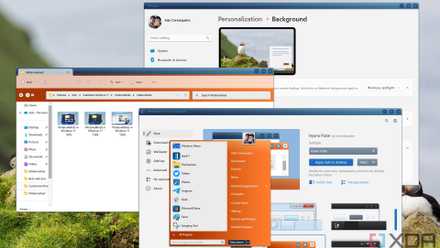
You can make Windows 11 feel like home — here's how to customize it
Windows 11 is a great operating system, but not everyone has to like how it looks out of the box. Here's how you can change
Move apps between desktops
If you have an open window that's not on the desktop you want it to be, you can move it easily to another one.
- Open Task View using the icon or by pressing Windows + Tab.
-
Click and hold the app you want to move, then drag it over the desktop you want to move it to.
- Alternatively, right-click the app you want to move and choose Move to, then select the desktop from the list.
Make apps available on all desktops
Even if you have multiple desktops, you may want some apps to be available on all of them. For example, if you have a messaging app and you want to be easily reachable at all times, you may want that app to be on every desktop. Thankfully, this is also possible:
- Open Task View using the icon or by pressing Windows + Tab.
-
Right-click the app you want to make available on all desktops.
- To make only that specific window available on all desktops, choose Show this window on all desktops.
- If you want all the windows from that app to be available, choose Show windows from this app on all desktops.
- The app or window you chose will now be available in every desktop.
Without this option, apps may behave in one of three ways when you try to open them. Apps that support multiple instances will usually open a new instance on each desktop when you attempt to launch them. Apps that don't support multiple instances will automatically switch you to the desktop where they're currently open (if they are). However, some apps, like the Settings app, will automatically move the open window to the desktop you're on.
Change how apps are displayed in the task switcher or the taskbar
One last thing worth knowing about multiple desktops in Windows 11 is that you can change how apps form multiple desktops are displayed in the task switcher and on the taskbar. By default, each desktop will only show the apps that are open inside it, but if you want to be able to more quickly switch between apps on different desktops, you can make it so apps from all desktops appear on the taskbar or in the task switcher (Alt + Tab). Here's how:
- Open the Settings app
- Go to System and then Multitasking.
-
Expand the Desktops section.
- To see apps from all desktops on the taskbar, set the On the taskbar, show all the open windows option to On all desktps.
- To see apps from all desktops when switching apps with Alt+Tab, set the Show all open windows when I press Alt+Tab option to On all desktops.
With these options enabled, when you select an app that's open in a different desktop, you'll automatically be moved to that desktop.
Multiple desktops help you be more productive
The ability to use multiple virtual desktops on Windows was something that was requested by quite a few people before it was implemented, mostly because some Linux distributions had been doing it for a while at that point. Being able to quickly switch contexts and ensure that the apps you're seeing are the ones you need is very useful, since it helps you stay focused and be more productive. With this knowledge in mind, you can now make the most out of this feature to improve your workflow.

How to use the Settings app on Windows 11
The new Settings app on WIndows 11 houses a ton of options. Here's everything you can find inside it and what it does.