
Thanks to its cross-platform availability, seamless integration with Windows and other Microsoft products, support for math calculations, and a long list of features, OneNote has been an integral part of my workflow for the last few years. Understandably, I was thrilled when Microsoft revealed the integration of Copilot in OneNote to assist users in generating text, summarizing lengthy notes, creating to-do lists, and inspiring creative ideas.
Amidst the buzz and excitement around expensive AI add-ons, the crucial question remains: is Copilot truly a reliable companion for unlocking creativity, or is it just an over-hyped gimmick carrying an expensive price tag? Read on to discover Copilot's features in OneNote and my experiences testing them.

How to keep your OneNote files safe
Keep prying eyes away from sections of your OneNote notebooks with these easy steps
Copilot in OneNote: Price and availability
While Microsoft offers a free Copilot version, you need to opt for the company’s paid plan to unlock the AI chatbot in Microsoft 365 apps like Word, PowerPoint, Excel, Outlook, and OneNote. Copilot Pro pricing starts at $20 per month and comes with a monthly free trial for new subscribers.
Once you complete the purchase, the Copilot button should appear under the Home menu in OneNote for Windows. Aside from offering Copilot in selected Microsoft 365 apps, your paid subscription also comes with GPT-4 Turbo access and 100 boosts per day to generate images faster (instead of 15 boosts in the free version).
As for availability, the Copilot integration is only available in OneNote for Microsoft 365 on Windows, not for the Mac or web versions of OneNote. That’s quite strange to me, since other platforms also have Copilot integration available in Word, PowerPoint, and Excel across all 3 platforms.
4 Generate summaries
The ability to generate summaries is the most common use case for Copilot in OneNote. It’s quite useful for users writing long notes and sections in their digital notebooks. Whether you want to generate a quick meeting summary, condense research articles for easier reference, create talking points for an upcoming presentation, or review complex information before exams, you can simply fire up Copilot, and it does the heavy lifting for you.
I opened a Europe tour itinerary I had made with all the details, such as accommodations, sightseeing, meals, and the activity breakdown for each day, and asked Copilot to generate a quick summary. I typed Summarize my travel days for London, and it extracted all the relevant information from the note.
Copilot intelligently concentrated on the crucial details, setting aside other information. To revisit the original section, refer to the source (displayed as numbers) provided in Copilot’s response.
You can also ask specific questions like What does my day 10 look like? and let it extract your itinerary details in no time (although I do need to note that Copilot got it wrong on the first attempt).
You can also list the pros and cons of a specific product, software, or item from the OneNote page. I asked Copilot to list Obsidian cons from my 1500+ word post about the app, and it did the job surprisingly well.
3 Create to-do lists
Copilot can create to-do lists based on your text prompts. You can use it for daily task management, personal projects, goal setting, trip preparation, and more. Let’s continue with the travel example above and create a to-do list for it. I ran the Create a to-do list of all the essentials I need to pack for my upcoming Europe trip in the summer prompt, and here is what Copilot came up with.
It neatly divided my to-do list into different categories like Clothing, Essentials, Electronics, Toiletries, and Miscellaneous. I can just copy and paste the response to my OneNote page.
To test Copilot’s capabilities further, I asked it to Draft a to-do list for launching a new website, and it came up with a detailed response and neatly broke down the entire process into different stages like Domain and Hosting, Website Design, Content Creation, Technical Setup, and more.
Copilot can also create a to-do list from your existing OneNote page. Suppose you want to apply for a home loan and write down some notes while discussing it with your bank. You can now enter Extract a to-do list for all the required documents for applying for a home loan on this page and get the required details in seconds.
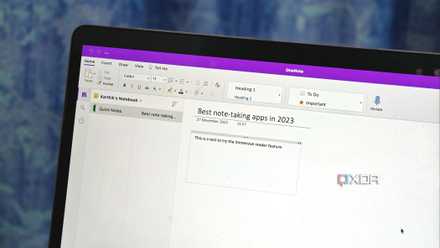
5 reasons I keep coming back to OneNote
Its wide coverage and efficiencies are second to none
2 Brainstorm ideas and draft a plan
You can even ask Copilot to draft a plan for a specific project. Suppose you have added market research, customer feedback, and product specifications on a page, and now you can ask Copilot to use that information to draft a plan.
In my case, I wrote an app idea on a page and ran the prompt: Draft a plan for a project to develop a new social media platform. Refer to the details on this page to help create the project plan.
Based on my suggested timeframe, Copilot developed a plan for the upcoming 8 months and scheduled out the entire process in steps for easy understanding.
1 Understand handwritten notes
Microsoft recently announced support for inked notes for Copilot on OneNote. It’s a boon for students and professionals who use OneNote on 2-in-1 devices and tablets. Copilot can understand your handwritten notes, summarize them, list pros and cons, and even generate a to-do list.
Here’s how I use OneNote as a digital journal
My OneNote journal that never runs out of pages
Welcome to the era of AI-powered note-taking
My Copilot in OneNote experiment has been quite a journey, filled with moments of surprises and frustrations. Copilot surely holds the potential to enhance productivity, but its overall impact depends on your note-taking style. While some people might find Copilot's suggestions very helpful, others could see them as more distracting than inspiring. Overall, it's a promising start and I can't wait to see how Microsoft takes it further in the future.
Since Microsoft is offering a month of Copilot Pro for free, I recommend trying it out to see how well it integrates with your workflow. If you want to explore more options, check out our dedicated post on the top five AI note-taking apps.