
Despite the plug-and-play nature of pre-built Network-Attached Storage chassis, you might want to make a couple of adjustments to your new backup server. You’ll want to choose the right file system for your storage pool, pick the right RAID setup, and configure the appropriate network share for your clients. However, the most essential aspect of every NAS setup is the backup workflow – and not the one involving snapshots of your client devices on your storage server.
I’m talking about the backup provisions concerning the data stored on the NAS itself. While cloud platforms are a decent option, their lack of privacy can be an issue for folks who shifted to the NAS ecosystem just to safeguard their personal media. I fall under the same faction, and creating a 3-2-1 backup schedule that doesn’t cost me a single dollar in subscriptions helped alleviate my storage woes.
Tailscale replaced my VPN, port forwarding, and dynamic DNS in one install
It's now an indispensable part of my home lab
It's not a good idea to rely on a single NAS
My local storage server isn’t infallible
Let’s start with the basics: a local NAS may be a great option for protecting archived media, personal documents, and home lab data, but a single storage pool won’t be enough to combat every untoward scenario. With just one instance of your files, you can end up losing everything if things go south. Storing your essential documents inside hard drives and shoving them inside a drawer can be a decent start, but it won’t protect your data from floods, fires, and other catastrophic events.
I’ve seen newcomers confuse RAID pools for backups, but they’re meant for high-availability, not for keeping your data safe from harm. Sure, there might be a couple of scenarios where a mirrored setup can help recover files, but it’s terrible practice to consider your RAID setup as an alternative to dedicated backups. Multiple drive failures, for one, can render your files permanently lost, and the same holds true for ransomware, data corruption, and file system issues.
It may seem like I’m talking about improbable scenarios, but unlike cloud setups, you’re solely responsible for your files. And if there’s one thing I’ve learned from my home server escapades, it’s that a single backup might as well be worthless. What you’re really looking for is a remote server that can periodically sync files with your local server. That’s exactly what a 3-2-1 backup workflow is meant to be: keeping three copies of your data across two systems, with one of them lying far away from your current computing den.
Old systems double as incredible offsite NAS rigs
Even mere SBCs can serve as remote backup units
Remember how I mentioned that I pay zero bucks for a remote backup workstation? Unlike your primary NAS, which is meant to serve your entire computing setup, a remote storage server is geared for syncing files from your local instance, nothing more. So, there’s no need to invest in killer NICs, multiple RAID pools, RAM caches, or other NAS doohickeys for your offsite backup node.
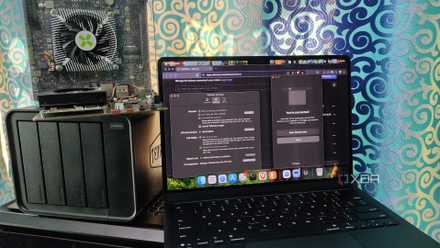
If you’ve got practically any system from the last decade (or even two), you can turn it into a reliable backup server for your NAS. Heck, I’d say that even old PCs are somewhat overkill for this task. I’ve always cautioned home labbers against using a Raspberry Pi as a substitute for conventional NAS rigs, but things are wildly different when it comes to using these single-board computers as backups of your local backup node. Me? I’ve been using a 2-bay NAS to sync essential files from my local storage server. If you’re worried about the energy bills, modern NAS setups (especially Arm systems) barely siphon a few watts, and you can further cut down the electricity consumption by setting up Wake-on-LAN on the remote node or by hooking it up to a smart switch and enabling automatic power-on inside the BIOS.
Now, you might be wondering how multiple TBs of data from a bulky storage server will fit inside any old laptop, PC, or SBC. Here’s the thing: you don’t need to sync all the data on your local NAS to its remote equivalent. For example, I keep essential container snapshots and important media on my primary and secondary backup rigs, but only the former houses non-essential files I’ve archived over the years.
Scheduling (and securing) the remote sync operations is a piece of cake
If you’re worried about the complexity of this setup, then rest assured, it’s actually pretty easy to carry out. I’ve got both my 4-bay and 2-bay storage servers armed with TrueNAS, which includes a dedicated snapshot replication wizard to connect two nodes together and sync data between them even if they’re not on the same network. Otherwise, you’ve always got good ol’ rsync tasks on most home server and NAS distros to synchronize files between two workstations.
Personally, I’d recommend using a VPN when connecting the nodes together for the rsync/snapshot replication tasks instead of directly port-forwarding your NAS units and leaving them exposed to the Internet. My home network is under the curse of CGNAT, so I have to use Tailscale instead of a self-hosted VPN. The setup process for Tailscale is pretty simple thanks to the container template built into TrueNAS, but you can also deploy it directly on your Linux-based NAS/home server distro.
As for the frequency of the sync operations, you wouldn’t want to schedule them so regularly that you’d end up expending a lot of bandwidth or putting your offsite rig at the risk of malware contamination from a recently-infected dataset. But at the same time, you’ll have to avoid leaving your remote backups out of sync for so long that you’d end up losing new files and important modifications to existing documents should anything happen to your local NAS. I keep different snapshot replication schedules for all datasets, though all of my sync tasks lie in the bi-monthly and monthly range.
You can use cloud platforms as a last resort
As much as I try to avoid cloud storage for my data, this article wouldn’t be complete if I didn’t mention its perks. If you want to archive backup files that are only worth a few GBs, you can just use the free versions of Google Drive, Dropbox, and other clouds. On the privacy front, you can make everything inaccessible to unauthorized users (including the underlying cloud) via client-side encryption. I’ve been using Cryptomator when sharing files with my friends, and it’s pretty easy to set up, too.
TerraMaster F2-425
But when it comes to large files that weigh more than a few TBs, a 3-2-1 backup workflow is a lot cheaper than clouds. Of course, you have to maintain everything yourself, but with a few automated schedules and Tailscale, you can minimize the chances of your files getting lost if the primary NAS breaks down.

This obscure NAS OS would’ve been perfect for beginners, if not for these flaws
Despite its user-friendly interface, EasyOS has some deal-breaking issues