
Installing a nostalgic Windows theme is like opening a portal to simpler times, where the charm of retro design meets heartfelt memories. It rekindles the joy of using classic icons, vibrant color palettes, and familiar sounds that evoke the magic of early computing. Whether it's a trip down memory lane or just the love for vintage aesthetics, a nostalgic Windows theme transforms your device into a delightful time capsule. Here are a few nostalgic Windows 11 themes that will bring you back in time.

5 nostalgic Windows programs I wish were still around
What happened to these?
5 Windows XP Final Edition
Close enough for remembrance
I admit that Windows XP is my favorite Windows OS. If I’m being nostalgic, I would say it ran perfectly, but it didn’t. However, it comes with the flavors and images of that period, with the games, the sounds, and everything around those simple times.
That’s why my first choice for a nostalgic theme is Windows XP Final Edition. The theme comes with almost everything you need to transform your Windows 11 into a close enough representation of Windows XP, including an Explorer transformation, icons, backgrounds, and even sounds.
However, you can’t just simply change it from the Personalization menu. You need additional tools like Theme Patcher and SecureUXTheme ThemeTool to make it work. Luckily, there’s a video tutorial on the same page as the theme that will guide you through.
5 wallpaper apps to make your Windows desktop fun again
Relieve stress and feel inspired with custom wallpapers of nature, movies, and other exciting themes
4 SynthWave 84
Back to the Disco era
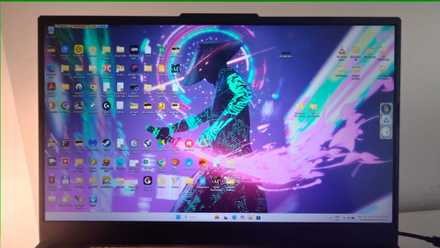
Welcome back to the ‘80s disco era! The SynthWave 84 theme for Windows 11 brings you back in time with flashy, glowing images and colors that will certainly spawn that retro vibe in anyone who lives to tell the story.
In the package, you get two color schemes, dark and night. However, each of the schemes comes with eight different theme styles. Besides that, you get a pretty large collection of wallpapers that match the essence of the synthwave aesthetics.
Additionally, you will find a complete 7tsp icon pack if you want to go all the way with the robot dance style of the era. Even if you didn’t enjoy the '80s vibe back then, you can surely identify some of the elements of electronic music from today.

Here are our 10 favorite Windows themes that you should download today
If you want a new look for your PC, check out these 10 amazing themes that will completely change your PC's vibe
3 Retro Theme
Old film cameras and a cool vibe
If you’re watching a ‘70s movie, you will probably see a skateboarder, or at least the board itself, in a corner of the room. That is where the Retro Theme will transport you. The theme pack only changes the menu bars' colors and comes with 15 HD images for any Windows OS. The images bring back the psychedelic era vibe, along with muted colors and significant objects of those times.
Perhaps you still have an old film camera in the attic or perhaps a broken-down magnetophon (the high-tech music player of the ‘70s). This theme for Windows 11 will be a constant reminder of those distant times.

Where to get the best 4K wallpapers
Want to get the best 4K wallpapers for your device? Here are some of the best websites and apps to get them!
2 Vintage Theme
Way before digital times
For younger readers, there was a time when people were listening to music on vinyl disks and were actually happy when they received mail. They were written by hand on paper using pens and ink, and most of the time brought good news from loved ones from far away.
The Vintage Theme brings that pre-digital era vibe back to your Windows 11 desktop. Unfortunately, it’s not a complex theme. It only comes with 17 great images of those vintage times, with the elements that fit best to describe it.
After downloading the theme pack, you can simply double-click it, and the theme will be installed in the Windows Themes folder. To apply the theme, you can do so from Settings -> Personalization -> Themes menu.

How to install themes on Windows 11
You can give your Windows 11 PC a new look by installing themes from the Microsoft Store in a few simple steps
1 Autumn Colors
The melancholy season
Autumn is the season when melancholy and nostalgia set in. You can always feel that way if you install the Microsoft Autumn Colors theme. Like some of the themes above, this one contains 17 HD images ready to be set as backgrounds on Windows 10 and 11.
As you might have imagined, they are nature photographs that capture autumn's amazing and unique color palette. The foliage of the forests, the country roads, the fruitful orchards, and the pale warmth of the sun are all captured in these nostalgia-inducing images. The theme doesn’t change your cursor, and it doesn’t include sounds.
What is nostalgia for you?
For some people, nostalgia is triggered by listening to music. For others, that feeling will be induced by browsing through old photographs of places, or just by visiting familiar sights. These nostalgic Windows 11 themes will hopefully help you bring back old and happy memories from past times, and maybe, why not, share them with others. Telling stories about the past is probably the best way to relive them.