
Google’s NotebookLM has been my favorite AI tool since the company first released it. Even back when it was just a shiny experiment buried inside Google Labs, I was already going all in. Interestingly, none of the general AI chatbots going viral all over social media excited me. This includes ChatGPT, Microsoft Copilot, Perplexity, and ironically, even Gemini (yes, I know, Gemini was powering NotebookLM under the hood).
Fast forward to today, Anthropic’s Claude became the one AI chatbot that finally convinced me just how powerful a “general-purpose model” can be. I canceled all of my other AI subscriptions in favor of it, and I’ve constantly been looking for ways to push it further. My latest experiment has been connecting Claude directly to NotebookLM through MCP, and it’s easily the best research setup I’ve ever used.
Why I felt the need to connect Claude to NotebookLM
Best of both worlds
By now, you’ve probably realized that every AI tool has its own strengths (and weaknesses) — especially if you’ve been testing every AI tool you can get your hands on. As I mentioned above, NotebookLM is an AI tool I’ve been using since its early days. I’ve relied on it to help me study and turn chaotic lecture notes into something I can actually work with from the day I discovered it.
If you look at my NotebookLM setup today, you’ll notice I have a bunch of notebooks. I keep dedicated notebooks for every course I’m taking, new hobbies I’m exploring, skills I’m trying to learn, and more. But NotebookLM isn’t the only tool I rely on. My workflow often meant switching between multiple tools: I’d use another tool to find sources, then jump back into NotebookLM to add them, then switch again to research more or get another perspective, and finally return to NotebookLM to generate a Studio output, like an audio overview, mind map, or another structured summary.
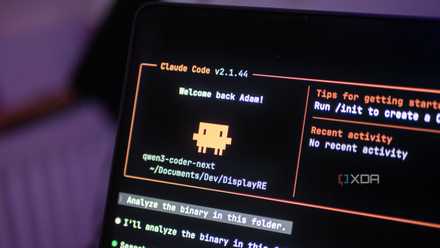
I finally found a local LLM I actually want to use for coding
Qwen3-Coder-Next is a great model, and it's even better with Claude Code as a harness.
It was effective, but messy. I was constantly hopping from one tool to another, which got extremely chaotic. There was a time I paired NotebookLM with multiple productivity tools, which meant I was jumping from several different tools to NotebookLM, then back again, just to keep my workflow moving.
Now, I’ve singled out Claude as my primary AI tool, which means my workflow has become much more streamlined. Instead of jumping from one external tool to NotebookLM and then to another tool, it’s now a smoother cycle: NotebookLM to Claude, then Claude back to NotebookLM, and back again. But here’s the thing — what if I didn’t need to keep switching at all? That’s exactly what MCP makes possible.
Connecting Claude and NotebookLM through MCP is easier than it sounds
No coding skills required
While this might sound technical and intimidating to set up, the process is really just a series of copy-paste commands in your terminal. It takes less than 10 minutes to get running. Just to give you some context, MCP is an open-source standard for connecting AI applications to external systems. Claude doesn’t natively know how to interact with NotebookLM, and NotebookLM doesn’t know how to talk to Claude.
An MCP server bridges that gap, allowing Claude to interact directly with NotebookLM and get results back, all without you manually jumping between the two.
First, you need to have the Claude Desktop app installed, as well as uv, a Python package manager that lets you install and run the MCP server. Here’s what you need to run in your terminal if you’re on a Mac:
curl -LsSf https://astral.sh/uv/install.sh | sh
If you're on Windows, run this on PowerShell:
powershell -ExecutionPolicy ByPass -c "irm https://astral.sh/uv/install.ps1 | iex"
Then comes the time to actually install the NotebookLM MCP server. While there are many you can install out there, the one I've been using is one created by Jacob Ben-David. You can find it on this GitHub Repository. To install the server, all you need to do is paste the following command in your terminal:
uv tool install notebooklm-mcp-server
You then need to authenticate the server with Google (a one-time browser login so the MCP can access your NotebookLM). To do so, run the following command on your terminal:
notebooklm-mcp-auth
From here, all you really need to do is create a file to let Claude Desktop know the server you just installed even exists. On Mac, paste the command:
mkdir -p ~/Library/Application\ Support/Claude/ && open -e ~/Library/Application\ Support/Claude/claude_desktop_config.json
On Windows, press Win + R, and paste the command below:
%APPDATA%\Claude
Now, all you need to do is create a new file named "claude_desktop_config.json" and paste the following code into
the file:
{
"mcpServers": {
"notebooklm": {
"command": "uvx",
"args": [
"notebooklm-mcp-server"
]
}
}
}
You can now access all of NotebookLM's features from Claude
Everything you need, all in one place
Once this is set up, you’ll rarely need to open a NotebookLM notebook until you want to access the Studio outputs you’ve generated. Everything else, including querying your sources, creating notebooks, adding new sources, running research, and even triggering the generation of Studio outputs, can all be done directly by Claude.
For instance, when I want to generate an Audio Overview about a specific topic, the first step is usually creating a NotebookLM notebook and compiling all the sources I want to populate it with. Typically, this is where I’d explore another tool like Perplexity or Claude to find more high-quality sources and gather additional perspectives on the topic. This is just something I like to do to improve the final Audio Overview. I then hit the Audio Overview button and switch to another tab while it brews in the background.
With the MCP server, however, I can perform all of these steps entirely within Claude through prompts, letting Claude handle the execution. I can tell Claude to create a new notebook, search for and add high-quality sources on a topic, and then trigger the Audio Overview generation. I’ll only open NotebookLM when I want to access the generated Audio Overview, while still being able to query my notebooks the way I normally would, but directly from Claude. It’s the same research experience, just without the tab-switching.
This is what makes this integration the best research setup I’ve used. I can query multiple NotebookLM notebooks, take advantage of Claude’s explanations and coding skills, get external information beyond the context of my notebooks (which NotebookLM alone can’t do since it only answers from your uploaded sources), and produce something actionable from it all. Essentially, this setup lets you combine NotebookLM’s research depth and ability to create entire grounded workspaces with Claude’s creative and analytical abilities.
Trust me, take the 10 minutes to set it up
Claude and NotebookLM are two of my favorite AI tools, and rather than pairing the two manually, this workflow lets them work together seamlessly. If you still aren’t convinced to take the time to set up the MCP server, my only question is: what’s stopping you?