
Summary
- Game Ready drivers are tailored for gamers with frequent updates, while Studio drivers offer stability for creative workloads.
- Select the driver package best suited for your needs, ranging from gaming performance to creative applications.
- Using the Nvidia app, it's easy to switch between Nvidia Game Ready and Studio drivers with just a few clicks.
A powerful graphics card is possibly the most important component of any capable gaming PC to ensure the best performance while playing games. But that's not all a graphics card is good at. The advanced algorithms inside are also awesome for productivity use, like video or image editing. Keeping your graphics drivers up to date is also important for performance, but if you have an Nvidia card, you might have noticed that there are two options now.
Game Ready drivers are tuned for gaming use, while the Studio drivers are more stable and come with optimizations for productivity software, but you can use either driver package and still game and create content on the same PC if you prefer not to switch. That said, some users might want to favor one over the other, so let's discuss.

How to update the graphics driver on your PC
Keeping your GPU drivers up to date is essential to get the best performance in the latest games. Here's how to do it.
Nvidia Game Ready vs. Studio drivers
While you can use either for any task, it's still better to use the package tweaked for your needs
Nvidia's Game Ready and Studio Drivers both cater to different users and are optimized to match specific applications. The Game Ready drivers, as the name implies, are made for gamers who primarily use their GPUs for gaming. These drivers are tailored to deliver the best gaming performance. They also bring the latest optimizations for new games, patches, and DLCs, which is also why you'll see new Game Ready drivers pop up for your system more frequently.
Game Ready drivers:
- Updated regularly
- Bring optimizations for the latest games on release day
- Can have more bugs or issues
Studio drivers:
- Updated less frequently
- Designed for stability
- Better tested before release
Nvidia's Studio drivers, on the other hand, are made for systems running creative workloads. They're great for PCs that are constantly tasked with video editing, animation, graphics design, and more. Naturally, they're more optimized for various creative workload applications than games to ensure smooth performance and reliability. One thing to note about Nvidia's Studio Drivers is that they don't get updated as frequently as the Game Ready drivers, so you won't find yourself running driver updates all the time.
Which driver is right for your PC?
Which programs do you run on your computer the most?
👁 A screenshot showing the driver selection toggle in GeForce Experience.
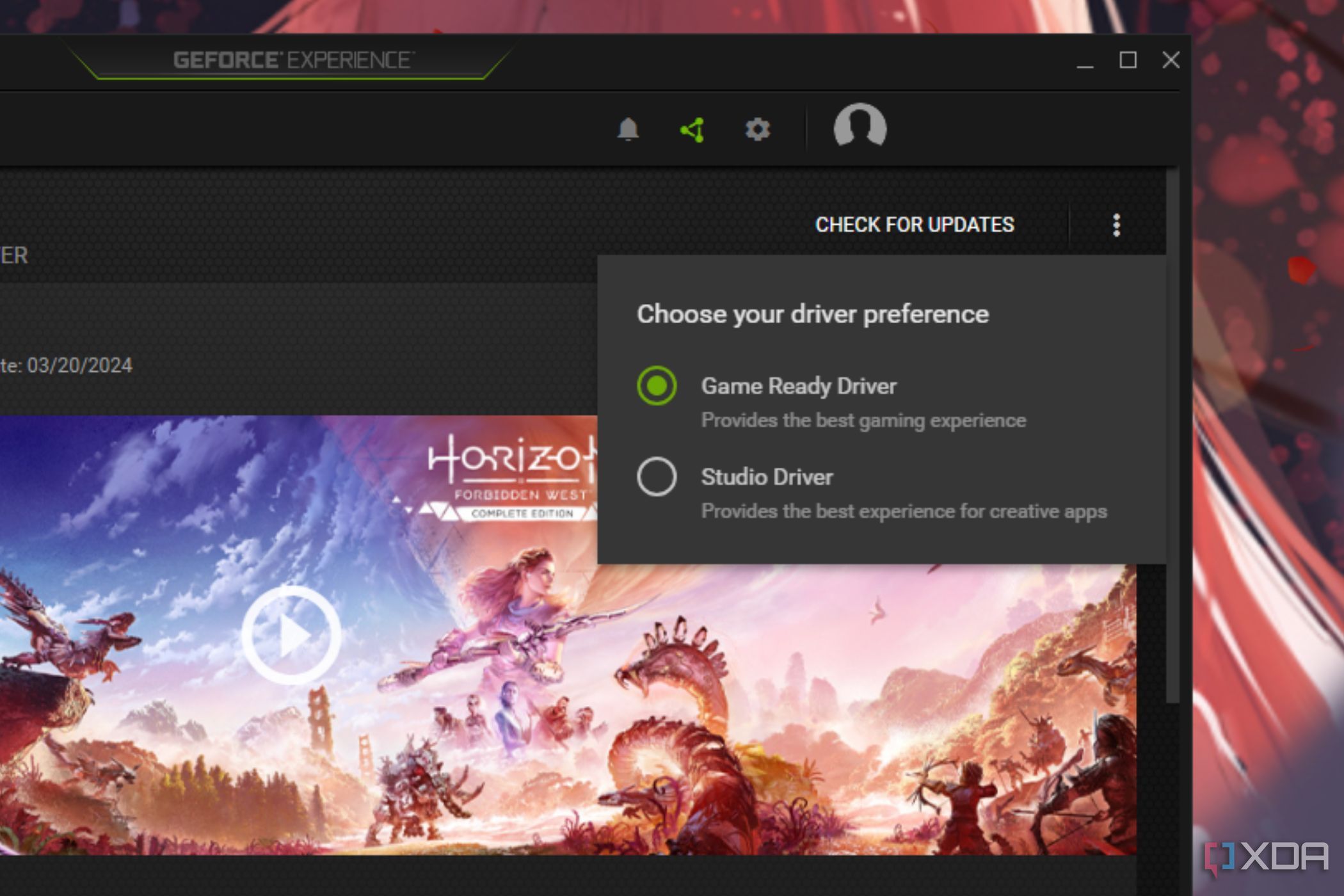
Now that you know what each of these drivers is meant for, it's time to pick the right one for your PC. If you are a gamer primarily playing on your PC, then you should use Nvidia's Game Ready drivers. Creative professionals spending their time running creative workload applications on their PC should lean more towards the Studio drivers. That's not to say you can't play games or run creative applications outside the designated drivers, though.
Both Game Ready and Studio drivers are based on the same core architecture, and they're generally interchangeable. That means gamers using Nvidia's Game Ready drivers can also still run creative applications for things like photo and video editing. Similarly, even creative professionals using Nvidia's Studio drivers can run games on their PC just fine without any issues. You are not likely to run into any major issues with either of these drivers while, say, running applications or games they're not optimized for, but may see some minor performance and stability issues.
Switching between Nvidia Game Ready and Studio drivers
So quick it's almost painless
While you don't have to switch between the Game Ready and Studio drivers on a Windows PC regularly, it's worth noting that Nvidia makes it fairly simple to do it via its new Nvidia app. That's right, you can switch between Game Ready and Studio drivers on your PC with just a toggle. To switch:
- Open the Nvidia app.
- Select the Drivers tab.
- Click on where it says the driver type at the top right. This will either say Game Ready Driver or Studio Driver, depending on which package you have installed.
- Select either Game Ready Driver or Studio Driver according to your needs.
- Wait while the app downloads the new driver package and installs it.
If you haven't already updated to the new Nvidia app
The old GeForce Experience app also lets you easily change between the two driver packages. It's likely that when you try opening GFE it will prompt you to install the new Nvidia app, but if it doesn't here are the steps for changing between Studio and Game Ready drivers:
- Open the Nvidia GeForce Experience utility. You can download and install it on your PC from Nvidia's website.
- Click the Drivers tab.
- Click the three-dot icon that's located next to the Check for updates button.
- Select the driver of your choice.
If this is your first time switching to a different driver, you may see a pop-up notifying you about a driver update. Simply follow the on-screen instructions to install the updated drivers and use them on your PC. Alternatively, you can also head to Nvidia's driver download page and manually select and download the driver that you want to install on your PC.
No such options for consumer-level AMD GPU users
While any Nvidia GPU user can switch between two driver packages, the story is different on the AMD side. That's because AMD's graphics cards are segmented according to user type, so consumer Radeon cards all use the Adrenalin driver package, while Radeon PRO users can use the AMD software PRO Edition drivers. Other than that, AMD's drivers have similar features to the Nvidia ones, with the Adrenalin driver having launch day optimizations for games, and the PRO drivers having fewer releases, better stability, and tweaks for creative tools. It's worth noting that AMD GPUs are good for creative use on both drivers, with the PRO GPUs often coming with different VRAM amounts or other features that make more sense for creative users.

Complete guide to AMD Software Adrenaline Edition
AMD's Adrenaline driver software can look intimidating at first, but here's everything you need to know about it and what settings are important.
Changing between Nvidia driver packages is quick and painless
If you're a gamer, a creative professional, or a content creator who needs both driver packages, Nvidia makes it easy to switch with a few clicks. Both the Game Ready and Studio drivers can be used for gaming or creative tools, but you can choose the package that makes more sense for your needs at the time. A new game is coming out, and you want the best performance at launch? Switch to the Game Ready drivers and enjoy. Prefer a more stable system overall? Pick the Studio drivers, and you will likely see fewer crashes, and you can still play games in your downtime. The choice is yours.