
The late 2019 16-inch MacBook Pro was one of the last Intel-powered flagship Macs Apple released before everything shifted to Apple Silicon. Mine had drifted into semi-retirement because it felt bulky for daily writing, and it ran hotter and louder than newer machines. It still worked perfectly well, yet it no longer had a meaningful place in my workflow or a reason to stay powered on. That changed once I realized it could serve as a portable virtualization lab.
I often need to spin up test environments, container stacks, and small experimental services without touching my production machines. A portable, fully isolated lab turned out to be precisely what I needed, and this aging MacBook had more than enough power to make it practical. Instead of gathering dust, it now serves as a self-contained sandbox I can open anywhere and use for real work. It feels like giving a forgotten machine a new identity and purpose.
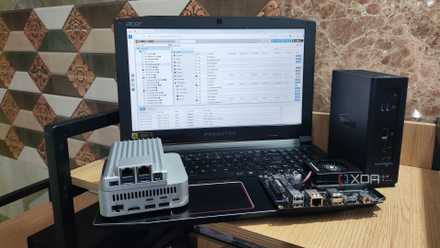
I'm addicted to installing Proxmox on old devices
Proxmox has become my favorite virtualization platform for revitalizing outdated systems
Why this old Mac still has plenty of power
How the 2019 MacBook Pro handles virtual workloads
My 2019 MacBook Pro can’t compete with Apple’s latest M-series laptops, obviously, but it still handles virtualization work surprisingly well. The Intel CPU inside delivers solid multicore performance, allowing several lightweight virtual machines to run simultaneously without dragging the system down. This makes it a valuable platform for Linux servers, network appliances, and various development environments. It may not be modern hardware, but it remains far more capable than many expect.
My configuration includes 16GB of RAM, which is not ideal for dozens of simultaneously running VMs but is still enough for a thoughtful and balanced setup. I size each VM conservatively so I can run a couple of Linux servers, a small Kubernetes node, or even a lightweight router build without starving the host. It is not a workstation-class system, yet it performs reliably when workloads remain sensible. This balance makes experimentation simple instead of frustrating.
Storage plays a significant role in the overall experience. My model includes a 1TB internal SSD, which is significantly faster than external drives or expandable storage options you might pair with a mini PC. I store my VM images, ISO files, and snapshots directly on the internal drive so everything loads quickly and stays organized. The performance and capacity make the machine feel more like a compact, dedicated workstation than a retired laptop pulled off a shelf.
What makes it a great portable lab
The convenience of an isolated and flexible environment
Turning this MacBook into a virtualization lab means I can take my entire test environment with me wherever I go, without relying on desktop hardware or home servers. The system boots quickly, stays quiet at idle, and wakes up ready for experimentation at a moment’s notice. This level of flexibility has changed how often I try new tools, as no setup processes or network requirements are holding me back. It is always ready for another experiment.
Offline capability is a major advantage that I did not fully appreciate until I traveled with the machine. Hotel Wi-Fi and guest networks are often unreliable, making it difficult to connect to remote resources. With the MacBook acting as a self-contained lab, none of that matters because everything happens locally. The environment behaves consistently no matter where I am, which keeps testing smooth and predictable.
The ability to reset broken environments quickly is another huge win. Snapshots and clones let me revert a VM to a clean state whenever I want, which removes the fear of breaking something during testing. A good lab should invite experimentation, and this setup encourages it by making recovery nearly effortless. I can try risky configurations without worrying about causing lasting damage.
The software stack that brings it together
How I configured macOS to host everything
I kept macOS as the host operating system because the major virtualization tools still work well on Intel-based Macs. VMware Fusion and Parallels Desktop are solid options. However, I often lean on UTM because it supports a wide range of operating systems and does not lock me into a proprietary ecosystem. It handles Linux servers, network appliances, and small desktop distributions with ease. This variety is what makes the machine genuinely useful for lab work.
|
Platform |
Strengths |
Weaknesses |
Best OS Compatibility / Use Cases |
|---|---|---|---|
|
|
Best for: Linux servers (Ubuntu, Debian, Rocky), Windows 10/11 x86, BSDs (FreeBSD, OpenBSD). Great for: Network appliances like pfSense, VyOS, and router OS images. |
|
|
|
Best for: Windows 10/11 x86, desktop-friendly Linux distros (Fedora, Ubuntu GNOME). Great for: GUI-based apps and dev environments that need tight macOS integration. |
|
|
|
Best for: Lightweight Linux servers, BSDs, experimental OS builds, OpenWRT, VyOS. Supports: ARM images via emulation, though slowly. Great for: Testing odd or uncommon OS environments. |
|
|
|
Best for: Basic Linux servers (Ubuntu, Debian, AlmaLinux), lightweight Windows installs. Good for: Simpler labs that do not require advanced networking. |
|
|
|
Best for: Linux container stacks, Home Assistant add-ons, dev environments, and microservices. Great for: Projects that do not require a full operating system. |
Flexible networking options help shape the lab into whatever testing scenario I need. Bridged networking allows virtual machines to appear alongside my other devices on the same network, while NAT or host-only modes keep everything isolated when I want to avoid conflicts. This makes it easy to simulate real-world setups or create completely private test clusters. Everything stays contained within the laptop and disappears cleanly when I shut the lid.
Container workloads run smoothly enough to make the machine useful even beyond traditional virtual machines. Docker Desktop is not my favorite application, but it provides a quick way to run small stacks and validate configurations before I deploy them on dedicated hardware. Compose files load quickly, and resource usage stays manageable as long as I keep the workloads realistic. It creates a workflow that feels natural and efficient, even on an older system.
Where this setup falls short
The limitations of repurposing older Intel hardware
Even though the setup works remarkably well, it does have clear limitations that come with using older Intel hardware. Battery life is noticeably worse than on any Apple Silicon laptop, especially during heavy virtualization workloads that push the CPU. Long sessions drain the battery quickly, forcing me to plan to keep the charger nearby whenever I expect serious testing. It is portable, but not in the unplug-and-go sense modern Macs offer.
Thermal behavior is another area where the machine shows its age. Running several VMs warms up the chassis, prompting the fans to ramp up to keep temperatures under control. Performance remains acceptable for moderate workloads, but clock speeds can dip after sustained loads. It never becomes unusable, but it reminds me that this machine was not designed to act as a server in the first place.
Architecture limitations also shape what I can test. The Intel CPU runs x86 operating systems natively and efficiently, but ARM-based systems require emulation because this is not an Apple Silicon machine. Emulating ARM works for brief curiosity or lightweight testing, but it becomes slow and impractical for anything more serious. This is one of the few areas where Apple Silicon has a clear advantage, although its x86 virtualization story is far more complex.
Why I still think this is worth doing
The value of repurposing capable hardware
Despite the limitations, this project has been one of the most satisfying ways to reuse aging hardware that still has life left in it. The MacBook now fills a role that complements my workflow instead of competing with newer machines. It gives me a portable, low-risk environment where I am free to experiment with new services and tools without affecting anything important. That sense of freedom has made me more willing to try new ideas.
This approach also protects my home lab from accidental breakage. Problems that arise inside a VM on this laptop cannot impact the services I rely on daily, which makes testing far less stressful. I can prototype changes, validate ideas, and bring only successful configurations into my main environment. It creates a cleaner path from experimentation to production.
Portability remains the most significant advantage of all. I can bring the MacBook to a coffee shop, the couch, or a hotel room and still have access to a complete lab environment. There is no need to rely on VPNs, tunnels, or remote access tools. Everything runs right in front of me, which makes the experience more consistent and enjoyable.
A smart way to reuse old hardware
Repurposing my old MacBook Pro into a portable virtualization lab has changed how often I explore new software and services. The machine now serves as a flexible, capable tool that continues to perform well for modern development experiments.
The limitations exist, but the benefits outweigh them easily in daily use. This project has given the MacBook a new role and has made me appreciate it again in a way I did not expect.
UTM
With UTM on my Intel MacBook Pro, I can quickly spin up new Linux instances and more.