
Summary
- OneDrive is Microsoft's cloud storage service, crucial for Windows and Microsoft 365, offering advanced productivity features.
- OneDrive was rebranded from SkyDrive due to a legal dispute, has cross-platform availability, and seamless Microsoft Office integration.
- OneDrive offers storage, collaboration, media management, security features, and competes with Google Drive, Dropbox, and Nextcloud.
Initially known as SkyDrive, OneDrive is a file-hosting service from Microsoft. The software giant launched Windows Live Folders (code named SkyDrive) back in August 2007 and rebranded it as OneDrive in early 2014. Microsoft’s cloud storage solution is an essential part of the Windows and Microsoft 365 ecosystem, and with seamless collaboration and advanced productivity features, it has evolved into an indispensable tool for individuals and businesses alike.
In this explainer, we will delve into the ins and outs of OneDrive, exploring its features, benefits, and how it can make your life easier and more organized.

6 cloud services you need to be using
Enjoy sky-high efficiency with the power of the cloud
What is OneDrive?
OneDrive is Microsoft’s cloud storage solution for saving, syncing, and sharing essential media files and documents. Like other cloud providers, OneDrive is essentially like having a virtual hard drive in the sky, where you can save any type of file and access it from your preferred mobile or desktop platform.
As mentioned, OneDrive started off as SkyDrive, but due to a legal dispute with British television broadcaster, Sky UK, the software giant had to drop the ‘Sky’ name and rebrand the service to OneDrive. Over the years, OneDrive has received new features, privacy add-ons, and even UI makeovers on mobile, desktop, and the web. Needless to say, it’s one of the most feature-packed cloud storage solutions out there.
OneDrive is incorporated into Windows 11 OS and has a solid integration with Office apps, like Word, PowerPoint, Excel, OneNote, Loop, Lists, and more. On the surface, it may sound similar to other cloud players like Google Drive and Dropbox, but when you dig deep, you will see the obvious advantages of OneDrive over its rivals.
OneDrive: Cross-platform availability
Before we go over the key OneDrive features, let’s have a word about its cross-platform availability. Microsoft offers native OneDrive apps on iPhone, Android, iPad, Windows, and Mac. ChromeOS and Linux users can access their OneDrive data right from the web version. Overall, Microsoft has done a solid job with OneDrive’s availability, and you won’t have a hard time accessing your files from anywhere.
Key features and benefits of OneDrive
Now that you have a basic idea of what OneDrive is, let’s go over some of its trendy features.
Storage and file management
OneDrive supports files on-demand on Windows and Mac. That means you can mirror your entire OneDrive library on the desktop and download only the specific files that you require. That way, it doesn’t consume much space on your device and lets you create and save to your heart's content. OneDrive also supports offline files on mobile and tablet apps.
Unsurprisingly, OneDrive has a seamless integration with Microsoft 365. Whether you create a new document, presentation, Excel sheet, or OneNote notebook, it syncs with OneDrive by default and lets you access it from any of your devices.
Collaboration and sharing
OneDrive absolutely shines at collaboration and sharing. Whether you want to share private meeting details, a confidential marketing PPT, or a quarterly sales report with team members, OneDrive offers an option to protect the link with a password and set an expiry date. That way, only authorized people can open and view the file content.
Media management
Unlike Google Drive or iCloud, OneDrive doesn’t have a separate service to manage your photos and videos. You can access the media library right from the Photos tab on web and mobile. You can choose specific phone folders and even organize them by year and month in the Camera folder.
As for other features, you can create different albums and filter them by places, categories (Screenshots, Videos, Receipts, Documents, and Selfies), things (sky, flower, etc.), and more. The editing features are quite basic, with filters, markup, crop, and adjustments. Only the default OneDrive-powered Photos app on Windows gets additional AI features like background removal, generative erase, and integration with Microsoft Designer (the company's graphics design tool).
Security and privacy
OneDrive offers ransomware protection for your files and photos. It detects a potential ransomware attack and guides you through the process of restoring your files.
Another handy security add-on is Private Vault. As the name suggests, it’s a digital vault in your OneDrive account with an extra layer of security. You can use it to store your confidential files, documents, and personal photos.
Get started with OneDrive
Setting up OneDrive is very straightforward on mobile and tablet apps. You can simply download the OneDrive app from the Google Play Store or the App Store, sign in with your Microsoft account details, and access your files instantly.
As expected, Windows users get additional perks like backing up PC folders, device preferences, and apps list. Microsoft prompts OneDrive backup during setup, and if you have skipped it, follow the steps below to get it up and running in no time.
- Click the OneDrive app icon in the system tray menu.
- Click the gear icon and open Settings.
- Select Choose folders and pick the ones you want to display in the File Explorer app.
- Move to Sync and backup and select Manage backup to sync local folders to OneDrive, such as Documents, Pictures, Desktop, Music, and Videos.
There are also several options to tweak Personal Vault settings, limit download and upload rate, the ability to exclude specific files, and more.
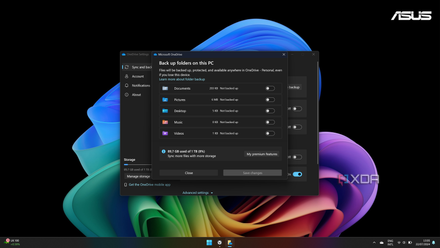
How to turn off OneDrive folder backup in Windows 11
Windows 11 comes with an annoying feature that automatically backs up and syncs certain folders with OneDrive. Here's how to turn it off.
OneDrive pricing
Back in SkyDrive days, Microsoft used to offer 25GB of free storage to new sign-ups. Later, the company reduced it to 7GB. As of now, it offers 5GB of free storage for new users. Paid plans start at $2 per month for 100GB.
Alternatively, you can subscribe to one of the Microsoft 365 Home or Business plans and get 1TB of OneDrive storage, along with Office desktop apps, ad-free Outlook web, 50GB of mailbox storage, OneDrive ransomware protection, access to Microsoft support experts, and more. The cheapest Microsoft 365 Personal plan is priced at $70 per year.
Microsoft used to offer unlimited OneDrive storage to Microsoft 365 (previously known as Office 365) users. Later, the search giant removed the option since some users were abusing the unlimited perk by backing up multiple PCs, entire movie collections, and DVR recordings.
OneDrive rivals
Since the cloud storage market is quite saturated these days, there is no shortage of OneDrive alternatives out there. Let's do a quick overview of the top three.
Google Drive
Google Drive is the most popular cloud storage service out there. Like OneDrive, it has a smooth integration with the Android operating system, Google Workspace apps like Docs, Sheets, Slides, and more, plus it comes with a generous 15GB of free space and offers blazing fast upload and download speeds.
While Google Drive scores high on speed, it falls short of OneDrive in terms of privacy and security. Read our post below to find the top reasons to choose OneDrive over Google’s solution.

5 reasons Microsoft OneDrive is better than Google Drive
Microsoft’s cloud storage platform is worth considering over Google Drive. Here's why it works well for me.
Dropbox
Dropbox is the closest OneDrive alternative in terms of features. It offers the same Photos tab for smooth media management, password-protected sharing links, expiry links, and native apps on all platforms.
Dropbox is jam-packed with useful productivity utilities like PDF editor, Dropbox Paper, Dropbox Backup, password management, Dropbox Transfer, and more. Professionals will surely appreciate these add-ons for a smooth workflow.
Nextcloud
Nextcloud follows a different approach to keeping your data safe and secure. It’s an open-source, self-hosted platform so that you can keep your data wherever you decide to trust it. It’s all about flexibility and more control over your data.
Check out our separate guide if you want to explore more OneDrive alternatives.

7 best OneDrive alternatives and competitors
There are ample cloud storage solutions to replace your existing OneDrive setup
Access your files everywhere you go
OneDrive is a go-to solution for Windows and Microsoft 365 users. Although it has a long list of features, Microsoft needs to work on faster upload and download speeds and release a OneDrive-powered gallery app on mobile platforms (like Google Photos and Apple Photos). What are you waiting for? Download OneDrive using the link below, upload and safeguard your data, and give yourself some peace of mind in the cloud.
Among all the cloud storage services, Dropbox is a leading name that can give OneDrive a run for its money. Check out our dedicated comparison guide if you want to learn the differences between OneDrive and Dropbox.
Microsoft OneDrive
Microsoft OneDrive is a reliable cloud storage service for Windows and other Microsoft service users. It integrates perfectly with Microsoft Office programs and is available on a bunch of different platforms.