
Evernote and OneNote are two of the oldest note-taking apps out there. Both productivity tools promise to organize your thoughts, capture ideas, manage tasks, gather research notes from the web, and keep our lives in sync. But which one is superior? Buckle up, as we compare their features, weigh pros and cons, review their note organization style, and pick an ideal option that deserves a prime spot on your digital desk.
In this post, we will pit OneNote against Evernote based on user interface, note organization, pricing, security, features, cross-platform availability, and more. In the end, we will help you pick a better companion for a smooth workflow on your laptop.
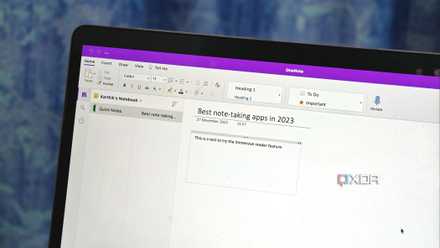
5 modern note-taking alternatives to Microsoft OneNote
Organize your workflow and take notes like a pro with these OneNote alternatives
Cross-platform availability
It’s a tie here. Both Evernote and OneNote are available on iPhone, Android, iPad, Windows, Mac, and the web. If we have to nitpick here, Evernote slightly has the edge. That's because its web extension is available on Safari, Firefox, and Chrome, while the OneNote web clipper is limited to the Chrome Web Store only.
User interface
Both Evernote and OneNote recently received a UI makeover. OneNote now offers a simplified ribbon at the top, which looks modern and more in line with other Microsoft 365 apps. Microsoft also added an option for vertical tabs to make the transition more seamless for Univesal Windows Platform (UWP) OneNote users.
Evernote also went through several interface upgrades at the start of this year. These aren’t drastic changes, though. Bending Spoons (Evernote’s parent company) removed unnecessary clutter and tighten the overall look for a modern touch.
Note-taking experience
Evernote comes with a dedicated Home menu to let you glance over your notes, calendar, tasks, pinned notes, scratch pad, tags, and more. It’s quite customizable and offers you a good overview ahead of a busy day.
As for taking notes, it supports the slash (/) command to insert a checklist, table, code block and Google Drive files. It’s a much better experience than using a toolbar at the top. To no one’s surprise, Evernote supports all the text editing features you can ask for.
While OneNote has a separate home tab on mobile apps, the company’s desktop apps simply take you to the last opened note. Aside from standard note-taking tools, you can even Outlook meeting details, create Outlook tasks, insert common mathematical equations, and even stickers to add some fun touch.
Notes organization
Here’s where it gets interesting. OneNote uses a standard hierarchy where you create a notebook, add sections (sub-sections), and create pages for your notes.
Evernote has a better approach with tags. You can assign relevant tags to your notes and filter them with a single click on the sidebar. Evernote’s search experience is quite superior to the one offered by OneNote. You won’t have a hard time finding your notes. You can even move your frequently-used notes into the shortcuts menu for easy access. OneNote doesn’t offer any such option to pin a note.
Evernote vs. OneNote: Features
Let’s glance over some of the features that are unique to Evernote.
Calendar
Evernote offers an excellent calendar integration. You can connect your Google and Microsoft 365 (Outlook) calendars and manage your events like a pro. You no longer need to switch to a different calendar app to check your upcoming events.
You can even click Add note to a calendar event and create a dedicated note with action items and other details. It’s a huge productivity booster for many.
Tasks
Tasks is another area where Evernote excels over OneNote. Simply type /task and create a checklist of items with due dates, reminders, flags, priority levels, descriptions, and other details. You can even check your live task completion data from note preview. Neat!
OneNote only lets you create basic Outlook tasks within the desktop app.
Math equations
Now, let’s glance over a couple of unique OneNote features. The first one is the support for math equations. OneNote has built-in support for addition (+), subtraction (-), multiplication (*), division, and percent symbols.
Whether you want to calculate trip expenses or run basic math formulas, simply write them down in OneNote, type = in the end, and hit enter. You don’t need to open a calculator in the background.
Locked notes
OneNote lets you lock private and confidential notebook sections with a password and biometrics. It’s such a basic feature for a note-taking app that Evernote misses out on. Check our dedicated guide to learn more about keeping your OneNote files safe.
OneNote vs. Evernote: Sharing
While sharing and real-time collaboration experience is identical on Evernote and OneNote, the latter has an edge here. When you share a OneNote notebook, you have the option to add a password or set an expiry date to avoid unauthorized access.
Linked notes
Linked notes let you connect related notes for a better experience. With Evernote, you can simply type /Note link and pick a relevant note to insert. You can even change the preview and title of the linked note.
OneNote users can press the Ctrl + K keys and select another section or page from the pop-up menu to link it.
AI integration
Evernote has an AI chatbot that can summarize your notes, fix typos, translate, and even change the tone of text. The company also offers an AI-powered search to find relevant answers fast. For instance, you can search for 'What are my to-dos from yesterday’s meeting?' and find your tasks instantly.
On the other hand, Copilot on OneNote can generate summaries, create to-do lists, analyze ideas, and rewrite notes for clarity. However, it requires a separate subscription. Speaking of which, let’s conclude our comparison with pricing details.
Pricing
There's a free version of Evernote, but it is quite limited with one notebook, up to 50 notes and 60MB monthly upload size. The Personal version now costs $15 per month or $130 per year. It doesn’t include AI Edit and AI-powered search, though. For that, you need to upgrade to a Professional plan. Head to Evernote’s official page to learn all the differences.
Microsoft OneNote is completely free to download and use. Since it uses OneDrive to sync your notes, you do require sufficient cloud storage space. OneDrive prices start from $2 per month for 100GB.
Who takes the crown in 2024?
Whether you are a meticulous planner, a creative thinker, or a productivity nerd, both Evernote and OneNote should get the job done in style. While the Green Elephant offers better notes organization, a handy calendar and tasks integration, a modern editor with slash (/) command, and a neat home page, OneNote strikes back with superior drawing tools, support for math equations, affordable pricing, and a seamless integration with Windows and Microsoft 365.
It's up to you to pick a better option that matches your note-taking style and preferences. If you are leaning towards Microsoft’s solution, check our separate post to learn the top OneNote features to supercharge your note-taking.