
Even if you have multiple drives, it's easy to fill up PC storage these days. Game file sizes have ballooned in recent years, and media files aren't getting any smaller. Regardless of your "storage hygiene," it's useful to take stock of what you store and trim off what's unnecessary, and here are six easy ways you can do just that.

NVMe over TCP is the coolest networked storage protocol you haven't heard of
It may not be practical for most people yet, but NVMe over TCP is one of the NVMe over Fabrics protocols that might become a standard in the future.
6 Uninstall seldom-used games and applications
If you're not using it, why have it on your drive?
One of the best ways to save storage space on your PC is to take stock of your installed applications. Whether it’s a productivity app or a seldom-launched game in your library, uninstalling stuff you don’t use is a great way to cut the fat. Games like GTA V and Call of Duty have gargantuan file sizes, and uninstalling a single one saves hundreds of gigabytes. Productivity apps, particularly multimedia ones, can eat up a lot of storage. Uninstalling them and archiving old projects is a handy way to save even more space.
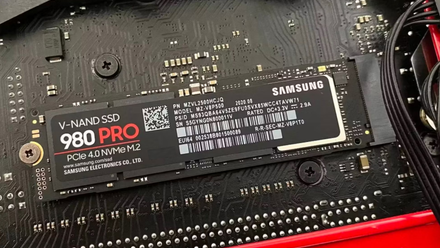
How much storage does your PC have?
I have a lot of drives, amounting to roughly 10TB of storage, 5TB of which is actively in my main PC right now. I don't really use much of it, but it's nice to have, and I don't have to worry about game storage. What about you?
5 Clear your downloads folder of large files
It's easy for it to get out of control
If you’re like me, you love to collect files in your Downloads folder. Mine is absolutely chock-full of duplicate files, large zipped archives, and even entire ISO files. It’s like a junk drawer in a kitchen, except I keep adding to it, and none of the stuff in there is terribly useful.
Although I’m still somewhat in denial about the utility of all the stuff in my Downloads folder, it’s definitely somewhere with a lot of potential for space-saving. By default, your Downloads folder is located on your main C drive, where your OS is installed. For many people, this is usually a small, fast SSD, which will fill up quickly if you’re loose with your downloading habits.

5 things to consider before buying an NVMe SSD
Before adding NVMe storage to your rig, there are some things you should consider.
4 Clear your Recycle Bin
Keeping it clear allows space for things you actually use
Continuing with the kitchen analogy, it’s important you empty your trash receptacles often. While computers certainly don’t smell like garbage if the recycle bin is full, it’s still worth checking in on it, especially if you start to have storage issues.
Contrary to what you might think, Windows does not automatically empty the Recycle Bin unless you configure it. Windows 11’s Storage Sense feature might empty it on its own if you run close to max capacity on your drive, but if you want it to empty more often, you’ll have to configure this behavior yourself.
3 Utilize network storage
Moving data to the cloud can save you heaps of space on your local device
Depending on how much data you hoard (and how much you’re willing to spend), cloud storage can be an excellent option to get your local storage under control. In cases where you’re reluctant to part with your data, paying a monthly fee for a cloud storage service like Google Drive or Proton Drive ensures you’ll have your files whenever you need them, wherever you need them.
While it may be outside the scope of this article and is definitely the more expensive option in the short term, building a NAS is also a smart way to consolidate data overflow from your PC. Certainly something to consider if you love filling storage and hate deleting files.

5 cloud storage providers you should integrate with your NAS
Here are some external cloud services that you can use with your NAS
2 Run Windows Disk Cleanup
It does, indeed, clean your disk
Windows’ integrated Disk Cleanup utility is not something to overlook if you’re looking to shave some usage off your drives. Disk Cleanup will delete temporary files, clear the cache data that’s no longer needed, and also empty the Recycle Bin. Unless something has gone awry with how Windows is using temp storage, this shouldn’t save you a ton of space, but it definitely helps.

5 effective methods to free up storage and reclaim your SSD space
Your SSD can benefit from a bit of tidying up
1 Compress files you intend to archive
Shrink your data into more manageable sizes
Desktop users often forget about compression as a space-saving strategy. Windows has an integrated archive feature that throws your desired selection of files into a zip archive.
This is probably decent enough on its own. Still alternatively, if you want to get a bit more aggressive with the compression, you can use applications like WinRAR and 7-Zip to control things with a bit more granularity. Keep in mind that the more aggressive you are with compression, the longer it will take to perform the decompression process.

6 best file compression tools for Windows PCs
Compressing your files makes them easier to share
Make a habit of cleaning your storage regularly
There will come a time when adding more drives to your system might become necessary. However, as long as you maintain your storage, you shouldn't run into capacity issues. If you're someone who can never have enough capacity, building your own NAS is definitely the next step to upping your storage game.