
Keeping your technology secure is essential. We have phones, computers, tablets, smart TVs, and more. But threats lurk everywhere, and you don't want to be hacked or have data stolen. You are the IT department at home, and you might think your devices are private and secure. However, there are some things you are overlooking, and you will want to change. There are several security settings and features I wish I had implemented sooner. If you aren’t utilizing these practices at home, you might regret not using them sooner.

4 amazing operating systems for security-conscious users
Not fond of the vulnerable nature of Windows 11? These four ultra-secure operating systems might just be what the doctor ordered
6 Two-factor authentication (2FA)
Ensure your online accounts are secure
Everything we do is online. We have many accounts containing sensitive data, credit cards, and more. A key practice I wish I had started using sooner is 2FA. It’s called different things like “two-step verification” or “multifactor authentication” and is a proven security mechanism that adds a second layer of security to your online accounts. You want to enable it everywhere it is available. It requires entering a second code sent to your phone, email, or authentication app like Google, Microsoft Authenticator, or Authy.
On some sites, you can use biometrics as a second verification method, like Windows Hello or Face ID. You should also consider using YubiKeys, the gold standard for hardware authentication. Also, when you set up 2FA, don’t forget to print out backup codes in case you don’t have your phone, or it isn’t working.
I would be remiss if I didn’t mention passkeys, a modern, passwordless way to keep online accounts secure. It is easier than fighting 2FA. However, not every service offers passkey technology. I use passkeys where I can, but I also have 2FA enabled if it doesn’t work or if I need a secure fallback option.
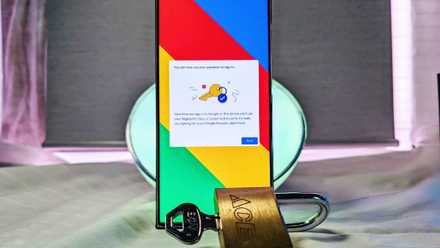
5 reasons you should be using passkeys for security
If you want a secure and password-free sign in experience, consider using passkeys for security.
5 Ransomware protection
Keep files safe from ransomware attacks
Ransomware is malicious code that can be injected into your system, and it blocks access to your data until you pay the attacker, usually in cryptocurrency. Usually, attacks happen on large-scale corporate networks like hospitals, electric companies, etc. Don’t think you won't fall victim just because you’re on a home network; it’s still a threat. For instance, if you remote into your work and there is an attack, it could transfer to your computer and vice versa.
The good news is that you can implement the ransomware protection feature on Windows 10 or 11 through the Windows Security app. This helpful setting is actually called Controlled Folder Access (CFA), and it guards your protected folders against sophisticated ransomware attacks.
Worried about ransomware? Configure automated backups for peace of mind
Take some weight off your shoulders by automating your backup tasks
4 Windows Security
Adjust it for maximum protection
You might think that having Windows Security built into Windows protects your PC by default with real-time protection, and it does to a point. However, there are ways to get more from the app. Windows Update runs silently in the background, but it’s a good practice to check it regularly for the latest virus and malware definitions. Also, perform manual scans regularly. Confirm that protection is enabled by going to Windows Security -> Virus & threat protection -> Manage settings. Ensure all protection options are enabled unless you have a specific reason not to. If scans take too long, it’s likely due to having too many files. You can make it exclude files from this section too.

4 reasons why Windows Security alone isn’t enough to protect your PC
You need more than just Windows Security
3 Install PC Manager
A free Microsoft tool for system protection
I wish Microsoft’s PC Manager utility had been available years ago. This vital tool is often overlooked but can help keep your PC secure. This is the company’s answer to the popular CCleaner utility for optimizing your system. It includes storage and app management, as well as security protection. You can quickly scan for viruses, download updates, and scan your network for issues and potential settings threats.

4 things holding Microsoft PC Manager back from being a great app
The app could be great, but it's not
2 Web browser security
Lock down your browser for online protection
Locking down the web browser is essential, whether you are on a Mac, Windows, or Linux PC. It doesn’t matter which browser it is; I continuously research and enable the best privacy and security settings to protect myself online. No browser is perfectly secure out of the box, and each one has settings tweaks that enhance its online safety. For example, you can set Microsoft Edge security settings using Windows' default browser. You can also use Firefox for its maximum security or enable real-time URL checking in Chrome, the world's most popular browser.
Even if you select privacy-oriented browsers like Brave or DuckDuckGo, there are always settings you can enable to keep browsers more secure. So, whichever one you choose as your default daily online driver, it’s more important than ever to lock it down by enabling privacy and security settings. Online threats come from all corners of the internet, like malware, viruses, phishing, identity theft, etc. In addition to maximizing security settings in your browser, ensure you clear browsing history regularly on a shared computer. Also, keep the browser updated, since updates typically contain privacy and security fixes.

Microsoft Edge is getting a security feature that I wish Chrome had
It seems pretty useful.
1 Secure Wi-Fi
Your router is a gateway to potential threats
One of the most critical security practices to implement at home is securing your Wi-Fi router. It is the first line of defense for your home network. Ensure you change the admin password and SSID to something other than the manufacturer’s defaults. Also, ensure you use the strongest Wi-Fi encryption your router supports — in 2025, it’s WPA3. Another overlooked practice is updating router firmware regularly. It provides security fixes and also improves device stability and performance. If you are a technical user, consider switching to custom firmware like DD-WRT or OpenWrt. In addition to stronger security, custom firmware offers more functionality than what came with it. You can also disable vulnerable features like WPS or SNMP to reduce network exposure to malicious code.

DD-WRT vs. OpenWrt: Which open-source router firmware should you pick?
Installing a custom firmware on your router gives you more control and longer support than the stock firmware.
Use the best security practices for your home tech
Our entire lives are on our phones, tablets, and computers, and there are more threats to our data than ever. So, it is crucial to use best practices to keep everything safe. Securing your data is a constant battle, so do not overlook these items. What are some of the tech security tips that you use at home to stay secure?