
Remote game streaming is a facility that allows you to run PC titles on your top-of-the-line gaming rig and broadcast them to other devices. As long as you have solid network speeds and connectivity, you can enjoy your favorite graphically demanding games at solid frame rates on low-powered devices.
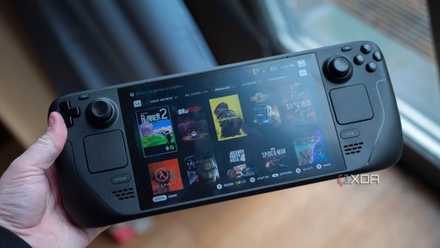
How to install and use Moonlight on Steam Deck
Moonlight is a great way to make more games playable on your Steam Deck, and it only takes a few minutes to set up.
Parsec is an application to access your desktop remotely from another system. Setting it up is fairly straightforward, though you might have some trouble calibrating the settings for ideal performance. So, we’ve created a detailed guide to help you set up remote desktop and game streaming via Parsec.
Setting up Parsec on the host machine
First, you’ll need to install Parsec on the PC you intend to use as the host machine for your remote streaming needs. To do so,
- Head to Parsec’s official website and download the PC version of the app.
- Run the setup.exe file as an administrator.
- Check the toggles next to the Parsec app and Virtual Display Driver on the Select Components page and click Next.
- Pick Per User as the Installation type and press Next. During the installation procedure, your PC might freeze when the app configures the virtual display drivers. Don’t worry though, it’ll only be temporary, and the system will become responsive in a few seconds.
- Once the app boots up, select Sign Up to open the registration link on your web browser.
- Enter your Email and Username before deciding on a Password and verifying your email ID.
- Use your newly created Parsec account credentials to log into the application.
- Make sure your PC shows up in the Computers section.
Configuring Parsec on the client system
With Parsec configured on the host PC, it’s time to install the app on your client machines. We’re using an Android device for this tutorial, but the procedure is largely the same for other operating systems.
- Download the app for your platform from Parsec’s website.
- Once you’ve installed the app, log in using the account you created earlier.
- Press the Connect button to pair Parsec with your host system.
- In most cases, the client should start displaying the contents of your PC.
Thanks to Parsec, you can also access the host machine from other accounts. To do so,
- Click on the Friends tab and select Add Friend.
- Enter the other user’s ID into the Search Bar and hit Send request.
- Your host machine will appear on the other user’s Parsec app after they’ve accepted your invite.
- When they click on the Share button on their system, you can choose the Accept option to grant access to your host machine.
(Optional) Fine-tuning Parsec for remote desktop streaming
Although the default settings on the Parsec app work well for the most part, there are a couple of options you can tweak on the host machine to improve performance and get rid of errors.
- Switch to the Parsec app on your PC, click on the Settings icon and switch to the Host tab.
- If your client device displays error (-19) when you try connecting to the host machine, it’s because the resolution of the host machine is higher than that of the client. You can fix it by switching the Resolution setting from Keep Host Resolution to Use Client Resolution or setting a smaller value for this option.
- Assuming you don’t have a data cap on your Internet connection, you can dial up the Bandwidth to improve the visual quality and reduce latency.
- Finally, if you want to play at a higher refresh rate on the client, feel free to bump the FPS value up a notch.
Accessing your PC from anywhere using Parsec
One of the best aspects of Parsec is that you can use remote streaming on devices that aren’t connected to the same network without setting up port forwarding or installing ZeroTier or other third-party apps. This makes it a lot simpler to configure than a typical Moonlight and Sunshine server.

How to play PS5 games remotely on Steam Deck
Play your favorite PS5 titles on Valve's portable handheld.
That said, I’ve noticed that Parsec has a little more latency and microstutters than its rival. While I prefer Sunshine and Moonlight for gaming, Parsec still holds up pretty well for your average remote desktop tasks.