
Modern PC hardware often has more interlinked elements than the average user can keep track of. Sure, seasoned gamers may know about XMP/EXPO, Resizable BAR, and GPU power limits, but the majority of users are unaware of these settings. I want to highlight some other PC settings that directly impact your gaming performance, thermals, noise levels, stability, and security. You may not know these settings exist, or even if you do, you may not consider them worth the hassle. Some users are also overly cautious about fiddling with the firmware, BIOS settings, and voltage/frequency settings out of fear of lasting damage. Thankfully, the settings on this list are perfectly safe to tweak, and will almost always deliver positive results for your system. The default settings might work, but you're unknowingly leaving performance on the table.

4 one-click BIOS changes that unlock the PC performance you paid for
The easiest changes you can make are often times all you need
BIOS update
It's high time you jumped to the latest version
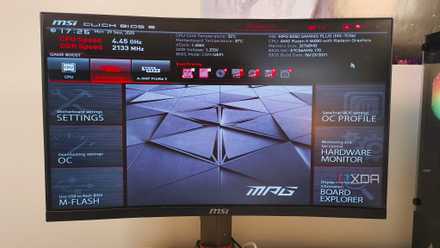
Your PC's firmware or BIOS/UEFI is responsible for a lot of its behavior. You may have interacted with it only a handful of times, but it controls your system's performance, stability, and security in the background. You may have never updated your BIOS since you bought or built your PC, which can easily lead to your rig lagging behind comparable systems. Your PC is capable of performing faster, but the outdated BIOS is acting like a bottleneck. Firmware updates released by Gigabyte and MSI in late 2024 brought as much as a 15–20% increase in gaming performance. Imagine such a boost from a simple BIOS update. Even if you don't see similar results from a new BIOS version, there could be other unseen benefits.
Manufacturers routinely work on improving the handshake between the BIOS and the hardware, leading to improved RAM stability at higher XMP/EXPO settings, reduced boot times, and better power state handling. All of these optimizations lead to a more consistent PC experience. Even the security of your system depends on having the latest firmware installed. Vulnerabilities like Plundervolt and LogoFAIL have been patched with firmware updates, so an older BIOS version might be keeping your PC exposed. The fears behind BIOS updates are outdated, since features like BIOS flashback and dual BIOS have eliminated the risk of a failed flash. So, there's really no excuse to delay BIOS updates for years — you're hurting your performance for no reason.
5 obscure BIOS settings you should still care about
They might not be well-known, but these BIOS settings still matter
Fan curves
The defaults aren't worth it
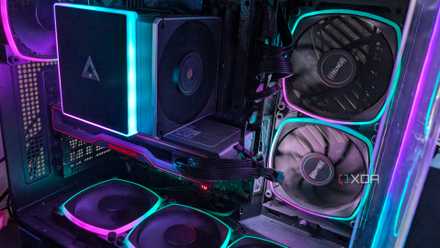
When you get a new PC, the default fan curves are often not the most optimized. They work fine for the most part, but without tuning them a bit, you aren't guaranteeing the best balance between fan speed and noise levels. You don't want your CPU, GPU, or case fans running too fast that the noise becomes annoying, but also not too slow that your components run too close to throttling temperatures. This balance is rarely achieved with one of the fan curve presets in the BIOS. Whether you select Silent, Standard, or Performance, the results won't be nearly as good as what you can achieve with a few minutes of custom tuning.
You can do this in the BIOS as well as in third-party tools. I prefer Fan Control, as it gives me a lot more control and features. You can dial in custom curves for every fan in your system, and even make them talk to each other. You aren't tied to using a specific temperature sensor for a particular component. That said, you can start with BIOS fan tuning to see the difference for yourself. You'll not only be able to reduce the noise levels, but also improve your thermals, and thereby, performance, since your hardware will be able to sustain boost clocks for longer.
Fan Control
5 myths about fans that are hurting your gaming PC's performance
Myths about PC fans might be keeping you from enjoying better temps, performance, and noise levels.
AMD PBO and Intel Turbo Boost
Doesn't hurt to toggle it on
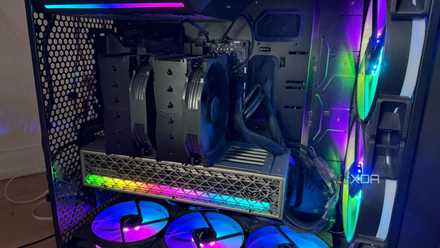
Automated boosting algorithms have always been there for CPUs, but more recent additions like Precision Boost Overdrive (PBO) for Ryzen CPUs and Turbo Boost/200S Boost for Intel chips often deliver truly impressive gains. If you have an AMD Ryzen CPU, make sure PBO is enabled in the BIOS. This ensures your CPU is intelligently tweaking its power and current limits to deliver maximum performance when you need it. The specific PBO settings you need to change can vary with your Ryzen generation, but it's worth enabling the feature to see if you see tangible gains in gaming and productivity applications. On the Intel side, Turbo Boost and 200S Boost, depending on your CPU family, allow an equivalent performance boost governed by the chip's internal mechanism. In some cases, you might see elevated thermals with no significant performance improvement. You can then choose to disable the setting.
You're using your gaming PC wrong if you're still ignoring these 5 tweaks
You may not know how game-changing some of these can be
CPU and GPU undervolting
It's a no-brainer
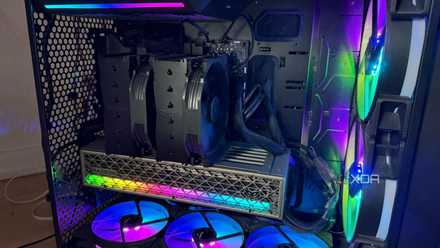
Undervolting is universally guaranteed to reduce operating temperatures without affecting performance. Still, most people keep using their CPU and GPU at stock settings, hurting their performance only because they're scared of messing with the voltage settings. Compared to overclocking, CPU undervolting is fairly simple. You just need to set a negative voltage offset, stress-test it to confirm stability, and reduce the voltage further if all seems fine. You can use the BIOS for tweaking the voltage, and a program like OCCT for stress testing. A few gaming sessions also help determine stability in real-world conditions.
For undervolting your graphics card, you can use MSI Afterburner or AMD Software: Adrenalin Edition. It involves tweaking the voltage-frequency curve to choose a lower voltage at the same frequency level. You'll have to stress-test with OCCT or FurMark, followed by a few gaming sessions. GPU undervolting is preferred over overclocking since the latter doesn't deliver meaningful gains anymore. Undervolting not only reduces your temps and noise levels, but also increases the thermal headroom, allowing the GPU to sustain boost clocks for longer, improving your 1% lows. Most people should undervolt their GPU before thinking of overclocking it.
OCCT
These are the only benchmarks I trust when stress testing my undervolt
OCCT and FurMark are all I need for testing my CPU and GPU
A few simple tweaks can get you the PC performance you paid for
Life can get in the way, making you forget about optimizing your PC for maximum performance. You might even be satisfied with your current performance, but a few simple tweaks can improve it further. Undervolting your hardware, turning on PBO/Turbo Boost, tuning your fan curves, and updating your BIOS can legitimately provide you with tangible performance gains. They might be basic settings for some gamers, but most people still don't leverage all of them.