
PCIe expansion cards are some of the most powerful, not to mention affordable, upgrades you can make to a PC. The PCIe bus offers a high-bandwidth connection to the system, and the versatility of the various PCIe sockets is a boon for power users hoping to expand the capabilities of their build. If you have one or more PCIe cards installed on your motherboard, it's possible that they are only running at half their maximum speed. Due to the motherboard design and PCIe lane sharing, your expansion card could be running in x2 instead of x4 mode (or x4 instead of x8). Not all motherboard PCIe slots are wired with the same number of PCIe lanes, so picking the wrong slot can easily throttle your PCIe card. It's possible to check whether this is indeed happening in your system, and swapping slots can often fix the problem.

Your motherboard's smallest PCIe slot can do much more than you think
The unused PCIe x1 slots on your motherboard are surprisingly versatile
High-bandwidth PCIe cards often demand 4 lanes
It's not always easy to tell if they're really getting all of them
The lack of available PCIe lanes isn't always an issue on modern motherboards. For instance, low-bandwidth expansion cards, such as USB, Wi-Fi, SATA, and even 10GbE adapters, don't need anything more than a PCIe 4.0 x1 slot. A single PCIe 3.0 lane (or PCIe 4.0 for 10GbE NICs) is enough to supply them with all the bandwidth they can use. However, when you're dealing with NVMe adapters, HBA cards, or 4K capture cards, you often need to run in x4 or x8 configurations. Even if the PCIe slot you're using is physically an x16 slot, it might be wired with only 4 or 8 lanes, depending on your motherboard design.
The problem here is that the motherboard BIOS will often not show any indication that your PCIe card is running at anything lower than its maximum rated speed. Your dual-NVMe adapter might be getting only 4 lanes, whereas it needs at least 8 to allow both SSDs to operate at their maximum bandwidth. Depending on the purpose of the PCIe card, you may not even notice a difference in perceived performance. However, you could be looking at a real performance penalty, especially in intensive workloads. Your file transfers could slow down, or your 4K stream could turn out degraded or riddled with stability issues.
Broadcom 9305-16i
- Weight
- 0.45 Kilograms
- Interface
- SAS 12Gb/s
This Broadcom offers an SAS 12Gb/s interface for hooking up numerous drives for the ultimate NAS or server. With a transfer rate of up to 1.2 GBps across 8 channels, you won't have any trouble storing big data with this thing inside a system.

PCIe bifurcation is the most underrated PC feature nobody checks for
There might be a slot you missed while assembling your rig
Your PCIe card running in x2 mode is far from uncommon
It's all about the PCIe lane design
Most high-performance PCIe cards require an x4 configuration to operate at their maximum speed. However, for several reasons, they are often starved of enough PCIe lanes, and forced to operate in x2 mode. This can happen if you happen to install the card in the "wrong" slot. The PCIe slots on your motherboard have a varying number of PCIe lanes routed to them. Some slots, like the primary x16 slot, receive 16 lanes and are directly connected to the CPU, while others get only 1, 2, 4, or 8 lanes, and could be connected to the chipset instead. Even if your motherboard has a secondary and tertiary full-sized PCIe slot, it most likely doesn't have 16 lanes available to it. Hence, it becomes necessary to consult your motherboard manual before choosing which empty PCIe slot to use for your high-bandwidth expansion card.
Another reason that your PCIe expansion card is running at a reduced bandwidth could be PCIe lane sharing. Even if the physical slot you're using has enough lanes to fully support your PCIe card, other devices connected to certain M.2 or SATA ports can reduce the PCIe lanes available to the PCIe slot in question. Due to all these slots drawing from a shared PCIe pool, you need to pick and choose which slots to prioritize.
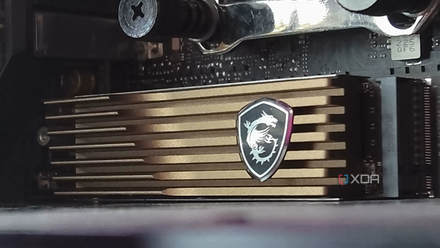
Can your GPU be slowed down by your NVMe SSD?
It's widely believed that an NVMe SSD in the primary M.2 slot can hurt GPU performance. Is that really the case?
Check if your PCIe card is indeed running slower
The proof is in the pudding
Checking if an SSD is running at half speed can be done in CrystalDiskInfo, and GPU-Z can confirm your suspicions in case of a graphics card. However, for your PCIe expansion cards, you can use AIDA64. This tool is mostly known for its stress-testing capabilities, but it can also show you the maximum and current link speed for all the PCIe devices installed on your PC. You can compare the active speed with the maximum speed to see if your expansion card is indeed running at a reduced speed. Once you have confirmed the discrepancy, you need to resolve it.
Fixing reduced bandwidth for your PCIe card is as simple as swapping the PCIe slot with one that has more lanes available to it. Alternatively, you can remove certain SATA or M.2 devices or reposition them so that the PCIe slot your card is currently installed in receives enough lanes to run it at its maximum speed. You can verify the change in AIDA64. Motherboards with high-end chipsets enjoy a greater number of PCIe lanes, allowing enthusiasts to worry relatively less about PCIe lane sharing.

PCIe fan cards are the most useless "upgrade" you can make
Total waste of a PCIe slot
Don't unknowingly bottleneck your PCIe expansion cards
PCIe cards are some of the most powerful additions to any PC. They can bring newer features to older PCs, and expand the capabilities of newer machines. Your motherboard's PCIe lane design, however, can sometimes force your PCIe cards to operate at a reduced bandwidth. Due to PCIe lane sharing, not every PCIe slot enjoys the maximum number of lanes it's rated for. Depending on the devices you've plugged into the motherboard, some slots are prioritized over others. Knowing the difference between them allows you to run your PCIe cards at their maximum speeds.