
Windows 11 has pushed a lot of people toward add-ons to get the features they need. If you need to grab text, keep a window where you want it, or set up a desktop that works the way you want, PowerToys is usually where people end up. It fills in the gaps Windows 11 still leaves behind, and it shouldn’t take an extra download to get features Windows 11 should’ve had from the very beginning. I'm not sure why it took Windows 11 this long to catch up, and even now, PowerToys still does it better.
FancyZones does what Snap Layouts should have done from the start
I set up my own layout, and now my desktop finally works for me
Before using FancyZones, I had no choice but to arrange my windows using the Snap Layouts options. I couldn’t use one of my preferred layouts because it wasn’t included. Once, I set up a layout with a wide zone on the left for my browser and smaller zones on the right for apps like WhatsApp and my file manager. This was my morning routine because Snap Layouts doesn’t let you build and keep a custom layout. It didn’t come as soon as I’d have liked, but I’m glad it’s here now.
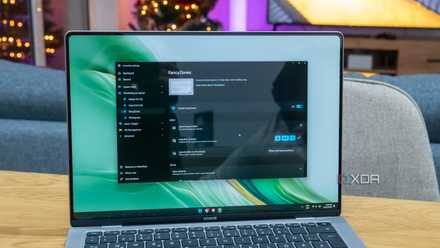
FancyZones lets me build the window layout I actually want. You open the editor, split the screen however you want. After that, you hold Shift and drag a window into a zone. FancyZones gives you a few ways to set things up:
- Grid layouts
- Stack zones, vertically or horizontally
- Overlapping zones, if that fits your way of working.
Once your layout is set, FancyZones saves it, so you don't have to build it again every morning.
8 reasons you should be using PowerToys on your Windows PC
Take your productivity to the next level
Advanced Paste turned my clipboard into something actually useful
I handle plain text, markdown, and file conversions from one shortcut
Every time I copied text, it brought along all the formatting I didn’t ask for. After pasting, I had to clean up all the bold text, font changes, and spacing I didn’t see coming. Windows has had a clipboard for decades, and it still doesn’t do it as well as it could. If the clipboard had done this from the start, I wouldn’t have had to look for other options.
Advanced Paste is another PowerToys tool that gives your clipboard the upgrade Windows never bothered with. Press Win + Shift + V and pick how you want to paste: plain text, Markdown, or JSON. The tool has more tricks up its sleeve, letting you save clipboard content as actual files like .txt, .html, and .png, grab text from images using its built-in OCR, and even convert video or audio files to .mp4 or .mp3.
Text Extractor gave me what Windows 11 should have included from day one
Grabbing text from my screen shouldn’t have taken this long
I remember seeing a meme online that I thought was funny, but I wanted to tweak the image a bit. So to redo the meme, I had to retype what it said. It just seemed the fastest way to get what I needed, without having to look for another quick app solution.
With Text Extractor, it's just so much easier. I press Win + Shift +T -> Select the area with the text -> text is copied to your clipboard. However, if I click the three dots, I can customize it further by having the tool remove line breaks or automatically copy the text without any additional steps.
Windows 11 didn’t have any way for users to grab text from an image when it launched. Today, Windows 11 offers text extraction through Snipping Tool’s Text Actions, but it still takes more clicks. You have to:
- Take the screenshot
- Open the image
- Go to Text Actions
Only then can you grab your text. Text Extractor saves you time with the “Copy text automatically” option, and Windows 11 should have had this from day one.
Windows 11 already covers the basics
PowerToys feels optional for some people
Not everyone needs PowerToys. If you’re the type of user who’s fine with what Snap Layouts gives you, there's no need for an extra download. Sure, it takes a few extra clicks, but Snipping Tool can now extract text. If you don’t really care how the text is pasted, then Ctrl + V is more than enough for basic use. PowerToys can feel less like a missing piece and more like an extra layer on top of the tools Windows 11 already has.
PowerToys stops feeling optional once Windows 11 starts slowing me down
If it saves me time every day, the extra download is worth it
It’s not like Windows 11 can’t do some of what PowerToys does, but if PowerToys helps me arrange windows, clean up pasted text, and grab text off my screen faster, I’m on board. Not having to take those extra steps helps me stay focused, and when I’m doing the same tasks every day, those saved clicks add up fast. At this point, it stops feeling optional.
These are still the three PowerToys tools I keep coming back to
Windows 11 now includes its own versions of these tools, but PowerToys makes them even easier to use. FancyZones, Advanced Paste, and Text Extractor remove the extra clicks and menus required by the native options. That’s why I still keep coming back to PowerToys, and why these tools still do the job faster than what Windows 11 offers out of the box.
- OS
- Windows 10/11
PowerToys is a free, open-source collection of utilities from Microsoft that adds productivity features and customization tools to Windows 11.