
For years, one of the things that wasted more of my time than I would like to admit is setting the brightness of my external monitor. I could easily dim my brightness on my main screen with the press of one button, but what about my external monitor? Power Display, a new PowerToys feature for Windows 11, makes the whole process of adjusting my brightness much easier. I had what I needed in one little window that I could make appear with whatever keyboard shortcut I could link it to, and both screens were finally under my control.
I can finally adjust my monitor’s brightness in one place
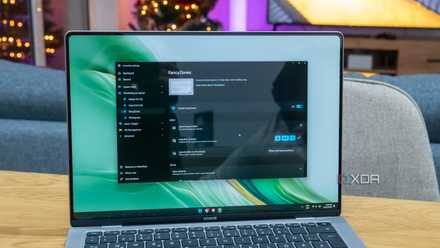
My laptop and my S2-R are stacked in the same place
Windows 11 has never had any problems with dimming my laptop. I’ve been using a function key for that for years. But things weren’t so simple with my external monitor. For that one, Windows basically left me on my own with the physical buttons. Power Display finally fixes that for me by showing me a small window where I can control both screens. I can see the sliders for each screen, one on top of the other. On top, I can see the slider for my ASUS Zenbook's 4K display, and at the bottom, the slider for my external monitor.
That may not sound like much to some, but it’s made a huge difference for me. Now I have faster access to the brightness slider, and I can choose whether to make changes to one screen or both.
In the small window, I also see the profiles I’ve created. For now, I only have a Night Time profile for when my normal settings start to feel like too much. I only have to click the profile icon at the bottom left, then select the one I want to apply. Also, I can make the window disappear by clicking anywhere on my screen.
8 reasons you should be using PowerToys on your Windows PC
Take your productivity to the next level
I picked my own shortcut to open Power Display
Power Display lets me stay with the default or create my own shortcut
By default, Power Display opens with Win + Ctrl +Shift + P. I could have left it there, but as soon as I saw that, I knew I wasn’t going to remember that. I wasn’t going to press four keys for something I knew I was going to use regularly throughout the day. I also definitely didn’t want to stretch my fingers across the keyboard as if I were trying to play a chord on the piano.
So, I changed it. I went to the Power Display settings and clicked the little pencil icon next to the shortcut. I clicked it and pressed Alt + L to set a new shortcut for the feature. That is so much easier to remember than the default setup. I tried other keyboard combinations before, but I would just get a message that Windows 11 was already using it for something else.
The shortcut ended up mattering more than I expected. It wasn’t just about convenience. If I couldn’t remember the four-key default shortcut, I probably wasn’t going to use Power Display as much. But with Alt + L, it feels like something I can open without thinking, and that’s what makes it useful enough to keep using throughout the day.
I saved my brightness settings as profiles in Power Display
My day and night setups are only a few clicks away
Profiles are my favorite part of Power Display because I can adjust my display brightness with a few clicks. One is called Night Screen, and the other is called Day Brightness. The brightness of the night profile will obviously be darker than that of the daytime profile. And by using Profiles, I don’t have to waste time manually adjusting them or trying to remember the perfect setting I created.
If I want to make changes at any time, I just go to:
- PowerToys
- Power Display
- Profiles
And make the necessary changes. I only have two at the moment, but you can create as many as you need. Maybe you need one for morning, midday, and nighttime. You can always go back and delete any profile you no longer need. When creating a profile, you’ll see options to adjust the brightness, contrast, and color temperature. Just make sure to toggle the display you want the settings to apply to, or else they will be greyed out.
Power Display only works with what your monitor reports
My laptop got left out of the good stuff, and my external monitor had access to more
Power Display isn’t perfect, and my ASUS Zenbook showed exactly the options I didn’t have access to. It can only do what each screen tells it that it can do. When I opened my laptop's display settings, I got a warning that said “Monitor capabilities unavailable” because my screen never reported its DDC/CI capabilities. So contrast, volume, input, and color temperature all sat there greyed out, and brightness was the only option I could actually use.
Save on monitors, docks, and workspace deals now
Things worked differently on my external monitor. I could see options such as Show input source control, Show rotation control, and others, but when I clicked to enable them, I saw a warning calling it a “potentially dangerous operation” that could mess up my display. That was enough to make me back off and not gamble on my screen since brightness was my main concern.
The downside didn’t ruin the feature for me
I used the feature for brightness control, and that’s what I got
Here’s the thing, though. None of those limits touched on why I used the feature in the first place. I was able to control the brightness on both screens without any issues or warnings getting in the way. An easy-to-remember keyboard combination was all I needed to access the feature and adjust it according to the time of day. It would have been nice to access them, but my screen looks just fine without adjusting anything other than the brightness.
PowerToys did it first
It only took a PowerToys feature to give me the control I needed over my external monitor. Sure, I could manage the button, but it’s so much easier this way. I’ve tried it enough to know that this is going to be my go-to option when I need to change the brightness on my screens.
- OS
- Windows 10/11
PowerToys is a free set of Microsoft utilities that add extra features and customization to Windows.