
Microsoft's PowerToys suite is a very interesting one. I can't imagine using a Windows PC full-time without it these days, which makes it really strange that the company hasn't incorporated some of its features directly into the operating system. As a power user, it can be easy to convince yourself that something is essential for everyone just because you rely on it, but many of the features in PowerToys feel like they would just make a ton of sense to have out of the box.
Of course, that doesn't go for all of them, and some tools are better off as a niche add-on than a built-in feature. Still, I have a few that are particularly weird to me as they would fit right into Windows 11, so let's talk about some of the PowerToys features that really need to come to Windows 11 yesterday.
8 reasons you should be using PowerToys on your Windows PC
Take your productivity to the next level
6 Registry Preview
It just makes too much sense
The Windows Registry is used to store all kinds of important information that defines how your computer works. Many times, to enable or disable certain features, tweaking the registry is pretty much required, and to do so can sometimes mean download a registry file that contains changes to be applies to your system. The problem is these changes are not very transparent out of the box. If you open a registry file you downloaded form the internet, you'll be warned about the dangers of modifying the registry, but you have no way to see what's being changed.
That's exactly what the Registry Preview tool in PowerToys addresses. You can use this tool to open a registry file and see what its contents are, so before you import those changes into your PC, you can see what's going to happen to it. It's a very simple tool, and yes, admittedly, it's not one everyone needs, but if importing registry files can be done without additional software, being able to easily see the changes you're about to import should be just as easy. This feels like a no-brainer, even if it's not exciting to a ton of people.

5 Windows Registry tweaks I still use, even in 2025
The Windows Registry can be a bit dicey to mess around with, but these 5 tweaks are still worth doing
5 Quick Accent
It's useful for names
Quick Accent is a bit of an odd example, but I do think it makes sense for a lot of users. Writing in foreign languages, or simply writing foreign names, can sometimes be a challenge when using your local keyboard. For example, as a Portuguese person who uses a United States layout on my keyboard, writing my own name correctly requires me to set up the keyboard to use the United States International layout. But not everyone is going to know that, and most importantly, not every keyboard makes it easy to insert foreign characters like the US layout does. A German keyboard, for example, makes it much more difficult to write my name.
Now, Windows 11 does provide a sort of solution to this through the input panel you can bring up with Windows + . (period), but this panel contains pretty much every symbol imaginable, including currency, punctuation, and much more. It's a long list that's a little cumbersome to use just for one accented character every now and then.
Quick Accent is a feature in PowerToys that brings up a list of every accented variant of a character so you can easily insert it into a text. You simply press and hold the character you want and press Space, and your options pop up above the text box, and you can use your keyboard to choose the right one. On macOS, this feature is already built-in by just pressing and holding a key, and it's kind of baffling that Windows doesn't offer it by default. Just having it as an option in the Settings app would be great for the people that do need it, so it doesn't have to be enabled out of the box.

How to use special characters in Windows 11
Have you ever seen a character or symbol online and you're not sure how to use it? Here's how to use special characters in Windows 11.
4 Find My Mouse
Who hasn't lost it before?
If we're being completely fair, Find My Mouse is a feature that Windows already offers to some extent, but the current implementation feels so rudimentary and outdated compared to what's in PowerToys that it just begs the question of why it hasn't been improved. If you dive into the accessibility settings on Windows 11, you can enable a feature that will show a circle around your mouse pointer when you press Ctrl, but this circle looks like it was designed in the 90s, and it disappears quickly.
Find My Mouse in PowerToys displays a far smoother and more modern-feeling animation, dimming the entire screen except the area around your mouse cursor so you really can't miss it. You can move the mouse or click it to dismiss the highlight, so it only goes away when you want it to. What's more, this feature can be triggered in different ways, such as shaking the mouse cursor. macOS does something similar, where shaking the cursor will enlarge the mouse pointer temporarily to make it easier to find, and it just feels more modern and properly implemented.

3 Command Palette (or PowerToys Run)
An effective launcher shouldn't be a bonus
One of the tools I need the most on a new Windows PC these days is an app launcher like Command Palette, PowerToys Run, or (my favorite) Flow Launcher. These launchers are such a big deal because launching apps form the Start menu is not a fast process, and even if you type in the name of an app in the search bar, the chances that results will shift around unpredictably just make it far too easy to open the wrong thing. Windows Search is slow and inefficient for launching apps, which is why tools like Command Palette are so helpful.
But that's just the thing: having an efficient way to launch these apps quickly shouldn't be an add-on feature. On macOS, I can use Spotlight and it's far more reliable to find and launch apps instantly. On most Linux distros, typing in the launcher menu also returns results much more quickly and reliably. Windows is the only one where some kind of add-on is needed for a truly good experience, and it's a real shame knowing that Microsoft can and has done something better, but it's reserved for PowerToys users.
Not every part of Command Palette needs to be brought over, but the ability to quickly launch apps really should be standard.

I tried the future of PowerToys Run, and it looks very promising
Command Palette could be truly great
2 Peek
Quick previews made easy
PowerToys Peek is an attempt at bringing another popular feature from macOS into Windows; in this case, it's Preview. This lets you see a full-size preview of almost any given file by pressing a key or combination of keys while the file is selected in File Explorer.
Considering this is ripping off a built-in feature in macOS and the fact that these operating systems usually learn from each other, I'm surprised Microsoft hasn't just built this right into Windows, too. Aside from the fact that the PowerToys implementation doesn't feel fully native to Windows, having it built-in and functional out of the box would be the best outcome and bring Windows up to par with its competitor. I'd love to see it happen.
Ranking the 10 best PowerToys tools you should be using
Why aren't you using PowerToys yet?
1 FancyZones
Were you expecting anything else?
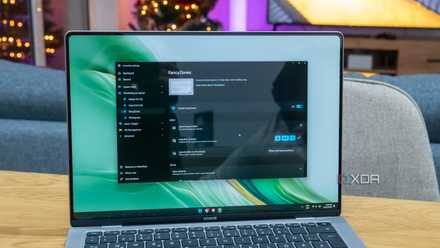
Anyone who knows my work will not be surprised at all to learn that FancyZones is at the top of features I wish were built into Windows, though I have to admit, this is the one that is the least obvious, so to speak. In my experience with both macOS and Linux (admittedly, my Linux experience is somewhat short), none of these platforms offer a solution like FancyZones out of the box, though some Linux distributions do have very advanced window management in other ways.
But FancyZones is such an essential tool to me that I would really love to see it built into Windows. I think it would make a lot of sense to have it as an optional advanced window management option for power users. Sure, at that point, it's not much different from needing to install PowerToys, but it would give Windows an edge over competing operating systems and help it stand out a bit more.

FancyZones is my favorite PowerToys tool, and I have to set it up on every PC
A Windows feature I can't live without
Microsoft knows what to do
It's a little frustrating looking at this list and realizing that Microsoft understands the importance of these tools and how they help get things done, yet they're only included in this side project that is PowerToys rather than Windows itself. At a time when switching away from Windows is more tempting than ever for people, having these features that are truly useful would make a big difference in public perception of Microsoft's operating system and potentially earn it some favor.
- OS
- Windows 10/11