
I used to have issues with my home’s wireless signal not reaching every corner of the house. Even simple tasks like internet browsing could become frustrating when walls and distance caused my Wi-Fi to drop out. That prompted me to transform my Raspberry Pi into a wireless range extender, allowing it to connect to my main router and broadcast a stronger signal to other devices. This cost-effective solution allowed boosting coverage without relying on expensive hardware or drilling holes for Ethernet cables.
You do not need to be a tech wizard to set this up, though some familiarity with the Raspberry Pi and its operating system can make things easier. Once you finish, you will have a helpful piece of hardware that sits quietly in a corner, providing a better wireless experience for all your gadgets.
7 reasons you should turn your Raspberry Pi into a DNS server
If you aren't using your Raspberry Pi as a DNS server for your home network, there are plenty of reasons why you should
Why you might want this setup
Wireless signals often drop off in rooms on a different floor or tucked away from the router. If you have tried adjusting your router’s position without success, extending your Wi-Fi coverage can be a more reliable alternative than simply hoping the signal improves. A Raspberry Pi offers an affordable, energy-efficient way to fill those dead zones. You also gain the freedom to position your new extender wherever you have power access. More robust wireless coverage means fewer streaming, gaming, or video calling interruptions.
What you need before you begin
With the latest versions of the Raspberry Pi board, setting up your Pi as a Wi-Fi range extender is easier than ever. There are a few things needed to make it happen, though.
- A Raspberry Pi 4B or 5 with Raspberry Pi OS Bookworm (or later) installed
- A compatible USB Wi-Fi adapter (two if your Pi doesn’t have built-in Wi-Fi)
If an Ethernet connection to your main Wi-Fi router is available, use that instead. It will offer a bit more reliability and speed and allow you to use only your Raspberry Pi’s built-in Wi-Fi.
If you’re using a Raspberry Pi board model lacking built-in Wi-Fi (I’m looking at you, Raspberry Pi Zero), you will need the extra USB adapter to create the hotspot.
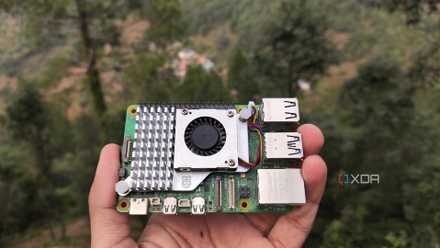
In my example, I used a Raspberry Pi 5 with one USB Wi-Fi adapter.
How to build your Wi-Fi extender
Thanks to the addition and new features of Bookworm’s Network Manager, all the software and services you need to use your Raspberry Pi as a Wi-Fi extender should already be installed.
Here’s what I did to get mine up and running.
- First, I ensured all of my software was current. In Terminal, I ran sudo apt-get update followed by sudo apt-get upgrade. This kept all components current and helped avoid compatibility issues.
- I plugged in the USB Wi-Fi adapter and made sure the Pi was connected to my home Wi-Fi.
- Next, I verified the device names for my Wi-Fi adapters. To do this, I ran iwconfig from the Terminal. As you can see, my Pi’s internal Wi-Fi adapter is wlan0, and the USB dongle is wlan1.
-
Some Wi-Fi adapters aren’t compatible with being used as access points, so we have to check that. This is done with the nmcli command line tool:
nmcli -f WIFI-PROPERTIES.AP device show wlan0
- Do this for both of your Wi-Fi adapters. As long as the value of WIFI-PROPERTIES.AP says “yes,” you’re good to go.
-
Now, you can turn on the Wi-Fi extender on your Raspberry Pi. With Bookworm, this is done with one command in Terminal. Replace with the name of the Wi-Fi adapter you want to use for the hotspot (wlan0, for example). Change and to the SSID you want the Pi to broadcast on and the password with which you want to secure the hotspot.
sudo nmcli d wifi hotspot ifname autoconnect yes ssid password
- Confirm the connection is there using nmcli con show.
- Finally, try connecting a device to your new Wi-Fi extender.
Test and troubleshoot your Raspberry Pi Wi-Fi extender
Test the connection and make sure it’s working. Occasionally, you’ll encounter a Wi-Fi adapter that doesn’t properly support protected management frames, and you won’t be able to connect to the network. If that happens, turn off the feature using nmcli in the terminal:
sudo nmcli con modify Hotspot wifi-sec.pmf disable
Once you have everything working as you like, you’ll probably want to be sure the extender works even across reboots. Just issue this command, and the connection will start after a reboot.
sudo nmcli connection modify Hotspot connection.autoconnect yes
Key things to remember going forward
Turning your Raspberry Pi into a wireless extender offers an inexpensive and flexible way to increase coverage in areas that once had spotty signals. Regularly updating your Raspberry Pi’s packages will help maintain performance and security. Placing the Pi in a spot with decent reception from your main router ensures more reliable coverage on the extended network. This approach also allows you to tweak settings or expand functionality if you want to experiment further. By following these steps, you can enjoy a more consistent Wi-Fi experience and say goodbye to dead zones in your home.
-
Raspberry Pi 4
- Storage
- MicroSD card slot
- CPU
- Arm Cortex-a72 (quad-core, 1.8GHz)
-
Raspberry Pi 5
- CPU
- Arm Cortex-A76 (quad-core, 2.4GHz)
- Memory
- Up to 8GB LPDDR4X SDRAM