
When it comes to Windows, there are always those who refuse any change Microsoft makes and would prefer sticking with the old versions of specific tools. But for me, I find that the new tools Microsoft provides are generally a good evolution of what came before, and the best example of it in Windows 11 is the Settings app.
Microsoft has been trying for years to modernize Windows settings by moving away from the Control Panel, and while progress has been sluggish, we're finally in a good place with Windows 11. For the vast majority of people, I'd argue the Settings app is everything you need to manage your PC, and in fact, I'd much rather use it over the classic Control Panel. Let me tell you why.

4 things the Settings app needs before Microsoft kills the Control Panel
We still need Control Panel a bit too much
5 Quick access to settings
Get where you need to
Right off the bat, the new Settings app is great because it's easy to instantly access at a moment's notice. At any time, you can press Windows + I on your keyboard to launch the Settings app and immediately get to the options you want. The search bar is even highlighted automatically, so if you prefer using the keyboard, you can start typing the name of the setting you want right away.
And even if you don't, the Settings app also tries to make it easier to access your commonly used settings with the new Home page. If you visit certain parts of the app more frequently, the Settings app will bring those sections up to the forefront of the UI, so you more quickly get to the options you care about.

The ultimate guide to keyboard shortcuts in Windows 11
Want to get work done faster on your PC? These Windows 11 keyboard shortcuts can help you do things faster without reaching for your mouse.
4 A modern, beautiful design
And it's touch-friendly, too
I know design preferences are totally subjective, but I don't think anyone can argue the Control Panel UI looks better than the Settings app on Windows 11. The latest version of the app has a beautiful interface with colorful icons and a clean, modern design language that feels a lot more natural than what we had back on Windows 10, which felt too plain and boring. Everything has been tuned up with more visually interesting design elements to make this a much more pleasant app to use.
What's more, the modern design sensibilities also make it more suitable for devices with touch screens, which is great for tablets and 2-in-1 laptops. Touch targets are larger and interaction feel more natural than in the Control Panel, making this the easy choice for these kinds of devices.

7 design flaws in Windows 11 Microsoft still hasn't fixed
What are we waiting for?
3 Easier navigation
Everything feels more connected and coherent
Another big benefit of the Settings app is that finding the settings you want is a lot easier and the app in general is easier to navigate. I've actually heard some people say the contrary, but I strongly disagree, and I believe those opinions are genuinely coming from habit rather than Control Panel being designed more cleverly in any way.
The main advantage of the Settings UI is that the menu is always visible (as long as the window is big enough), so if you try one page and it's not what you're looking for, you can easily jump back into a different section to find the correct setting. It saves you a lot of time going back to the main page to find the option you want, and hopping around becomes a cinch.
I also feel like settings are naturally organized fairly well and you generally know where to go to look for a specific setting, and the app does a good job funneling you in the right direction for specific settings. And if you end up on the wrong page, the Settings app also often has suggestions for different pages that might be what you're looking for, so it's a lot easier to get things done.
2 Most settings have already migrated
The Control Panel is redundant for me
When the Settings app first appeared with the name PC Settings back in Windows 8, it only offered a very small subset of the options in the Control Panel, so it was never going to be able to replace it, and it wasn't meant for that. But with Windows 10, a very large portion of important Windows settings started making the move to the more modern app, and by Windows 11, I think it's fair to say the vast majority of features has already been brought over.
Sure, many features still open in dedicated old-school dialogs, but at least they're accessible through the Settings app. Options like uninstalling apps and programs or managing fonts are now fully done through the Settings app, and features like BitLocker drive encryption still use the old Control Panel for more in-depth settings, but they can be accessed through the Settings app.
The settings that haven't fully moved are things you're likely not going to be touching at all, or only setting up once. Multi-GPU systems can choose what GPU runs specific apps or games from the Settings app, refresh rates and color profiles are in the Settings app, and many more relatively niche options can be set up here now, so only the bottom of the barrel is still exclusive to the Control Panel.

5 tips for setting up BitLocker on Windows to secure your files
Use BitLocker the right way
1 Some options are exclusively in the Settings app
Modern features deserve a modern UI
Rounding out all of this, it's important to remember that any new major features that have been added to Windows in recent years are very likely going to be controlled by the Settings app, and they have no equivalent in the Control Panel. Want to use Windows Studio Effects to enhance your webcam? The Settings app is your only option. Configure touchscreen or touchpad gestures? It's in the Settings app, not Control Panel.
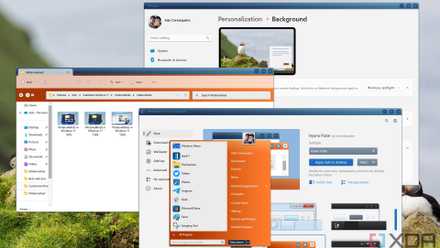
Even most of the visual personalization options are in the Settings app. If you want to change the color of Windows UI elements, change your wallpaper, customize the lock screen, and so on, it's all in the Settings app exclusively. There's so much you just can't do in Control Panel, there's no point in using it most of the time.
You can make Windows 11 feel like home — here's how to customize it
Windows 11 is a great operating system, but not everyone has to like how it looks out of the box. Here's how you can change
It's time to move on
A while back, Microsoft hinted that the Control Panel was set to be deprecated in the near future, and that upset a lot of people. I wouldn't be surprised if Microsoft does want to kill it off, but it's just holding off to avoid a wave of backlash.
In my opinion, though, this would be a positive development. There are certainly a few more things that need to be moved over to the new Settings app, but once that happens, there's no reason to keep the Control Panel around anymore. It's just a matter of time.