
It's fair to say that a lot of Windows users don't care for all the AI features Microsoft has been cramming into Windows 11 as of late. Since Copilot became a thing, it has pervaded much of Microsoft's operating system in different ways, but it often doesn't offer substantial benefits, if any.
There are plenty of debloating scripts and apps out there that can help you remove all sorts of unnecessary bloatware in Windows 11, including some AI features, but they can be a bit cumbersome to use due to the sheer number of options available. But recently, a simpler solution to remove as many of Microsoft's AI features from Windows 11 came about, and I decided to give it a go.

I tried the best way to debloat and customize Windows 11, and you should too
Improve your Windows experience in one fell swoop
It's very simple to use
Just a couple of commands away
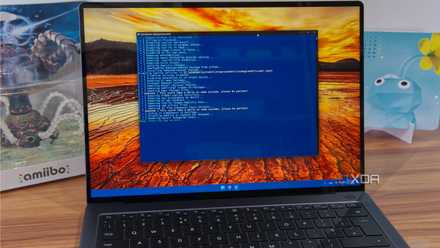
This new solution is simply and aptly called RemoveWindowsAi, and it does exactly what it says on the tin. Plus, it's really easy to use. We can call it an app, but really, it's a PowerShell script that can summon a GUI, so all you need to do to run it is launch Windows PowerShell (version 5.1 is required, you can't use the newer PowerShell 7), and enter this command:
& ([scriptblock]::Create((irm "https://raw.githubusercontent.com/zoicware/RemoveWindowsAI/main/RemoveWindowsAi.ps1")))
This directly runs the latest version of the script from the creator's GitHub, but you can also manually download the script and run it offline if you'd rather have that extra peace of mind. This command runs the tool in GUI mode so you can choose the settings you want, though there are also versions of the script that bypass interactivity so you can just make the changes right away without confirmation. You just need to add -Options at the end of the command and then choose from the options listed on the GitHub page.
I ran the script with all the options enabled, and it worked quite well. I had already removed some AI features myself, but this script removes a lot more things. It disables things like Recall and it even searches for hidden AI packages and disables them too. Plus, it removes the AI Components section in the Settings app so you don't have to be reminded it even exists. Interestingly, the script also disables Voice access, Microsoft's voice control feature for Windows, which seems like it might not really belong here — but this is a very specific accessibility feature, so it won't matter to most people.
At a quick glance, it seems to be very thorough — I no longer see any signs of Copilot, Recall, or many other AI features. There's even an option here that installs a custom Windows Update package to prevent AI components from being reinstalled with future updates, which is very handy.
What's not disabled
A little bit of extra work
While the RemoveWindowsAi script is very thorough in its process, it doesn't quite get everything, by the developer's own admission. There are only a few things you still need to disable manually if you want to.
That includes Windows Studio Effects for your voice, which are likely enabled by default on Copilot+ PC. The script already attempts to disable this, but as it's a relatively new feature, you may want to check out the Settings app to make sure it's turned off. Keep in mind, however, Windows Studio Effects runs completely locally on your PC and isn't "generative AI" in the typical sense, so there may not be much reason to disable it. It can actually improve voice call quality.
Otherwise, the developer recommends disabling the facial recognition and tagging features in OneDrive, too. This isn't generative AI in the traditional sense, nor is it a specific Windows feature, so you have to disable it on the OneDrive website.

How to use Windows Studio effects on Windows 11
Windows 11 can enhance your video calling experience with AI-powered Windows Studio effects like background blur. Here's how to use them.
The little extras
Bringing back parts of the past
In addition to disabling AI, this script also includes a little extra: it can reinstall old versions of some Windows apps, which long-time users may prefer for their simplicity or speed. These options include the classic Notepad, Paint, Photo Viewer, and Snipping Tool, as well as the Photos Legacy app from Windows 10.
Not everyone is going to care about this, but there are some potential benefits to all these apps. Microsoft has been turning Notepad into a more capable app in Windows 11, adding tabs, spellchecking, and even some Markdown-style formatting tools, but some may miss the pure simplicity and speed of the old versions. The old Photo Viewer is also a more reliable way to go through your photos sometimes, and the Photos Legacy app had a basic video creator some may like.
This is all completely optional, but having the options there isn't necessarily a bad thing. I would just hope that the scope of the script doesn't keep growing to the point where it just becomes another all-encompassing debloating script.

6 classic Windows XP apps I miss
They may not be practical now, but these apps hold a special place in my heart
Removing Windows 11 AI is a big upgrade
Like many others, I'm incredibly tired of all things AI being shoved into every corner of our technology, so the idea of removing everything related to it from my PC is fairly appealing. I understand there are some interesting uses for AI, but almost none of what's been crammed into Windows 11 falls into that description, and removing it can only be a good thing in my book. I recommend checking out this script if you feel the same way.