
Proxmox includes plenty of advanced options to make your home lab a force to be reckoned with, including everything from clusters and SDN tools to ZFS-powered RAID pools and cloud-init templates. But if you’re working on intensive virtual machine projects, you’ll want to arm them with ample system resources. And I don’t just mean extra v-cores and memory, either.
Since Proxmox supports GPU passthrough, you can even equip your VM with a graphics card to boost its prowess in gaming, LLM training, and other demanding tasks. On the surface, GPU passthrough may seem rather convoluted, as you’ll have to configure a bunch of settings, modify some kernel parameters, and tweak certain config files to leverage your graphics card in your virtual machine. However, it’s a lot more straightforward than you might think – even more so when you rely on third-party tools.
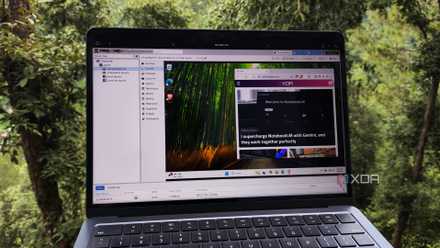
I tried using a Proxmox-based Windows 11 VM as my daily driver - here's how it went
All it took was a little bit of tinkering and a whole lot of patience
PECU makes GPU passthrough a breeze
It’s compatible with dedicated graphics cards and iGPUs
The Proxmox Enhanced Configuration Utility by developer Danilop95 is one of my favorite scripts for enabling advanced features on PVE nodes. Its built-in templates can deploy pre-configured VMs for specialized workloads, while the detailed logs offered by the tool simplify troubleshooting quite a bit.
But what really sets PECU apart from other community scripts is its ability to pass graphics cards to virtual guests. I’ve tested it with a mere iGPU on my NAS-turned-PVE node alongside a GTX 1080 plugged into my old system, and PECU worked flawlessly in both cases. Once you’ve run the bash command within the Shell tab of your PVE node, you can choose between the Stable and Experimental versions of the tool and wait for Proxmox to install the dependencies. You’ll also need to enable IOMMU in your motherboard’s BIOS, so be sure to do that after installing PECU.
Once PECU is set up, the Complete GPU Passthrough Setup option will guide you through a number of steps. I recommend reading the official documentation on GPU passthrough to avoid going completely blind with PECU’s options. That said, the tool clearly lists all the commands you’ll need to grant your VMs the extra horsepower of a graphics card and checks for your approval at every step of the way. Better yet, you also have the option to roll back all changes to the kernel modules and config files after a failed attempt.
After PECU has worked its magic, you’ll need to manually add the GPU to the virtual machine. Doing so involves choosing the PCI Device within the Add section of the Hardware tab of your preferred VM. Then, you can toggle the Raw Device option and choose your GPU from the list of components.
The manual route is slightly longer
Especially since you need to configure PCI and GPU passthrough settings
Although PECU is my preferred tool for enabling GPU passthrough, I had to complete this process manually when I decided to create a Windows 11-based gaming virtual machine. Assuming that you’ve already enabled IOMMU in your mobo’s BIOS, you can run dmesg | grep 'remapping' in your Proxmox node’s Shell tab to confirm whether Interrupt Remapping works as well. If it’s not enabled, you can do so by accessing the iommu_unsafe_interrupts.conf file and pasting the options vfio_iommu_type1 allow_unsafe_interrupts=1 argument.
The next step involves enabling PCI passthrough, and you’ll need to do this before passing a graphics card to your virtual machines. First, you’ll have to open the GRUB config file via nano /etc/default/grub and replace GRUB_CMDLINE_LINUX_DEFAULT with the GRUB_CMDLINE_LINUX_DEFAULT="iommu=pt" parameter. I’ve got Intel CPUs in my home lab, so I always use GRUB_CMDLINE_LINUX_DEFAULT="quiet intel_iommu=on" instead. When you’ve saved the changes to the file, you can update GRUB via update-grub. After that, you’ll want to enable certain VFIO modules by adding these arguments to the /etc/modules file:
vfio
vfio_iommu_type1
vfio_pci
vfio_virqfd
With that, you’ve finally configured PCI passthrough, and it’s time to look at the GPU side of things. Since you don’t want your host accessing the graphics card, you’ll want to add its drivers inside the blacklist.conf file, and the exact arguments depend on your GPU manufacturer. When I use my Nvidia GPUs, I add these lines to the document:
blacklist nouveau
blacklist nvidia
blacklist nvidiafb
blacklist nvidia_drm
Meanwhile, AMD cards require a different set of arguments:
blacklist amdgpu
blacklist radeon
As for Team Blue’s graphics cards (and iGPUs), you can just add blacklist i915 to the config file. Then, you’ll have to add the device IDs for your card’s VGA and audio drivers inside vfio.conf. But before you can get these IDs, you’ll have to find the slot value of each component, which you can do by running the lspci -v command. Afterward, you can grab the device IDs of the VGA and audio drivers by running lspci -n -s slot_ID. Then, you can add the device details to vfio.conf in this format:
options vfio-pci ids=Device_ID_1,Device_ID_2 disable_vga=1
Similar to the PECU method, you’ll have to pass the graphics card to the virtual machine by adding it as a Raw Device via the Hardware tab. Once that’s done, you’re free to install the GPU drivers on your VM and work on your hardcore tinkering experiments!
Put your GPU to good use with handy Proxmox projects
If you’re looking for cool ways you can combine your old graphics card with a virtual machine, I’ve got some ideas. A Windows 11-based gaming machine may sound ridiculous, but it’s surprisingly useful. Of course, a bare-metal setup is always the better option, but with enough resources allocated to the VM, the difference in performance shouldn’t be that massive.
Or, you can go all-in on the AI front by hosting local LLMs and image generation tools in your virtual machine, though an Ollama LXC is more efficient and doesn’t hog too many resources. Alternatively, you could use your GPU to create a high-end rendering workstation – one that runs inside a virtual machine and is accessible from any device!

I clustered budget-friendly devices into a Proxmox HA lab, and it's more useful than I thought
Clusters may not be for everyone, but they work really when you need high-availability support for your Proxmox nodes