
I recently built an all-new Proxmox-based machine to replace my primary home server, migrating TrueNAS to a VM running on it instead. My end goal is to eventually kill off the TrueNAS VM and move everything I need to LXCs and VMs, but for now, it works as a stop-gap so that my most essential home services can still keep running. One of the services I wanted to migrate as soon as possible, though, was Ollama, as the AMD Radeon RX 7900 XTX inside has 24GB of VRAM: perfect for larger self-hosted LLMs.
I had two options: one was to use a virtual machine and pass through the GPU to it, and the other was to try to get things working in an LXC. With the virtual machine route, I would have to give it full control over my GPU, meaning that I couldn't use it for any other tasks because the VM would have exclusive control over it. It's the "best" route for stability and a guarantee of it working, but it meant that any other applications that use a GPU, such as Jellyfin and Frigate, would need to run on that VM as well. As a result, I wanted to see if I could get the LXC working first. After all, if I could, then that frees up the GPU for use in other containers, too.
As it turns out, it's very possible, and the performance is impressive to say the least. I now have Ollama running in one container, Open Web UI (for interacting with it) in another, and my GPU working with near-native performance while being able to load 20GB+ models into VRAM without any problems. I'm in the process of moving my LLM-powered Home Assistant automations to it, and so far, everything works just as it should without any quirks.
The difference between a VM and an LXC
The differences are important
A virtual machine and a Linux Container may seem quite similar on the surface, but they yield very different results. We'll start with a virtual machine first, and then explain how an LXC differs.
Virtual machines (VMs) run a full guest OS, including its own kernel, on top of a hypervisor such as KVM in Proxmox. Thanks to hardware-assisted virtualization technologies like Intel's VT-x or AMD-V, alongside paravirtual drivers, the overhead is modest but still higher than a container. You allocate dedicated vCPUs/RAM and emulate most devices (or pass them through, as with a GPU). VMs let you run Windows 11, BSD, or even macOS. Because the guest kernel is isolated, a fault inside the VM is very unlikely to compromise the host. Even more impressive, it's not uncommon on Proxmox to use one of these VMs as a daily driver by passing through their GPU to the virtual machine, plugging a DisplayPort or HDMI cable into the GPU, and then using it as if it were a native system.
Linux containers (LXC/LXD) virtualize only the user space. All containers on the host share the same Linux kernel but can use different user-space distributions. Startup is nearly instant, memory overhead is minimal, and devices can be bind-mounted or passed through at the file-system level. Security relies on kernel namespaces, cgroups, and (preferably) unprivileged IDs; though one major downside is that a kernel-level exploit can impact the host. Containers are ideal when you need high density and fast scaling, but choose a VM when you need to run a non-Linux OS, experiment with kernels, or require complete separation between the host and the software running in a virtual environment.
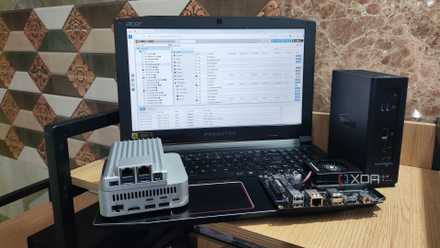
I'm addicted to installing Proxmox on old devices
Proxmox has become my favorite virtualization platform for revitalizing outdated systems
Setting up Ollama
And passing through our GPU
Starting off with Ollama is fairly easy, and I opted to use the Proxmox Helper Script to do so. To get started, paste this command into the Proxmox shell:
bash -c "$(curl -fsSL https://raw.githubusercontent.com/community-scripts/ProxmoxVE/main/ct/ollama.sh)"
The above script creates a container, downloads the latest Ollama release from GitHub into it, extracts it, and starts it as a system service. I highly recommend going through the source code before running the script so you can see what it does, as it calls multiple helper functions behind the scenes, including build.func and create_lxc.sh.
All going well, you should see something like the above. I enabled VAAPI, which gives the LXC access to the following devices if they exist:
- /dev/dri/renderD128
- /dev/dri/card0
- /dev/dri/fb0
However, this wasn't enough to get Ollama functioning on my 7900 XTX. Even though the card was recognized inside the VM, Ollama couldn't work with it and still defaulted to CPU generation and system RAM, which is much, much slower than the GPU. We'll need to give Ollama proper access to our GPU, so first, we'll run the following command in the Proxmox shell to check that our devices are correct.
ls -l /dev/dri
For me, this yields the following result:
root@pve3:~# ls -l /dev/dri
total 0
drw-rw---- 2 root root 80 Jul 13 23:08 by-path
crw-rw---- 1 root video 226, 0 Jul 13 23:08 card0
crw-rw---- 1 root render 226, 128 Jul 13 23:08 renderD128
If you have both card0 and renderD128, you can proceed.
Next, shut down the container, then go to Resources, and check if /dev/dri/card0 and /dev/renderD128 have already been passed through. If they are, click each one, then click Edit, check Advanced at the bottom, and change the Mode to 0666. This gives complete read and write access to all users in the container. Then, in Resources still, click Add, Device passthrough, and type /dev/kfd with a mode of 0666 as well. This is the compute interface required for ROCm, and allows our container to use our GPU for computation when running a local LLM. Finally, you also need to give your Ollama container more storage for downloading your models and for installing ROCm.
Start your Ollama container, and next, we'll install Ollama's AMD extensions and ROCm itself.
Run the following commands in your Ollama container:
curl -L https://ollama.com/download/ollama-linux-amd64-rocm.tgz -o ollama-linux-amd64-rocm.tgz

sudo tar -C /usr -xzf ollama-linux-amd64-rocm.tgz
This downloads ROCm support for Ollama and places the files in the correct place. Finally, we'll prepare to install the latest AMD drivers. Check the official driver installation instructions for the latest version, but here's what I ran:
wget https://repo.radeon.com/amdgpu-install/6.4.1/ubuntu/noble/amdgpu-install_6.4.60401-1_all.deb

sudo apt install ./amdgpu-install_6.4.60401-1_all.deb

sudo apt update
Finally, we install the AMD GPU drivers specifically for ROCm.
amdgpu-install --usecase=rocm
Reboot your container, and everything should be working!
Using Ollama on an AMD GPU is pretty neat
And it's really fast
I wasn't sure how the 7900 XTX would fare, to be honest, especially given that many highlight CUDA as being a strength of Nvidia GPUs when it comes to LLMs. While I'm sure the RTX 4090 would perform better, this still produces responses very fast, and 24 GB of VRAM is fantastic for 27B models like Gemini 27B IT QAT. It works over a web UI, and I can call the Ollama API from other applications, like Blinko or Home Assistant, for local text generation.
Even better, the Gemini 27B IT QAT model outperforms the Llama 3 70 B model in many different benchmarks, and it's also multimodal, meaning that it can take text and visual inputs, so you can use it as a part of your local image processing from a camera if you want. It's really powerful, and I'm already building it into my Frigate processing pipeline.