
Summary
- Drawing tablets have been around for a long time, but they can be expensive and require a PC to function.
- The iPad offers a portable and standalone alternative to drawing tablets, with varying models and pricing options.
- While the iPad is accurate and offers a great drawing experience, it has limitations in terms of available apps and file transferring compared to a computer with a drawing tablet setup.
It seems like Apple is always adding new features to its iPad lineup, but one of the most notable additions was the ability to draw. When it comes to drawing, you can't get much simpler than pen and paper, but professionals need a way to create digital sketches that they can modify on a computer.
It's quite surprising just how easy and effective it is to draw on an iPad rather than a traditional drawing tablet. Best of all, an iPad lets you create wherever you are, thanks to its portability. But is it worth it to go with an iPad and replace your drawing tablet altogether?
Drawing tablets are an old favorite
Design on a computer in real-time
👁 A desk setup showing how flat the Wacom One is compared to a monitor.
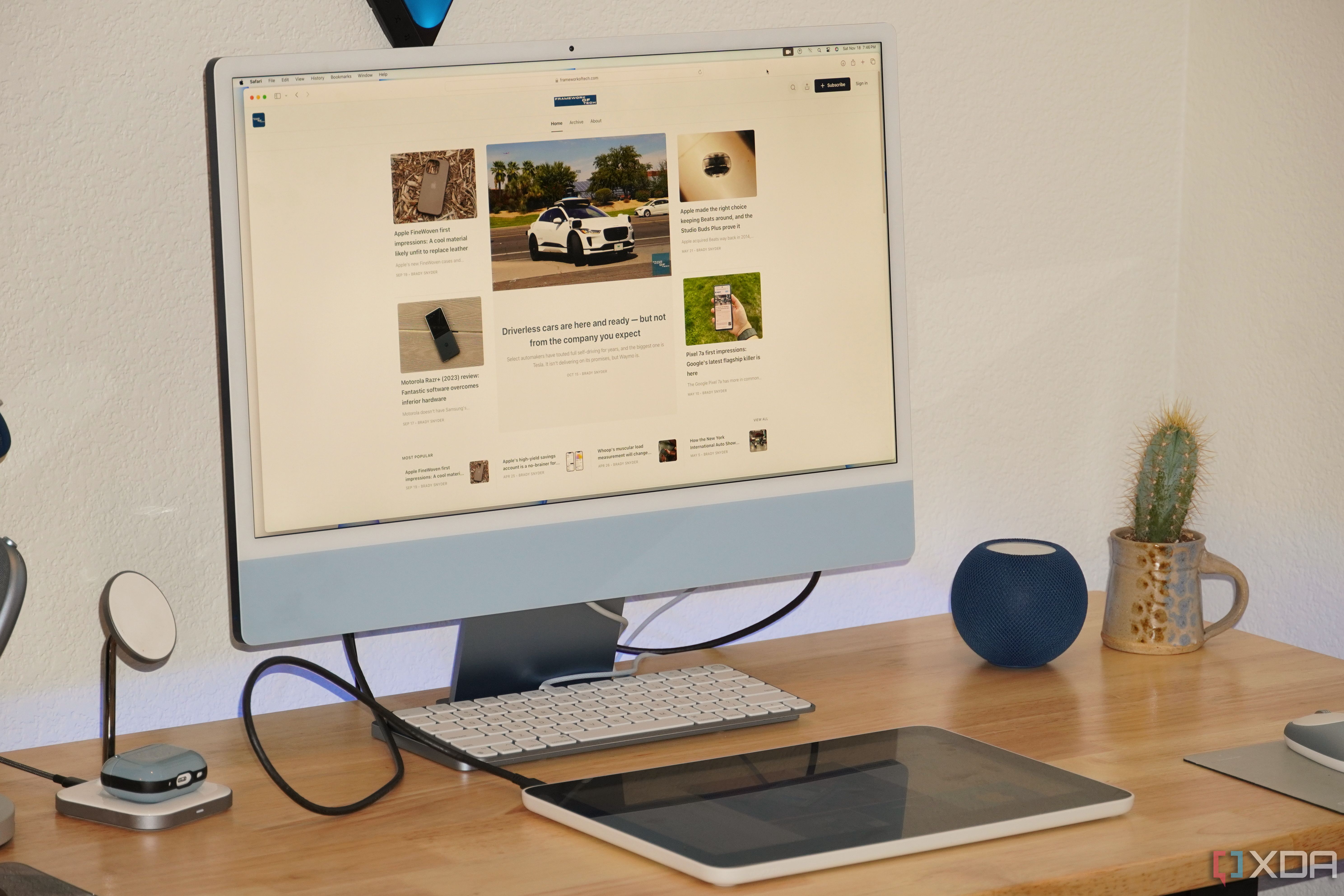
Drawing tablets have been around for quite some time. They actually date back to the 1950s, but the earliest models used a wired pen and weren't very accurate. The most popular modern-day models are made by Wacom, which started making tablets in the early 1990s. Some are large trackpad-like devices with a pen, while others are essentially touchscreen computer monitors that you place on your desk like you would a keyboard.
While some drawing tablets are relatively affordable, ones with screens typically start at several hundred dollars and can go into the thousands. Additionally, most drawing tablets rely on a PC to function and cannot be used as standalone devices. Therefore, the barrier to entry is very high for artists just getting started and mostly only attainable for those with the resources to use them.
How the iPad challenges drawing tablets
iPads can allow designers to draw on the go
Apple released its first iPad over a decade ago, and over the years, it's added a lot more functionality that blurs the line between tablet and computer. This includes allowing you to connect to an external storage device and introducing a wireless keyboard with a trackpad.
Today, Apple has several iPad models available. Each of them has drawing capabilities, but the specs and pricing vary quite a bit. You can get a ninth-generation iPad for just $329 these days, but the iPad Pro, which is the most powerful, starts at $800 and can go up to over $2,000. These prices are comparable to drawing tablets like the Wacom One, but the iPad serves as a standalone device that you can use for other tasks, so the value-to-performance ratio is a lot better.
The iPad works well with third-party styli, but the company released the Apple Pencil in 2015 and completely changed how people use their iPads. The Apple Pencil is incredibly accurate, with many features like tilt sensitivity and a button you can double-tap to switch between modes, making for a smooth drawing experience. The iPad can even detect how much pressure is applied while using it. It overall feels great in the hand and is very natural to draw and write with. The biggest drawback is that compatibility can be confusing because certain iPad models only work with a specific Apple Pencil. You also need to remember to add the cost of an Apple Pencil to the overall expense of an iPad because they add between $80 and $130.
Drawing tablet vs iPad: Which works best?
With all of that out of the way, I used both a drawing tablet and an iPad to compare the experiences. The differences between the two are so much more than just portability and price.
App availability👁 ESR Stylus Pen for iPad being used to sketch an image on iPad tablet
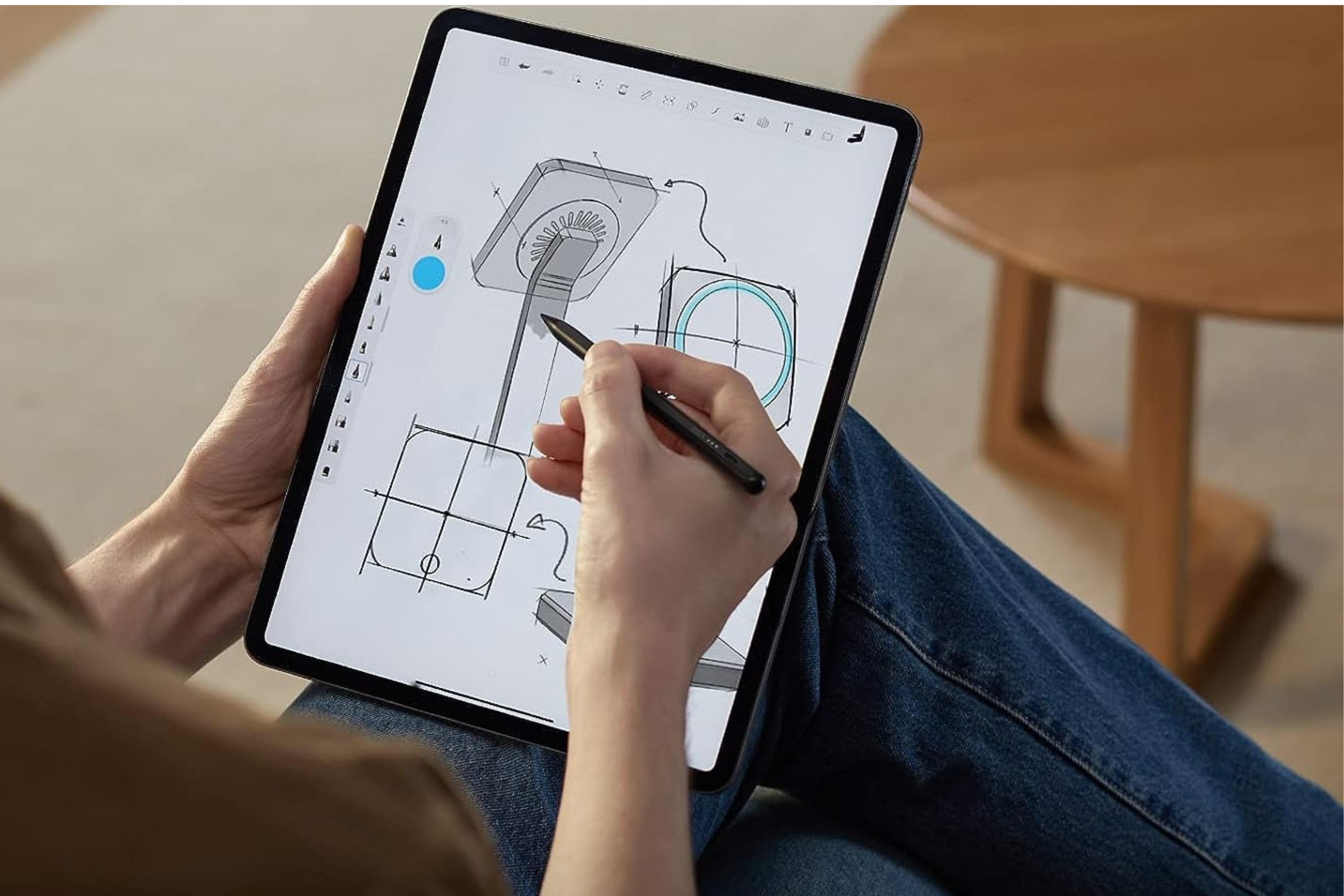
The first thing I had to get used to was the different apps available for each device. Computers have numerous design programs available, and I commonly use Adobe Illustrator and a couple of CAD apps. I knew the iPad would be much more limited, but I was still surprised how few things I could do with it out of the box.
There are a lot of design apps available in the Apple App Store, but they offer dramatically fewer features than a computer program. My solution was to use an app called Astropad Studio that let the iPad function as an extension of my computer, just like a traditional drawing tablet. Unfortunately, this comes with an $8 monthly fee, which will add up over time.
Drawing accuracy👁 Hello XDA written on an iPad Pro with an Apple Pencil (USB-C).
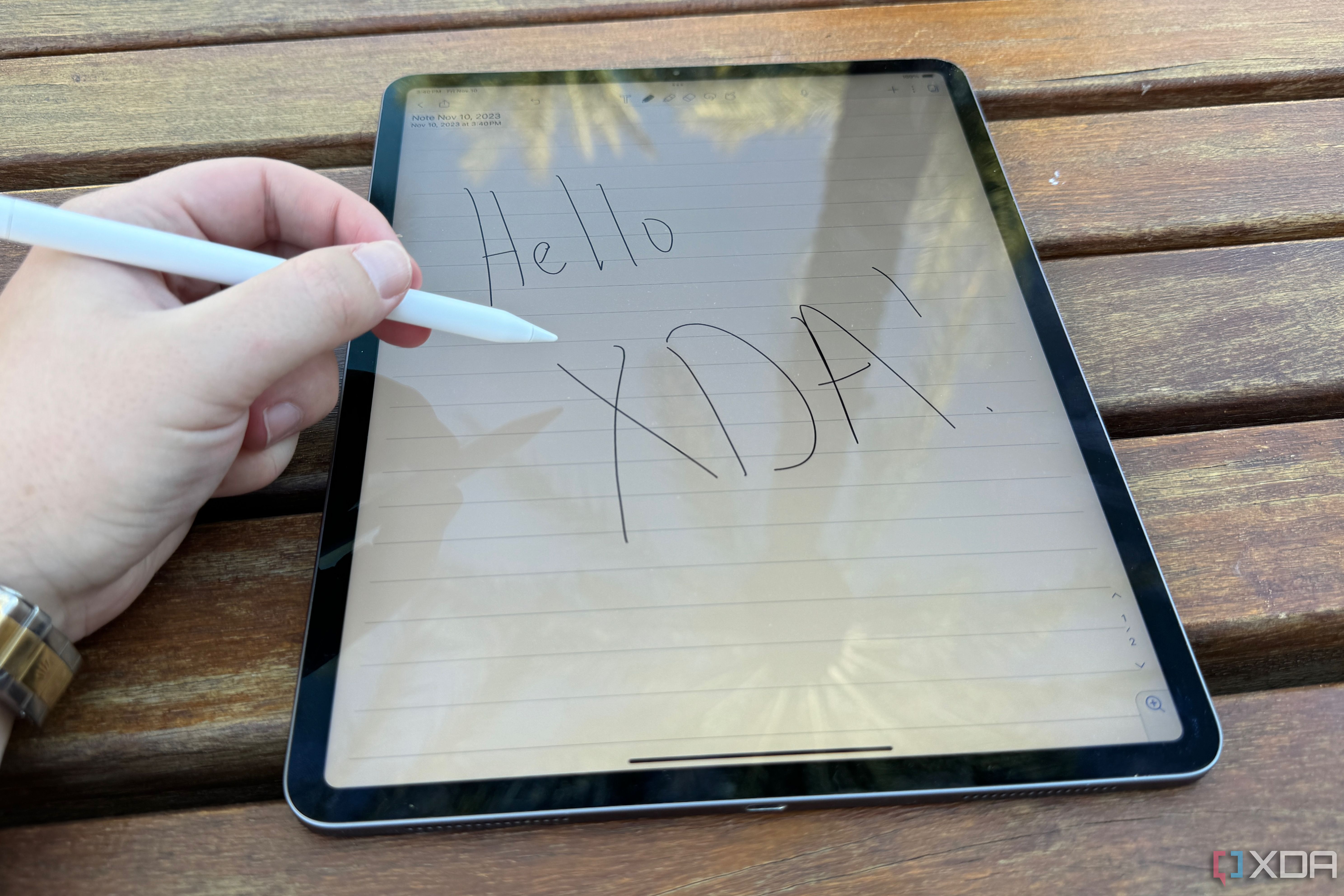
Precision is critical when designing and drawing, whether using an iPad or drawing tablet. I found that the iPad was surprisingly accurate when using an Apple Pencil. The Apple Pencil does feel more premium than the standard drawing tablet pens, but it does require charging. Each option has angle and pressure detection for creating fine details. In comparison, drawing tablet accuracy can vary depending on the device's quality. High-end Wacom tablets provide pinpoint precision, but low-quality drawing tablets can't hold up to the accuracy of Apple's iPad and Pencil.
Color accuracy is another thing for artists to consider. The iPad has pretty good color accuracy, but the displays do vary by model. In comparison, drawing tablets can also vary significantly. Even Wacom's Cintiq tablets have relatively low brightness, which can distort colors.
Transferring files👁 An iPad extending the desktop of a MacBook Air.
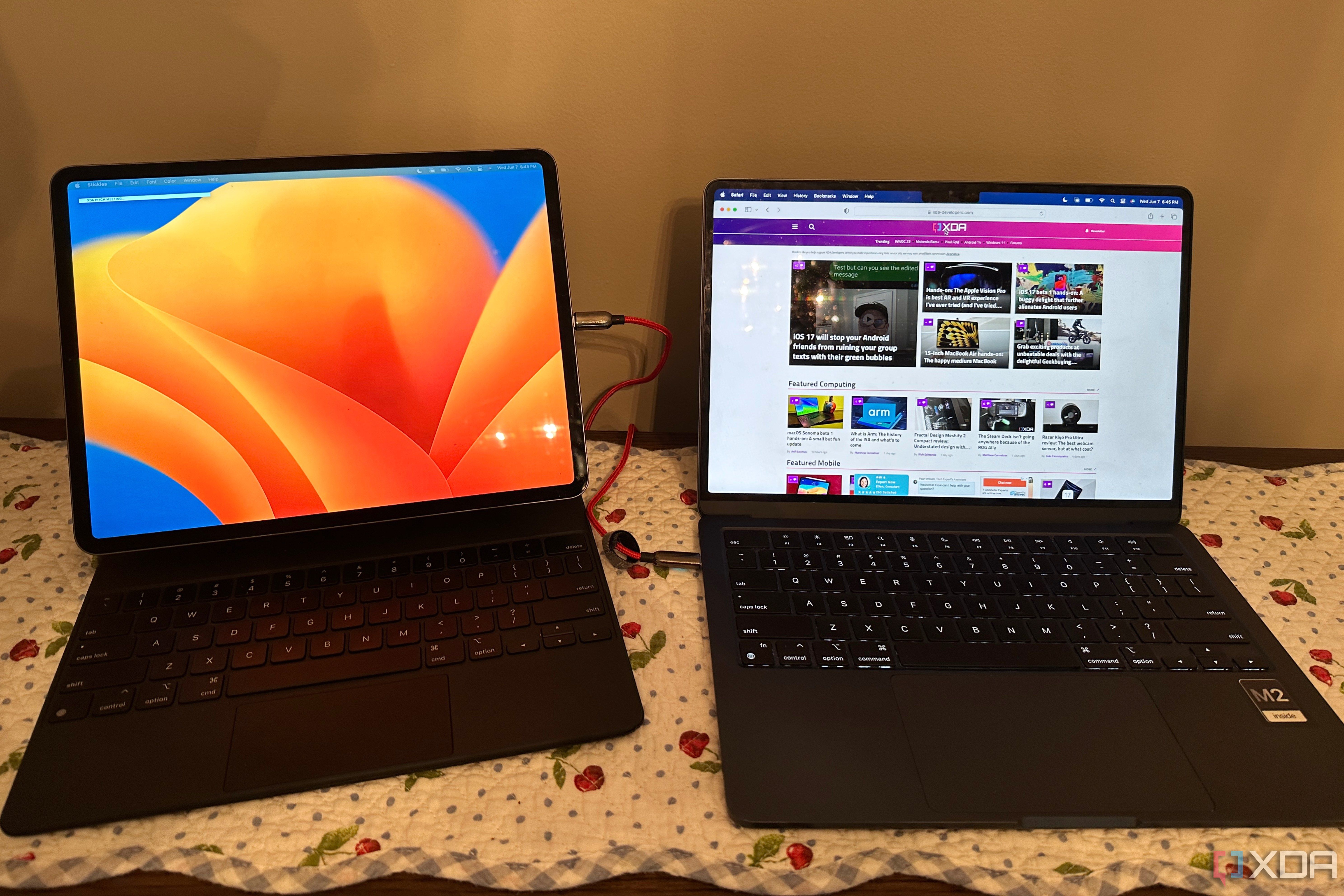
While the iPad worked pretty well for drawing, I ran into some efficiency problems. Once I finished designing on the iPad, I still had to go in and make some changes on the computer. That required exporting the image as a file that my computer programs could open and edit. However, I couldn't get to a finished product on the iPad, which meant I still needed a computer with a drawing tablet to make some minor changes. Even if I could finish a project entirely on the iPad, exporting and transferring the file felt clunkier and more complicated than using a PC. This is what ultimately drove me to use Astropad Studio, which admittedly helped improve the workflow.
Should you replace a drawing tablet with an iPad?
Professionals should stick with a drawing tablet
👁 Final Cut Pro on an M1 iPad Pro
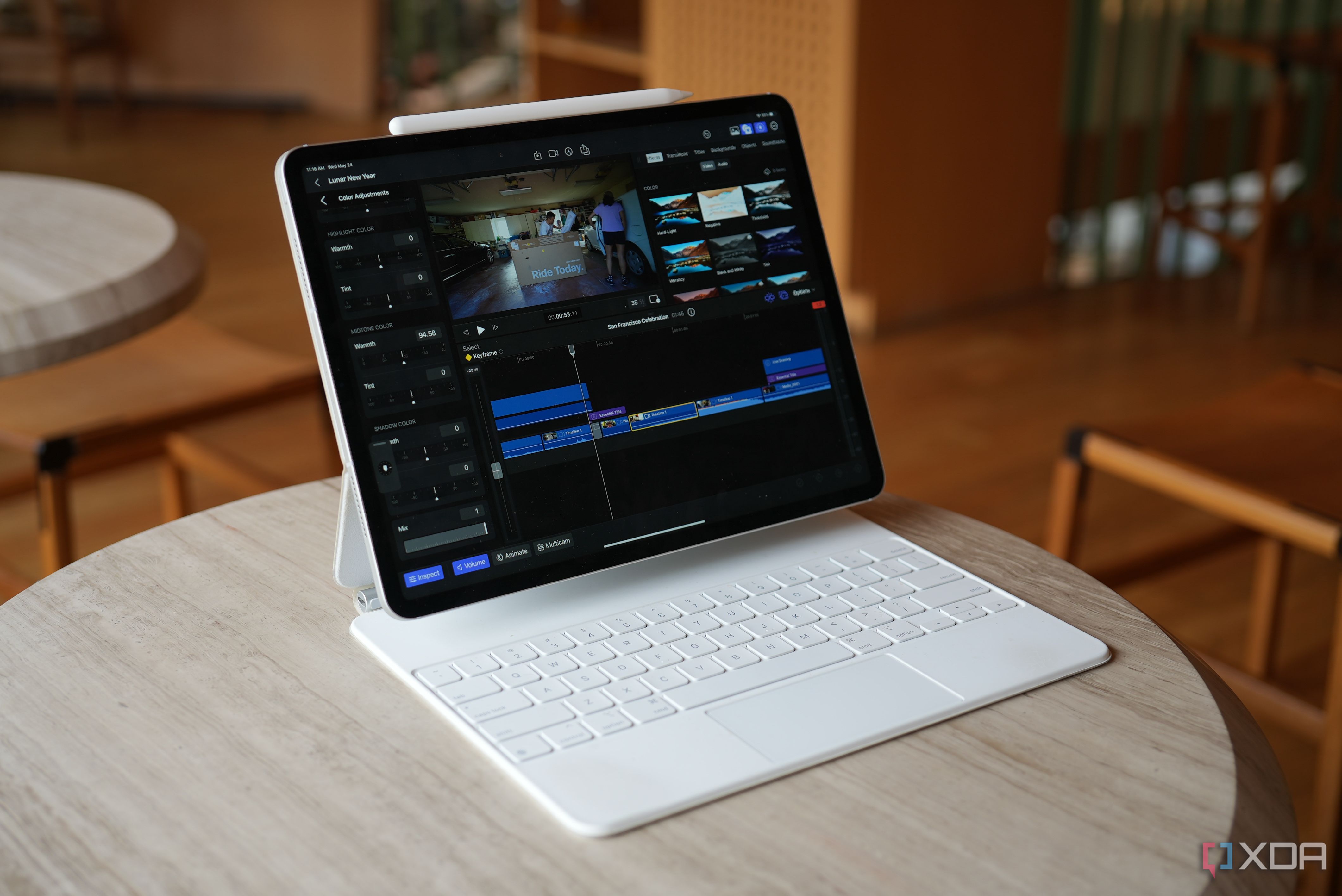
As a hobbyist, I would definitely recommend buying an iPad. You'll get plenty of features, and you can always get a Magic Keyboard for even more functionality. Plus, you can carry an iPad around and draw wherever you are. The downside is the complexity of transferring files around and the limited apps available. Additionally, you will have to pay for a subscription to use an iPad as a replacement for a real drawing tablet, which could eventually surpass the cost of a tablet. Therefore, professional designers who use specialty computer programs or already have efficient workflows should stick to a conventional drawing tablet.