
Summary
- Dust buildup inside the PC can lead to overheating. Regularly cleaning dust with an air duster can help.
- Installing mesh panels or additional fans can improve airflow in the PC case and reduce temperatures effectively.
- Changing thermal paste every 2-3 years can prevent overheating issues and maintain CPU performance.
Keeping your PC cool is essential to ensuring it continues running optimally. Of course, you can do many things to help accomplish this. One of the biggest and easiest things you can do is to keep your PC clean from dust and no, I am not just talking about cleaning the dust filters. Over time, it's almost impossible to stop the buildup of dust inside your PC and this can be one of the main causes of things getting a bit too hot if not dealt with.
Many issues can affect your PC's cooling. There are several things to look out for, from dust and cable management to voltage and overclocks. With that said, not all of these may be affecting your PC at the same time. Once you know what to look out for, it is much easier to figure out what is causing the issue. Of course, there are some simple upgrades you can make to your PC that will drastically help reduce your PC temps.
4 Use an air duster
Not exactly a PC component, but still
As mentioned, dust can be one of the leading causes of why your PC may get too hot and even overheating. Luckily, cleaning the dust out of your PC can be quite easy, especially if done regularly. There are different kinds of air dusters out there and, while I prefer to use a USB rechargeable duster, a lot of people like cans of air.
Air dusters can also be used quickly and target specific spots if need be. They are also very easy to use, but be warned, your PC may have more dust inside than it looks. When using an air duster, just remember the dust has to go somewhere so try not to get to close to your PC when dusting it out. Also, it could be worth having a vacuum on and ready to catch the dust as it leaves the PC.
When using air dusters, make sure your PC is powered off and preferably unplugged from the mains socket as well. Some cans of air may contain some moisture and while it will dry up in seconds, if your PC is on, it could risk frying some of the components.
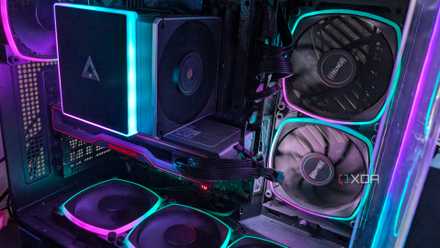
6 of the best upgrades to boost your PC's performance
Upgrading your PC doesn't need to be hard, and the performance gains can help give your PC a new lease on life
3 Mesh side and front panels
More space to breathe
Mesh side and front panels allow for better airflow, which in turn can help keep the components inside your PC coolers. Not all PC cases come with mesh side panels or have them available, but these days a lot of them do. Companies like be quiet! even offer multiple versions of the same case that may come with or without mesh panels on them. If you want a bit more airflow, it is also worth checking if your case has optional mesh panels you can buy for it to improve the overall airflow.
If you can get mesh panels for your case, they normally aren't too expensive. They are also quite easy to change as in most cases, there are just two thumb screws to remove, then the old panel will slide off and the new panel should just slide into place. Improving your airflow should help to lower temps and ultimately increase the longevity of your components.
2 Get more (or better) fans
Larger is usually better
Another great option for getting some more airflow into your PC case. These days, most cases come with plenty of spaces to install fans, but a lot of times they only come with one or two of those spaces populated. In most cases, you will get an exhaust fan to expel the hot air from the case and an intake fan to bring the cold air in. Depending on the components in your PC, you may need some extra air to help keep things cool, so adding a couple of fans is a great choice.
There are loads of fans to consider, but there are a couple of main things to consider before making your purchase. First and foremost, make sure you get the right size. A lot of cases may have spaces for 120mm or 140mm or variations of the two, so make sure you know which size you need for your case. You will also need to make sure your motherboard or case has enough fan headers so you can plug them all in, or you may need to get some fan splitters. You will want to plan out the airflow in your case. Most PC cases intake air from the bottom and front and exhaust air through the back and top of the case, so make sure to plan accordingly. You will also need to check the direction of airflow for the specific fans you are using to make sure the air is blowing in the correct direction.
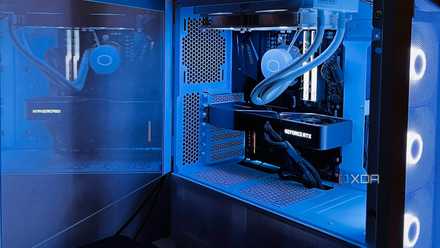
Never go in blind: 5 ways to save money when upgrading your gaming PC
PC upgrades are inevitable, but you can make the most of them with these simple tips
1 Thermal paste
If your PC is old
A lot of people think changing thermal paste is scary and hard, but it isn't. If you are just changing the paste, in most cases the part of the cooler you need to remove will only have either two or four screws you will need to undo. You may need to remove the fans to access these screws, but that can be easily done as well. If in doubt, look up your cooler on the manufacturer's website and look for the installation instructions, or you could even look for a video tutorial on how to install/remove your CPU cooler. Cleaning the old thermal paste is also quite easy. Don't worry too much about that either.
Over time, thermal paste (TIM) can dry up and not perform its duties properly. When it dries, it can no longer fill the air bubbles in and dissipate the heat as it should, so it needs to be changed. You don't need to do this very often either. For most users, changing their thermal paste every 2–3 years should be more than sufficient to ensure that it hasn't dried out. Even then, some may argue there is still no need, but a bit of preventative maintenance is always a good thing in my book.
If all else fails
If none of the above is working, and you have tried some of the other tips to keep your PC cool, it may be time to upgrade your CPU cooler. A lot of CPU coolers can only handle CPUs that output up to a certain TDP. If you have a CPU with an output TDP of 90W, and you are using a cooler designed for a 50W TDP, it just won't work. I mean, it will cool it down, but once that CPU starts running at full load, or close to it, the cooler won't keep up. In this case, it is best to look up your CPU TDP on either the Intel or AMD website and then do the same for your cooler to make sure they are compatible.
It may even be time to upgrade your case to something that offers more airflow and has support for more fans. Some cases are still designed to offer near-silent operation, so adding some mesh and extra fans can help improve your overall temps in your PC. Even changing the thermal paste on your GPU can help improve overall PC temps as normally GPUs run very hot. GPU heat rises to the CPU cooler as well, making that work twice as hard, so if you can reduce your GPU temps by 10c or so, it will affect the temps of other PC components as well, especially the CPU.
There is no need to go out and spend loads of money unless you want to, of course. Sometimes, just adding a single fan in the right spot or spending $10 on some new thermal paste can do the job just fine. You may even find that moving your PC into more space so it has better airflow can help. Just remember, before you get started, check everything out, clean the dust out, and make sure no other issues are causing your temperature problems.