
A slow-charging laptop can be incredibly frustrating, especially when your device is fully discharged and you urgently need to use it. While most modern laptops are designed to charge efficiently, several factors can slow down the process. Issues like using incompatible chargers, software glitches, background processes, outdated drivers, overheating, or even how you use your laptop while plugged in can all contribute to slow charging.
Let's check out some actionable methods to speed up the laptop's charging process and keep it running optimally.

5 mistakes that are shortening your laptop's lifespan
If you want your laptop to last longer, you'll need to make some changes to your usage habits
10 Use the original charger and cable
The right charger ensures optimal power delivery
When charging your laptop, it's crucial that you use the original adapter and charging cable that comes with the device. This ensures that there's no compatibility issue, and the laptop gets charged with maximum efficiency. Third-party chargers rarely meet the standard specifications required for proper charging. Apart from slowing down charging, they can even damage the battery if used for a long period. This is because many modern laptops, especially those with USB-C type charging, follow a power delivery standard supported only by official or original chargers with built-in power protection.
If you've misplaced the original charger adapter, look for a replacement from (or certified by) the same brand. If unavailable, get a high-quality charger from a trusted third-party manufacturer that matches your laptop's power specifications. Using the wrong cable can also affect charging speed, as not all cables are designed to handle high power.
9 Plug into a wall socket, not a power strip
Direct connections provide more stable power
Many users use power strips or extension cords to charge their laptops. Of course, they are convenient, and sometimes you don't have any other option than using them, as the wall socket might be occupied or far away from your laptop. They are generally safe to use but might not deliver the same stable electricity flow as a wall socket. Additionally, many power strips distribute power across multiple devices, which can result in comparatively slow charging. Apart from that, if your power strip or extension is overloaded, power fluctuations can have a negative impact on your laptop's battery.
If you urgently need to get your laptop charged quickly, plug the charger directly into the wall socket for a stable and uninterrupted electricity flow. This helps your charger to function at its full potential. If this is not possible for regular use, purchase a branded and good-quality extension cord.
8 Avoid charging other devices with the laptop
Minimize the power load on your laptop
When charging other devices, such as phones or tablets, through your laptop's USB port while the computer itself is charging, the laptop's charging process will be obviously slower. This is because the additional devices consume a significant amount of battery power.
So, unplug non-essential devices while charging your laptop to ensure maximum power is directed to the battery. If charging your phone is necessary, consider using a wall charger instead.
7 Turn off the laptop while charging
Reduce power consumption to maximize charging speed
If you are actively using your laptop while charging, it's better to turn it off if you aren't doing anything urgent. An active laptop can slow the charging process, as it constantly draws power for operation. Shut down your laptop completely and let it charge quickly.
If you can't shut down your laptop because it takes longer to reboot, put it in hibernate or sleep mode. These modes consume less power by pausing background processes and quickly booting the OS when required. You can enable these from the Power options in the Start Menu.
6 Disable power-hungry features and background apps
Stop unnecessary hardware functions and applications while charging
If you need to charge your laptop quickly and keep working on it, you can temporarily turn off features like Wi-Fi, Bluetooth, external GPUs, and more if you don't require them. These features consume significant power and can slow down charging. By disabling them, you can ensure the battery retains more power and charges quickly. Turn off Wi-Fi and Bluetooth from the Action Center, which can be accessed from the taskbar.
Additionally, unnecessary apps running in the background, like Windows updates, antivirus scans, and startup programs, can drain the laptop battery and slow down charging. It's advised to launch Task Manager (Ctrl + Alt + Del) and check for all the unnecessary tasks consuming CPU and RAM. End all these tasks to reduce power consumption and thereby enhance charging speed comparatively.
5 Ensure the laptop isn't overheating
Cool your laptop for better charging efficiency
An overheated laptop tends to use more battery power, slowing the charging process and degrading the battery in the long run. Laptops often overheat due to a blocked air vent, heavy resource usage by apps, or a heated environment. To counter these issues, clean the blockage to allow unrestricted airflow, stop resource-intensive applications, and place your laptop on a hard surface to ensure proper airflow. Also, avoid charging your laptop in direct sunlight or hot environments.
If you regularly use resource-consuming applications, install a cooling pad to maintain the temperature. All these measures will ensure fast charging and prolong your laptop's battery life.
4 Calibrate the battery
Reset the battery for accurate charge levels
Over time, your laptop's battery might lose the ability to report its charge levels accurately because of irregular charging, which can decrease charging speed. Calibrating the battery helps restore its efficiency by resetting the charge cycle.
To calibrate your laptop battery, first, you need to change the settings so that the laptop doesn't switch to sleep mode during calibration.
- Search for "power" options, and click the Edit power plan icon.
- Expand the drop-down menus next to Turn off the display and Put the computer to sleep and set both to Never when On Battery and Plugged In.
- Next, click the Change advanced power settings option below.
- Under the Power Options window, expand the Battery section and then Critical battery action.
- Set it to Hibernate under On battery and Plugged in.
- Next, expand the Critical battery level and set it to 2% under On battery and Plugged in.
- Finally, click Apply and OK.
After making these changes, here's how to calibrate the battery:
- Completely drain the battery and let the laptop power off.
- Now, charge the battery to 100% and keep the charger plugged in for an additional hour to cool the battery down from the charging process.
- Now unplug the charger and let your laptop keep running and discharging until it hibernates. You can do your work normally during this process; just ensure that the laptop is not heated much.
- Finally, charge your laptop back to 100% to finish the battery calibration.
3 Check and update battery drivers
Keep drivers updated for seamless charging
Battery drivers are essential for maintaining communication between your operating system and the battery. Outdated or corrupted drivers can cause inefficiencies in charging.
To update battery drivers on Windows 11 and 10, follow these steps:
- Right-click on the Start button and select Device Manager.
- Expand the Batteries section,
- Right-click on your laptop's battery and select Update Driver.
- Next, if you have manually downloaded the driver, select the Browse my computer for drivers or choose the Search automatically for drivers option.
- Follow the on-screen instructions to update the driver successfully.
If you want to keep your drivers updated automatically, you can get a dedicated driver updater program for Windows. However, modern OSs like Windows 10 and 11 generally manage driver updates through Windows updates.
2 Check battery health
Monitor your battery's condition to maintain charging efficiency
Battery health directly impacts charging speed. Use tools like Windows' built-in battery report (powercfg or batteryreport) or third-party software such as HWMonitor to assess your battery's health.
If your battery is deteriorating, consider replacing it to restore charging speed and overall performance. A healthy battery is crucial for optimal charging.
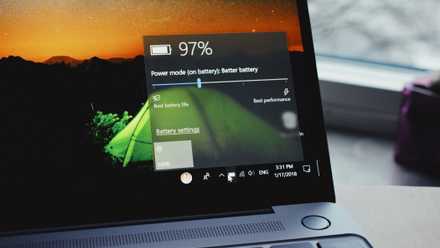
The 4 best tools to check the battery health of your Windows laptop
Keeping track of your laptop's battery health can help diagnose issues early on and extend the lifespan of your PC
1 Update BIOS
Ensure your laptop's firmware supports efficient charging
The BIOS (Basic Input/Output System) controls fundamental hardware interactions, including power management. Outdated BIOS versions may cause charging inefficiencies. Manufacturers often release BIOS updates to optimize battery performance and address known issues.
To update the BIOS, first open the System Information window and check the BIOS version. Then, visit your laptop manufacturer's support website, download the latest version based on your laptop model or BIOS version, and follow the instructions carefully to update the BIOS.
Remember to perform BIOS updates cautiously, as interruptions during the update process can cause system issues.

You should update your BIOS, but maybe not as often as you think
How often should you update your BIOS?
Power up your laptop quickly
Your laptop's slow charging shouldn't disrupt your important work. By following the tips provided, you can address common issues that cause laptops to charge slowly and experience a noticeable improvement in charging speed. Additionally, these tips will help maintain your laptop's battery life, ensuring your device runs smoothly.