
You might have one of the best SSDs in your PC, but you can still fall victim to some common SSD myths. Generated in online forums and circulated around the internet for decades, there are some old wives' tales about SSDs, how they work, and how to best optimize your performance with them, and we're here to put some of the most common misunderstandings to rest.

5 reasons you don't need to upgrade your SATA SSD yet
SATA SSDs feel outdated, but there are enough reasons an upgrade might not be worth it
You need a separate boot drive
A single SSD is enough for your games and OS
Traditional PC building wisdom would have you believe that no rig is complete without two SSDs -- one for your OS and applications, and another for games, media, and everything else. Although there's no problem with using a separate boot drive (I use one in my personal PC), it's not a mandate for building a PC like it was years ago.
The advice stems from a time when SSDs were new, expensive, and critically, low in capacity. The idea was that you would install your OS on a speedy but low-capacity SSD to speed up your boot times, all while leveraging a larger HDD to store your games. At the time, this was important because of how data is written and read from an HDD. Running your OS, games, and applications off a single drive would stress random read speeds -- a particularly problematic area for spinning drives. By migrating your OS to a low-capacity SSD, you could mitigate those issues.
That's just not a problem today. Even an older SATA SDD is significantly faster than a 7,200RPM HDD in both sequential and random reads/writes. Random access is a particular advantage, though. An HDD has to physically move the read head in random access, increasing seek time. SSDs don't have that problem. Although you may want multiple SSDs for more space, you don't need a separate drive just for your OS like you did in years past.
5 ways an SSD makes hard drives obsolete, aside from the obvious
SSDs are obviously faster than HDDs, but that's not the only reason they're better.
Writing too much will kill your SSD
Your SSD is probably stronger than you think
All SSDs come with an endurance rating, which is measured in total bytes written (TBW). Especially in the early days of SSDs, the TBW rating was fairly low, leading to the assertion that you should limit the number of writes you make on your SSD. The idea was that you shouldn't constantly cycle data on and off your SSD, as performing consistent writes to it would kill the drive rather quickly. And while it's true that every SSD will degrade over time, you have an extremely long runway before that happens.
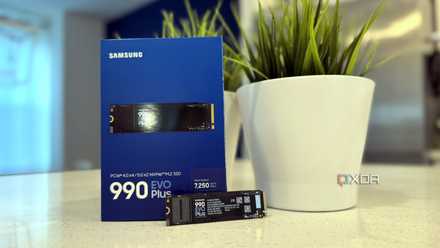
Take, for example, the Crucial P310. It's a relatively inexpensive SSD, and the largest 2TB model comes with a TBW of 440TB, along with a five-year warranty. Even if you wrote 10TB to the drive each year -- that means fully filling it up with new data five times each year -- it would last 44 years. That's a fairly weak endurance rating, too. For context, the Samsung 990 Evo Plus comes with a 600TB TBW per terabyte of storage.
Today, you don't need to think much about the endurance of an SSD. Unlike an HDD, where an endurance failure can crop up within years, it'll take decades for a modern SSD to wear out, even if you're slamming it with writes day after day.
Crucial P310
- Form factor
- M.2 2230
- Storage capacity
- 1TB or 2TB
- Sequential write
- 6,000MB/s
- Sequential read
- 7,100MB/s

You should defrag your SSD
A dead utility from a bygone era
You shouldn't defrag your SSD. With HDDs, you would want to regularly defrag (or defragment) the drive in order to maintain performance. As old data was overwritten by new data, files would get split across multiple blocks in the drive. Defragging the drive would reassemble all of those blocks in sequential order. SSDs work differently. They use TRIM, which is a data management system that marks which data on the drive can be overwritten.
Thankfully, you don't need to worry about any of this. In Windows 10 and 11, your drives are automatically optimized -- either through defrag or TRIM, depending on the drive type -- on a weekly basis by default. You don't need to do anything. The defrag tool built into Windows won't even let you defrag an SSD. The main harm you want to avoid is downloading a third-party defrag tool. There are a ton of these floating around online, and they'll happily hurt your SSD with a defrag. Don't fall for it.

Remember defragmenting your PC? Here's why you don't need to do it anymore
Defragmenting is a thing of the past
You should only fill your SSD by up to 80%
Don't let your free storage space go to waste
In the early days of SSDs, an unspoken rule started infiltrating online forums and the collective consciousness of PC enthusiasts. In order to get the best performance, you should never fill an SSD above 80% capacity. Like any good myth, there's an element of truth to this one. As your SSD reaches its full capacity, write operations can slow down as the drive has to modify existing blocks in order to complete the write. Still, the classic 80/20 idea is rife with misunderstandings, and a quick search on Google will turn up half a dozen threads of users worried they're going to break their SSD after passing the 80% "limit."
Any modern SSD you purchase will be provisioned at the factory, where some percentage of the total space is reserved exactly for this purpose. It's not always perfect, and some brands, such as Samsung, even allow you to manage the overprovisioning on your drive. Make no mistake; your SSD performance will decrease as you reach its full capacity, and you shouldn't have your SSD stuffed full at all times. But you won't hurt your SSD if you occasionally slip above the 80% line.
You shouldn't discount the 80/20 rule wholesale. I use it as a rule of thumb when deciding if I need more storage. If I consistently have my SSD above 80% capacity, that's a good sign that I need to add another SSD to my system. Reading into the myth beyond that point will just drum up unnecessary worry.

How you can turn an old SSD into a high-performance cache for your NAS
Upgrade your RAM with some speedy SSD caching.
SSDs are more expensive than HDDs
Prices have dropped a lot over the past several years
OK, SSDs are more expensive than HDDs, but the price gap can be minuscule these days. Take, for example, the WD Black 2TB 7,200RPM HDD. At the time of writing, you can pick it up for $100, and if you go down to 1TB, you'll spend $63. The WD Black SN770, which is a speedy PCIe 4.0 NVMe SSD, clocks in at $120 for a 2TB version and $75 for a 1TB version. That's somewhere along the lines of a 50x increase in performance -- seriously -- for $10 to $20 more depending on your capacity.
For popular capacities like 1TB and 2TB, there's little reason to go with an HDD today. NVMe SSDs are dirt cheap, and older SATA SSDs are even less. In some cases, especially during big sales, you could spend more on an HDD than a new SSD, even.
The only reason to buy an HDD today is if you need a lot of space -- I'm talking about anything over 4TB. Maybe you need long-term storage on your PC, or maybe you're throwing together a NAS. An HDD makes sense in these cases simply due to capacity. For everything else, stick with an SSD. You really aren't spending much more.
WD Black SN770 1TB SSD

5 reasons why your NAS is slow and how to fix it
Get your NAS back to peak performance
SSDs are the standard in 2025
SSDs are so common now that you really don't need to worry much about them. Any background maintenance like TRIM is handled automatically, and overprovisioning ensures you won't degrade your performance significantly if you use the full capacity of your drive. After decades of cycling through different storage mediums, SSDs just work, and we can all be thankful for that.