
Picture this, if you will. You've spent countless hours learning all there is for a beginner to know about OPNsense, or some other custom firewall solution that isn't provided by your ISP. You set up a custom domain name service (DNS) solution with Pi-hole or something similar and feel like the king of your home network. The entire facade collapses when you learn that some network clients are completely ignoring your DNS altogether. That's what I discovered with my own LAN and took a single step to mostly stamp it out.
The entire premise of running your own DNS server is to enforce blocking on specific domains, those best known to provide intrusive advertising and tracking. No one wants to be followed across the internet, and using something like Unbound or Pi-hole can help keep your connection somewhat private. It's not foolproof, and there will be devices that are hard-coded to only communicate with a DNS server, set within their firmware. This is when things can go wrong since that can (and will) override network settings.
But there are measures you can put in place to help prevent this from happening. One is to outright block outbound traffic on DNS port 53, redirecting it to your locally hosted DNS instead. That's precisely what I did.
Hosting your own DNS is worth it
Even if the default ISP settings are fine for most
DNS typically relies on port 53 UDP as the primary gateway for communications through your firewall, with TCP as a fallback for larger responses. When a client on your network queries a configured resolver, which is usually your ISP by default, all related traffic for this request goes through these ports. That's perfectly fine until you start to look at running a custom DNS. That's when you may start to run into issues, as while all your network could be configured to go through this new DNS server, some may choose otherwise.
But while the standard ISP-provided DNS is usually good enough for most homes, choosing another option (such as 1.1.1.1 from Cloudflare) or running your own resolver from home with upstream handling is easier than you think and comes with notable benefits. Self-hosting a DNS server intercepts all outbound DNS traffic, redirecting it to an internal server, stopping as many clients from accessing external services as possible. This is wonderful for a home lab and smart home.
How this works is through using something like Network Address Translation (NAT) with Destination NAT (DNAT) or REDIRECT rules configured on the firewall. I use OPNsense, which made it painless to set everything up. All I needed to do was enable Unbound, and OPNsense really did the rest. Traffic is redirected to Unbound, which is hosted within OPNsense, so there's next-to-no latency, and everything works as it did before using external servers.
Once Unbound handles a request, it then caches that data for quicker querying. I can then use block lists to filter ads, malware, and worse. Logging and analytics are now all possible because I'm handling all the requests locally, and there's no reliance on third-party DNS providers, because even ISPs can sometimes have trouble with their own DNS implementations, especially when they start to have issues and millions of customers are hammering it for domain resolving.

Stop struggling with OPNsense — these 4 tweaks take a few minutes to make
Just installed OPNsense for the first time? You'll want to look at these.
How devices get around your DNS
But there could be an easy fix
Even with the network having its own DNS server, it's still possible for clients (laptops, smartphones, door sensors) to have their own custom settings. Manually setting DNS locally on a device allows for customization and troubleshooting, but it can also leave the door open for hardware to bypass your LAN's DNS screening. Hardcoded DNS is common with Internet of Things (IoT) and general smart home hardware, causing headaches for those wanting to take advantage of Home Assistant and other solutions.
So, how does one combat this? It's actually rather simple. You could utilize VLANs, which can solve the issue altogether with limitations on what clients within the VLAN can do, but this could break something, particularly if a device is hardcoded to use port 53 to communicate with a remote server. The best way is to use VLANs or firewall rules to redirect to that port. Then, should anything even attempt to go through it, the firewall will immediately redirect it to the local DNS server.
With this single change, I stopped all those pesky clients from reaching out to random servers elsewhere in the world. This is the best way to go about it since we're not actively blocking the port but forcing any client attempting to use it to go through our own DNS. All we need is a redirect rule set on the firewall for port 53 TCP/UDP and any IP. Then, should a device attempt to connect to a DNS IP, it will be redirected to the local DNS server, which could be Unbound or Pi-hole.
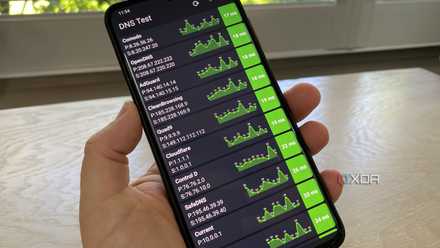
Setting up a local DNS was one of the easiest improvements I made to my home network
Having local control opens up so many possibilities
Everything goes through my DNS
Unbound is the center of operations
All DNS traffic is now routed through a single point, my Unbound setup. This allows for global policies to be easily enforced without the need to configure per device. Malicious domains and other unwanted content are fully blocked with loaded lists. IoT and smart home devices, which are notorious for calling home, are now prevented from doing so. Everything is adequately logged and displayed for troubleshooting and auditing the network to check for vulnerabilities.
Just remember to block both UDP and TCP for port 53, else you'll risk letting devices slip through. These rules can be configured per VLAN, as required, too, making the LAN that little bit more versatile. There are limitations, however. DNS over HTTPS (DoH) will still likely go through, as this encrypts DNS queries inside web traffic. DNS over TLS (DoT) is also a pain as it bypasses port 53 redirection altogether using 853 and encryption. Both of these can be largely addressed with some more configuration.
For me, redirecting port 53 was enough to stop all my pesky smart home devices from heading out the front door without being adequately vetted. Now, my LAN is more private, secure, and actually running as intended.