
Summary
- It is possible to store and play Steam games on a NAS using the iSCSI protocol.
- Performance may vary depending on the NAS' Ethernet capabilities, network protocol, and most importantly, the types of drives slotted into the NAS.
- A high-speed NAS with SSDs and a fast network connection can provide near-internal SSD performance, but using hard drives is also plausible, as long as you're willing to deal with long load times.
A NAS, or Network Attached Storage, makes for a worthwhile addition to any computing setup, regardless of whether you’re an everyday PC user or a tech veteran. Besides its usefulness for sharing files across multiple devices and the ability to create regular backups of important data, you can configure your NAS to act as a game server, media-streaming hub, personal cloud, or even an ad-blocker.
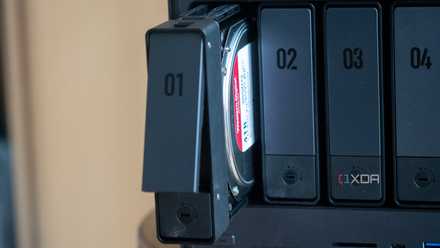
A NAS genuinely changed my life, here's how
It sounds corny, but a NAS has been one of the best additions to my home in the last couple of years.
Leaving aside retro games or emulators, gaming is one field where you may not expect a NAS to perform well. Sure, you could transfer your Steam library to a NAS, but it doesn’t take an expert to figure out that the latency and boot times would make it difficult to enjoy your favorite titles. I, too, thought the same after I tried running some games over the SMB protocol.
But as it turns out, there’s yet another sharing protocol that not only lets you access the games stored on your NAS but also grants surprisingly robust performance when playing them on your PC. The standard I’m talking about is called iSCSI, and having used it to play quite a few titles over the week, I’m inclined to admit that it’s possible to store your games on a NAS without too many issues on the performance front.
How I conducted my tests
Initially, I’d planned to run my Steam library via the SMB protocol, but after downloading Steam games on the SMB-powered network drive, I ran into frequent crashes. While the load times weren't too bad, I noticed some slight input latency, which is quite a big deal for action-heavy titles that require fast-response times. This prompted me to switch to the iSCSI protocol. Although I encountered my fair share of issues when setting up iSCSI, the protocol worked flawlessly on both of my NAS devices.
Yes, both, because I tested the games on two separate NAS devices. The first one is an old PC that utilizes a single 7200RPM hard drive to store my Steam titles. Meanwhile, the other device is an all-flash NAS that supports PCIe 3.0 SSDs. To be precise, it's the Aiffro K100 that I reviewed a while ago. OS-wise, I went with the ol’ reliable TrueNAS Scale and turned off thin provisioning, deduplication, and sync for the ZFS volumes. I also used a single HDD/SSD on both systems, though in hindsight, I could have configured multiple drives in RAID 0 mode to eke out a little more performance.

Aiffro K100 review: A compact, all-SSD NAS that also doubles as a mini-PC
Though its small form-factor restrict its usefulness in intensive workloads
I also split up my testing phase into two segments: one for latency and another for load times. For the latency tests, I chose Devil May Cry 5 and Armored Core VI: Fires of Rubicon, two extremely fast-paced games that I'm so familiar with that I'd notice any input lag or latency right away. On the other hand, I used Baldur’s Gate 3 and Final Fantasy XV to examine the load times, since it can take a while to load the games if you're on slower HDDs.
Specs-wise, I ran everything on my primary rig, which comprises a Ryzen 5 5600X and an RTX 3080 Ti alongside 32GBs of DDR4 memory. Although my PC has a 5GbE network card, the Aiffro SSD NAS and the (makeshift) HDD NAS are equipped with slower 2.5GbE interfaces. This meant, I only had a bandwidth of 2.5GbE to run games off the drives slotted in the NAS.
Testing the latency
Surprisingly, the games are pretty responsive
Once I’d confirmed all my iSCSI drives and NAS were up and running, I launched the Steam client and downloaded Devil May Cry 5 on my HDD NAS, since that’s the one I suspected would give me the most latency-related problems.
Upon starting the game, the loading times were a little longer than what you’d expect from an internal hard drive (but more on that later). I played as Dante first, so I could test the responsiveness and check for any input delays when executing combos that require precise timing. To my surprise, I was able to pull them off without any issues! Sure, the game momentarily stuttered when displaying the splash image that appears when picking up new items in the game. But apart from that, I was stunned at how well the game ran, considering I was accessing it from a hard drive over the network.
Just to confirm that the game was indeed as responsive as I believe, I decided to switch to a certain DLC character. Like the last time, there was zero latency to be seen, and I had no problem pulling off a specific three-hit combo that had even tighter timing windows (you know exactly what I'm talking about if you've played the game). Next, I installed Armored Core VI: Fires of Rubicon on my ISCSI drive. In around three hours of playtime, I only faced two minor FPS drops, which were probably caused when my Ryzen 5 5600X had some trouble keeping up with too many enemies on-screen.
Although I didn’t test Final Fantasy XV and Baldur’s Gate 3 as thoroughly as the other two, the responsiveness was largely the same as running them on storage drives attached physically to my PC. However, the boot times were a different story altogether.
Testing the load times
Open-world games aren’t really meant to be played through a NAS
Next, I moved on to Final Fantasy XV and noted the amount of time it took for the drives to load the game assets after selecting a save file. After accidentally fast-traveling in the middle of the test routine, I even encountered a minor texture pop-in (which I’ll get to in a bit). So, I decided to include the time taken by the drives to fast travel to a rest spot in the game.
To keep the data as precise as I could, I used a timer to keep track of the exact load times. Furthermore, I ran the same tests two more times, once on an internal SSD and again on a SATA hard drive, to get a proper reference for the boot times. The results were as follows:
|
Drive configuration |
Load time (Final Fantasy XV) |
Fast-travel time (Final Fantasy XV) |
|---|---|---|
|
Internal HDD |
1min 15.92s |
35.22s |
|
NAS HDD |
2min 4.31s |
51.92s |
|
Internal SSD |
40.68s |
19.4s |
|
NAS SSD |
54.59s |
28.71s |
Besides taking quite a long time to load all the assets, the iSCSI HDD was a bit too slow to instantly load all textures the moment I fast-traveled from the game map to a hub area full of other NPCs. The result? The textures took around ten seconds to load properly, during which the game had some noticeable stutter. But after remaining in the area for a couple of seconds, the stuttering was gone and all textures were rendered properly. As you might expect, running the game from an internal hard drive ended with the same problem, though there weren’t any microstutters this time and the textures took less than a second to load.
|
Drive configuration |
Load time (Baldur’s Gate 3) |
Fast-travel time (Baldur’s Gate 3) |
|---|---|---|
|
Internal HDD |
40.4s |
11.45s |
|
NAS HDD |
43.85s |
12.6s |
|
Internal SSD |
26.1s |
4.46s |
|
NAS SSD |
37.1s |
11.29s |
On paper, Baldur’s Gate 3 produced better results, as the NAS drives didn't take too long to load a save file. However, it took a couple of seconds for the SSD NAS to load the textures, while the iSCSI hard drive took more than ten seconds just to resolve the 3D models. The texture pop-ins were even more noticeable on the HDD, especially once I switched to an area filled with NPCs.
|
Drive configuration |
Load time (Devil May Cry 5) |
Load time (Armored Core VI) |
|---|---|---|
|
Internal HDD |
12.7s |
15.95s |
|
NAS HDD |
15.84s |
36.33s |
|
Internal SSD |
6.3s |
11.61s |
|
NAS SSD |
8.52s |
21.5s |
Meanwhile, the SSD installed on the NAS chugged along really well, and only took a few more seconds than the internal solid-state drive to fast-travel and boot into the game. Finally, I recorded the load times for Devil May Cry 5 and Armored Core VI: Fires of Rubicon as well, though the results were mostly what you’d expect by this point.
Should you host your Steam library on a NAS?
The answer to that is… it depends. If you have a NAS that’s stacked with high-speed SSDs and you aren’t bottlenecked by a 1GbE connection, then you’ll only gain a few seconds of load time when switching from an SSD that’s slotted into your PC.
Meanwhile, running games off of a NAS-mounted hard drive can be quite the test of patience. For years, I’ve used internal HDDs to store all my games, so I didn’t really find the longer load times of the iSCSI drive to be a bother. The same holds for the texture pop-ins, since you’re going to encounter this problem (albeit to a slightly lower extent) if you run the games on a local hard drive anyway.
So, for those who consider latency to be a scourge as much as I do, then you'll be fine even when hosting games on an HDD-powered NAS. But if you want the fastest load times and aren’t willing to switch some settings on your NAS for the ideal iSCSI performance, then you might want to sit this project out and run games on a blazing-fast PCIe 5.0 SSD instead.