
In 3D printing, supports are easy to treat as a checkbox you tick when the slicer starts complaining. They feel temporary, and they usually end up in the trash, so it’s tempting to stop thinking about them the moment the preview looks “safe.” The problem is that supports don’t just hold plastic up; they also determine where your print will look rough, where it might warp, and where cleanup can cause damage. Once you notice that pattern, supports stop feeling like a rescue tool and start looking like part of the design.
Supports demand trade-offs, so plan before you print.
The biggest trap is letting supports be the plan instead of letting them support the plan. When they’re automatic, they often land on the exact surfaces you care about, because the slicer can’t read your intentions. When they’re intentional, they become a way to protect the faces that matter and sacrifice the ones that don’t. That mindset also changes how you model, because you start designing shapes that print cleanly instead of shapes that require a post-processing campaign. It’s a small shift, but it has a big impact on how “finished” your prints feel.
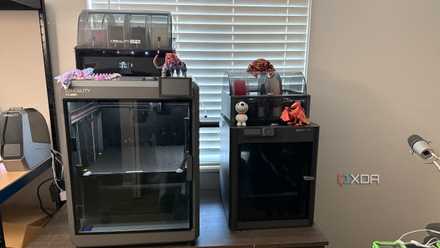
3D printing saved me money, but only after I stopped printing “solutions”
I had to stop printing novelty “solutions” and focus instead on durable replacements.
Supports shape the final surface
Contact points leave permanent consequences behind
Supports leave marks, which are rarely subtle. Wherever the support interface touches your part, you’re accepting a different texture and, often, a slight loss of detail. Even a well-tuned interface can create tiny ridges, haze, or shallow divots that catch the light in a way you can’t unsee. If that contact area lands on a decorative face, the part can look like a prototype forever.
The damage isn’t always cosmetic, either. Supports can tug on thin walls as they cool, especially when the support structure is stiff and the part is delicate. They can also distort holes and slots by altering how heat accumulates in that region, which is critical for functional parts. Then there’s the removal step, where a clean snap can become a gouge if the part has a fragile edge. If you’ve ever lost a corner while peeling supports, you’ve seen how supports can create their own failure mode.
That’s why support placement is really a question of priorities. You’re deciding which surfaces get protected and which surfaces pay for the stability. Sometimes the best move is simply rotating the model so the support scars land on the back or bottom. Other times, it’s worth splitting the part so each piece prints with cleaner faces, even if it means assembly later. Either way, the goal is the same: move the mess to where it matters least.
The slicer can’t know intent
Auto supports optimize for geometry, not goals
Auto supports can be a lifesaver, but they’re also indifferent. The slicer sees angles, spans, and thresholds, not the face you want to show off or the edge you need to stay crisp. It will happily support a visible surface because it happens to be the lowest overhang. It will also skip support where you actually need accuracy, because the geometry technically squeaks by. That’s not “wrong,” it’s just not personal.
This is where prints start to feel unpredictable. A model can look fine in the preview, then come off the bed with a rough underside right where your hand always rests. A thin fin can get wrapped in supports that are technically removable but practically destructive. A cavity can fill with support material, turning a quick cleanup into a long, muttered argument with needle-nose pliers. When that happens, the print doesn’t fail; the experience does.
The fix is to treat the preview as a design review rather than a green light. Identify the faces that must look clean, the features that must fit, and the areas that can tolerate scars. Then guide the slicer with blockers, manual supports, or a different orientation so its math lines up with your priorities. You’re not fighting the slicer, you’re giving it context it can’t invent. That’s the difference between “supported” and “thought through.”
Prepare your support decisions early
A few checks prevent most support regrets
You don’t need to memorize every support setting to make smart choices. You do need a simple way to evaluate risk before you hit print. Start with material behavior, because some filaments bridge cleanly while others sag the moment they hit a long span. Cooling, layer height, and print speed also change how tolerant your printer is of overhangs. Those factors tell you whether you’re solving a real problem or adding supports out of habit.
Next, decide what you’re protecting. Pick your “hero surfaces,” the faces you want to look good without sanding, and the “utility surfaces,” the ones nobody will ever see. Flag any features where accuracy matters, like holes, tabs, rails, or mating edges. Supports near those areas can quietly change dimensions, especially when they force extra heat into a small region. Once you see supports as a risk map, you start placing them with purpose.
Finally, remember that supports aren’t the only tool you have. A small chamfer can turn a messy overhang into an easy print. A teardrop hole can keep circular openings clean without needing internal support. Splitting a model can turn one ugly print into two clean ones, even if it adds a small assembly step. Those choices are design choices, and supports should compete with them, not replace them.
If surface finish matters, focus on the settings that control how supports touch your part. Use an interface layer (often called a support roof or support interface) so the support doesn’t weld itself to the model, and raise the interface density enough to keep overhangs from drooping without making removal brutal. Increase the Z distance slightly to reduce scarring, but don’t push it so far that the underside turns into a sagging bridge. Keep support contact on less visible faces by adjusting overhang thresholds and using blockers, and choose tree supports for organic shapes where you want fewer touchpoints and easier cleanup.
Supports demand trade-offs, so plan before you print
Supports can save a print, but they can also quietly spend your time and quality without asking. When you plan for them, you decide where marks land, where cleanup happens, and which surfaces stay crisp. When you don’t, the slicer makes those choices for you, and you discover the cost while snapping plastic off a finished part. Treat supports like part of the model, and your prints will look more intentional, even when the geometry gets ambitious.
OrcaSlicer
OrcaSlicer offers several options for generating supports when your 3D prints require them.