
Most productivity hacks demand more of your time, but my favorite thinking tool doesn’t require a desk, a keyboard, or even a spare minute – it just requires a commute.
I've found my most effective creative flows in the driver’s seat through the integration between Google Keep and Google Assistant.
While most people treat their car screen as a glorified GPS and jukebox, I learned that by syncing Google Assistant to Keep, I can capture complex thoughts and organize a list with zero friction and distraction.
I thought Google Tasks was basic, then I paired it with Gemini
Supercharged Google Tasks with AI
The lost idea problem
Ideas have a half-life
It’s usually when I’m halfway between home and office that the perfect headline, a solution to a complex Docker configuration, and a missing link in a tech review finally clicks into place.
However, my ideas have a short half-life. I would repeat that idea over and over again and hope I could hold onto it until the next red line. But then the car cuts me off, or a song I like comes on YouTube Music, and the idea is gone.
By the time I park and reach for my phone, I’m left with a sense that I had a great thought, but the actual substance has vanished.
Even if I manage to remember the gist of it, trying to fumble with a phone while driving is a non-starter for safety. I realized that if I don’t capture a thought within 30 seconds, I’m not just losing a note; I’m losing the reason behind it. For a writer, those lost ideas are lost currency.
Here is where I came across Google Assistant’s brilliant integration with Google Keep.
The hands-free note-taking workflow
Never lose an idea
I’m the guy with a heavyweight Windows workstation and a complex PKM system. So, you would expect me to use a tool with backlink support, Markdown support, and database features. But when I’m behind the wheel, I prefer simplicity (besides, those desktop-centric apps aren't available on Android Auto). Here is where Google Keep comes into play. Thanks to its native integration with Google Assistant (and Gemini), there is zero friction between my spoken thought and the digital text.
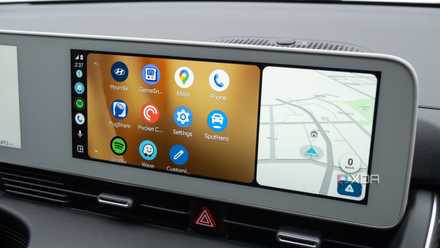
Here is how I do it: I simply tap the microphone icon on the Android Auto taskbar (or use the steering wheel shortcut), and I’m in.
If I’m thinking about a piece for XDA, I will tap the mic and say ‘Create a note called Article Idea’ and say ‘I should compare the latest cloud storage tool called Twake Workspace with OneDrive and Google Drive.’
Google Keep generates a note with that exact title and saves it in my account in no time. Sometimes, during long drives, I would receive calls from friends with possible weekend outing ideas. Once the call ends, I use Google Assistant to note down all the possible places to visit directly in Google Keep.
One of my favorite features is the discard option. Sometimes, halfway through a thought, I realize the idea is actually terrible, or a traffic situation requires full mental focus. Instead of letting a half-baked, confusing note clutter my Keep, I just say, "Never Mind."
Assistant immediately dismisses the prompt, deletes the draft, and returns to my music or navigation.
6 useful Android Auto apps that really improve my driving experience
I've never really enjoyed being behind the wheel, but these apps make the experience less painful and help pass the time.
The post-drive processing
An important aspect
Because I’m using the microphone icon on the taskbar or a steering wheel button, my eyes never leave the road, and my hands stay at nine and three. I don’t have to deal with a complex UI and tiny buttons.
Because Google Keep is so lightweight and cross-platform, those voice-dictated notes are already waiting for me in a pinned tab in my browser. This is where my heavyweight workflow takes over. I would sit down in the evening, check my voice-to-text transcript, and move it into my permanent system – whether that’s drafting a post for XDA or filling a long-term project note in Obsidian.
It’s a seamless handoff that ensures my best ideas don’t just stay as voice memos but actually become finished products. Now, the first few times you do this, you feel a bit ridiculous. But once you move past that initial ‘talking to yourself’ barrier, you realize you have actually unlocked a powerful tool in your car.
Better than voice memos
For me, the best thinking tool isn’t the one with the most features; it’s the one that’s available exactly when an idea strikes.
So, the next time you are stuck in traffic and a breakthrough hits, don’t try to memorize it for later – just tell your car to remember it for you.
And with the much-awaited arrival of Gemini in Android Auto, I can’t wait to see how Google takes the entire note-taking experience to the next level.