
Cleaning your PC is a must, especially if your PC is placed in a poorly ventilated space. Besides the usual software cleaning methods, you must physically clean your PC's inside. The dust and debris build-up gradually slows down your fans, which leads to the components heating up more than usual. However, this operation might become a nightmare if you’re not doing it properly. Before starting the procedure, here’s how you can get wrong with this apparently simple task.
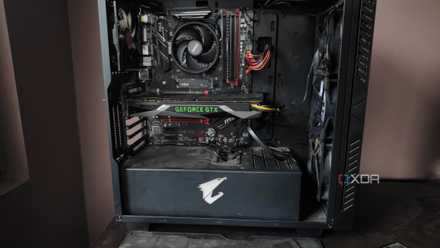
How to clean the dust out of your PC tower
Dust buildup is bad for your system, so you should regularly clean your PC tower to keep it free of dirt and grime
5 Not turning your PC off and disconnecting it from the power outlet may shock you
Don't worry, it's not fatal
If you’re enthusiastic about cleaning your PC, hold on for a second and remember you’re dealing with a device connected to a power supply and outlet. Shut down your PC and disconnect it from the power outlet before opening the case. A frequent mistake here is that users turn off their PCs but forget about disconnecting them from the power outlet. Even after doing all that, you should press the power button on your PC for about 20 seconds. The components still hold residual power that might discharge.
Don’t worry; you are not in any real danger because the power supply converts the power outlet current to lower voltages. You will only deal with 5V and 12V, so you will only feel small shocks, but they can still be unpleasant or frightening. However, don't get too comfortable either, because a malfunctioning power supply may offer unpleasant surprises you might not be ready for.
4 Using too much force can damage the components of your PC
If it's not going smoothly, don't force it
Although it looks very sturdy, your PC is fragile electronic equipment, and it must be handled with care. A very common mistake is disconnecting the PCI cards or cables without using the proper procedures. Believe me, I learned from my own mistakes. Some PCI cards connected to the motherboard have two hinges that lock them in place. Gently pull them to the sides before attempting to take the card off. They also have a mechanism to dislodge the card and loosen the card so you can extract it easily.
The same goes for the power and data cables. Look if they have any locking mechanism and take care of that before pulling the connectors to disconnect them. If you haven’t done this before, it’s a good idea to check your motherboard's manual to see if you’ve missed something. Also, avoid applying too much force to the motherboard when reconnecting the PCI cards or other components. If something doesn’t give, don’t apply more force before checking if the sockets are free and the hinges are open.
The PC cases and components have different attachment methods. There is no shame in studying the product manuals to ensure you're not harming them.
3 Not applying thermal paste on the heatsinks is a common mistake
Make sure you're using the right thermal paste
After cleaning the inside of your PC case and components, don’t forget to reapply thermal paste on the heatsinks of the CPU and/or graphics card. Even if the previous paste is still good, the cleaning operation might have slightly produced a movement, which may lead to an improper contact surface. If the heatsink is not in perfect contact with the chip, it won’t be so effective in cooling it properly.
However, this is a delicate procedure. Make sure you properly disconnect the heatsink based on the manufacturer's instructions. It’s also important to apply the correct amount of thermal paste. If you put too little, the heatsink will not be efficient, and if you put more, it will overflow and potentially damage the CPU or motherboard. Of course, it's also important to clean the old thermal paste before applying the new one.

How to apply thermal paste to a GPU
Discover the essential steps to properly apply thermal paste to your GPU for optimal performance and temperature control
2 Using the wrong tools and supplies may lead to serious damage
Don't use vacuum cleaners and hairdryers
Before starting to clean your PC, make sure you have the right tools on hand. A common mistake is using a vacuum cleaner or a hairdryer to clean your PC. They can cause serious damage to the components and create electrical discharges. You might get away with it a few times, but if you care about your expensive PC, you should only use compressed air cans specifically made for this task.
Another common mistake is to use damp wipes or rubbing alcohol to clean the dust inside the PC case. You shouldn’t use any solutions that include water, and even the rubbing alcohol contains enough of it to cause problems. If you do that with a water solution, make sure to leave the PC component or case in a ventilated area for a few hours before connecting the PC back to the power outlet to ensure that it dries out completely.
The same computer shop where you bought the compressed air cans should also have a supply of isopropyl alcohol wipes, especially dedicated to PC cleaning. If that’s not an option, you can use a solution with over 90% alcohol and lightly dampen your wipes. To clean the fans, use the same solution, but here, you can use some Q-tips with some isopropyl alcohol.
1 Cleaning the dust filters is usually ignored
Sometimes it's a bit hard to reach them
Many PC cases also include dust filters on the computer case, usually placed in front of the case coolers. Quite often, they will gather a lot of dust on the inside or outside because that’s their main role, right? However, it’s quite easy to ignore them if you only focus on the interior.
Some PC cases have detachable fans, so you can easily clean them separately with an isopropyl alcohol wipe, as you would any other component. If you can’t take them out, you must detach the PC case fan first. Also, disconnect the fan power cable on the motherboard if necessary.
If you’ve cleaned your PC, why not do the same with your peripherals? The keyboard, display, and mouse could also use some care. The same rules above apply to them.
Final checks are imperative, and many users ignore them
After cleaning your PC case and components, it’s important to ensure that all the cables and components are properly connected to the motherboard. Properly inspect and jiggle them to find any loose connections.
Also, it is very important to retrieve all the tools and supplies from the PC case. Leaving a screwdriver or some debris in your patient can be fatal, causing short circuits or blocking some fans. If you do everything right, you won’t need any prayers. Just plug the PC back into the power outlet and congratulate yourself on a good job.