
Being able to house terabytes worth of backup files and archival media without paying regular subscription fees or relying on third-party servers makes Network-Attached Storage servers fantastic for privacy-conscious data hoarders. But the downside of this setup is that you’re responsible for safeguarding your data. If things go south, you might end up permanently losing all your files.
That’s why you’ll often find NAS lovers (including yours truly) harping about redundancy, spare backups, and other data protection features. This includes integrity tests, which scan your entire storage pools for corrupted files, though they still aren’t all that popular in the home server community. That’s a shame, because they can help prevent silent corruption from messing up your archived media.
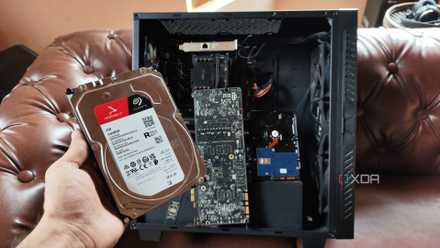
Your NAS should snapshot more often, and here's what I do and why
Snapshots are a solid way to safeguard your precious data
Bit rot can be a silent killer
Especially for long-term storage
For the uninitiated, bit rot is a random phenomenon where your files can end up with flipped bits (0s and 1s), causing data corruption. Unfortunately, bit rot can rear its ugly head out of nowhere, as it can be caused by everything from physical degradation of your HDD and environmental factors to magnetic interference and even cosmic radiation. A single file afflicted by bit rot may not seem like a big deal, but when you’re storing data over long periods, it’s possible for a single pool to have multiple instances of this problem, and you could end up with a bunch of corrupted files. Since you won’t be accessing your archived media for a long time, bit rot can stay hidden until you open a corrupted file.
Here’s where things get worse. Although drive failure, accidental deletions, and other unforeseen events can be countered by routine 3-2-1 backups, bit rot can be quite devastating for your NAS. Heck, it can be even more disastrous when you’ve got a proper backup workflow. But when you’ve got files afflicted by bit rot, your backup workflow and redundancy measures will end up overwriting clean data with corrupted files. With bit rot being a form of silent corruption, it will be too late by the time you realize your main files, mirrored data, and backups have become unusable.
Scrub tasks are a solid counter to bit rot
And you can configure them on Btrfs and ZFS data pools
Fortunately, the NAS-centric ZFS and Btrfs file systems have a trick up their sleeves: they can detect files afflicted by bit rot, and in the presence of clean redundant copies, even restore them to their uncorrupted state. While the exact algorithms and mechanisms differ between the two, ZFS and Btrfs calculate checksums for data blocks when you transfer files to their storage pools. Since they’re essentially unique identifiers for storage blocks, a single flipped bit can cause the checksum value to change.
And that’s where scrub tasks come into the picture. When a scrub scan is underway, the file system recomputes the checksum for each block and compares it with the original value. If there are discrepancies between the two, it’s a clear sign that the data has become corrupted. If you’ve got a proper RAID setup for the storage pool, the file system also replaces the corrupted file with its clean counterpart from the redundant dataset.
But you might want to avoid scheduling them every day
Considering the utility of scrub tasks, you might be tempted to run them as often as your backups and snapshots. But even with terabytes of mission-critical data, you might want to avoid scheduling too often. Since scrub tasks read every block on your storage media, they can degrade its performance, which is far from ideal when you want to access data stored on slow HDDs.
If you're on TrueNAS like I am, the distro automatically creates monthly scrub tasks for new storage pools. However, I prefer increasing their frequency to weekly scans for essential datasets involving backups and frequently-modified data. Meanwhile, my data archival pools rely on monthly scrub scans, and the same holds true for all the data stored on the offsite NAS I use for the 3-2-1 backup workflow.
But if you’re relying on a proprietary distro included with a pre-assembled NAS or keep a custom distribution outfitted with the essential NAS packages, you might want to manually configure scrub tasks. Most distros that support ZFS or Btrfs include dedicated sections for scrub tasks, so you shouldn’t have a lot of trouble scheduling them. Meanwhile, you can use cron scripts to automate the scrub scans on a custom NAS distro.
A couple more provisions to keep your NAS in tip-top shape
Besides scrub tasks, I also recommend looking into some other tools to ensure your archived files remain intact. Although S.M.A.R.T. tests can’t straight up predict drive failures, suspicious readings for certain statistics can be a dead giveaway that there’s something wrong with your HDD. While we’re on the subject, keeping an extra HDD as a hot spare can save you the trouble of scrambling around for a new drive when an old one kicks the bucket. And above all else, you should always prioritize keeping extra copies of important documents… preferably on a remote node miles away from your home lab.
4 ways you can save money with a NAS at home
A NAS is the perfect companion for our modern digital lives.