
Having multiple PCs at home is definitely a privilege not everyone has, but it's not all that uncommon. For myself, the fact that I review so many Windows 11 PCs means I have a lot of them at home, and having them work together can be pretty important.
If you also have multiple of your own PCs at home, there are a few things I recommend doing to make the experience more seamless and help these computers communicate with each other reliably. Let's take a closer look at how you can improve your experience with more than one Windows computer.

Setting up a new Windows PC? You need to install these apps
No matter who you are, these apps are essential.
6 Use Windows Backup
Restore your settings more quickly
If you use multiple PCs at home, one of the most basic things you should do is make sure your PC is backing up its settings and app lists to the cloud when you set it up. This makes it much easier to set up a new PC that behaves just like your existing one, so as you make new additions to the family, or if you need to reset one of the PCs, you can have a lot of the basics in place already.
Windows backups are normally set up automatically when you first set up a computer, but if you're not sure, look for the Windows Backup app on your PC, which is included with the latest versions of Windows 11. If not, you can always find the backup options under the Accounts section of the Settings app. This does require being signed in with a Microsoft account, but it's one of the few instances that helps justify that requirement.

5 reasons I use Windows 11 Backup over Macrium Reflect
Backing up your Windows 11 PC doesn't need to be a complicated and costly affair. This free alternative has most of the things you need.
5 Disable OneDrive folder backups
It's just annoying
While Windows backups are welcome, one part of this setup that's not very good is OneDrive folder backups. This feature, which is often enabled by default as well, backs up your Desktop, Documents, and Pictures fodlers to OneDriove, and merges those local folder with the ones in OneDrive, too, making it so all those folders are exactly the same across devices.
In theory, this sounds like a fine idea but there are a couple of problems. First, OneDrive only gives you about 5GB of space for free, so if this feature is on, you're quickly going to run out of space and you have to pay up for more cloud storage. Secondly, for the Desktop folder, this means you're syncing the shortcuts to all your apps, but not the apps themselves. So your new PC will be set up with icons that don't work, and when you install the apps again and they create new icons, those icons will be added to the backup, making it so that the next time you set up a new PC, there are even more useless icons on the desktop.
I highly recommend heading into the settings of the OneDrive app and making sure this feature is disabled so you can avoid frustrations.
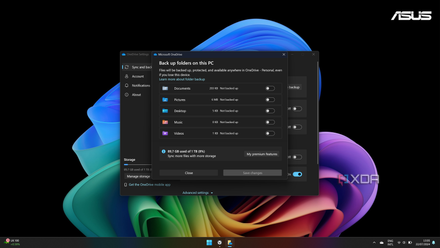
How to turn off OneDrive folder backup in Windows 11
Windows 11 comes with an annoying feature that automatically backs up and syncs certain folders with OneDrive. Here's how to turn it off.
4 Have your apps ready to go
Winget is a huge lifesaver
While we're on the topic of backups, let's wrap up with the best way to back up and restore the apps you need to use frequently: the Windows Package Manager, or winget. Winget is one of the fastest ways to download and install apps without the hassle of browsing to different websites or clicking through multiple pages. Remembering the proper commands can take some time, but generally speaking, you'll get things done a lot faster this way.
But the real kicker here is the ability to export your list of installed apps, which you can then import on a new PC. For this to work, you'll need to export the list to a cloud service so you can access it on different PCs, but once you do that, you can install all the apps on that list in one fell swoop, with no need to visit multiple pages or enter multiple commands. It makes it a whole lot easier to get things up and running fully. You can also use different package managers for this kind of feature, though, such as Chocolatey or UniGetUI.

How to install all your Windows apps in one go
Setting up a new Windows PC can be a hassle, but you can speed things up with this trick
3 Set up nearby sharing
Send files over without the internet
Nearby sharing is an underrated feature that most devices offer some variant of, and you might not even know it's in Windows 11, but it is. When you click the Share button in File Explorer, you can send files to nearby devices wirelessly without using the internet, which means transfers are faster and you don't need to worry about any space limitations.
Nearby sharing is disabled by default, so you'll need to go in the Settings app to turn it on, and you can find it under System > Nearby sharing. Once you do enable it, you can choose whether sharing should work with any nearby device or only the ones with your Microsoft account, which may make the most sense if you're using multiple PCs of your own and don't want anyone else to be able to send you files like this.
If you want something that works with other devices like your phone, there are options like Quick Share from Google (which is also on Android), or LocalSend, which works on pretty much any platform. But the Windows-exclusive version doesn't require installing anything, so it's the easiest to get going.
Another option is setting up a network share on one of your computers and just leaving it on all the time, so it works as a sort of local server where you can store and access files from your other PCs. This requires a bit more work and having a PC that's always running as a server, so it may not be for everyone, but it's a solid solution and a bit cheaper than buying a dedicated NAS.
2 Use a software KVM
Multiple PCs, one keyboard
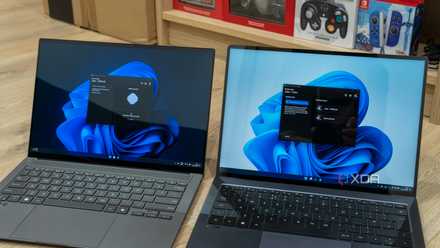
If you not only have multiple computers, but also tend to use them at the same desk or side-by-side, something else you'll probably want is a software KVM. Having multiple computers is one thing, but you might not want to have multiple keyboards and mice to go along with each one, so a software KVM will allow you to use the same mouse and keyboard for multiple computers without having to unplug cables or adapters, or changing Bluetooth connections.
There's more than one option here, but if you want a free option from a trusted source, Microsoft's PowerToys suite comes with a tool called Mouse Without Borders that does exactly this. You can link up to four computers together and move your mouse across each one of them. As you do, keyboard input is also directed to the computer where your mouse is, so you can type just as you would by using that second (or third) computer normally. What's more, Mouse Without Borders also enables a shared clipboard, so you can copy a string of text on one computer and paste it in another. In fact, as long as the file sizes don't get too big, you can copy just about anything between computers. It's incredibly useful.
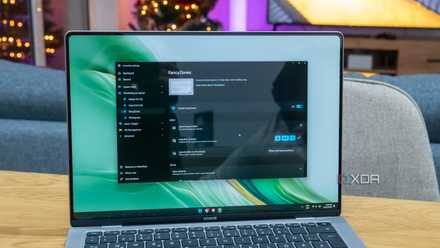
Ranking the 10 best PowerToys tools you should be using
Why aren't you using PowerToys yet?
1 Use a remote desktop tool
Full control over other PCs
A software KVM can be useful if you have multiple computers side by side, but if you need to control another computer that's not physically in your game and you don't want to have to move around constantly, a remote desktop tool is another important part of the setup if you want to manage your PCs more easily. If you need to grab a file, or run a program that only one of your PCs has, a remote desktop tool is the thing you need.
There are a few options here if you want a tool that works for free, such as TeamViewer or AnyDesk, though depending on how many devices you have and how much you want to simplify things, you may need to pay for a subscription to use features like unattended access. Still, just the free tier can make things a lot easier to manage, so I recommend at least starting there.

5 remote desktop tools your team should be using
Best tools to lead the remote work revolution
More PCs, fewer problems
Having a lot of computers can come with some annoyances when it comes to managing all of them and making sure things work as you expect them to when you need it. But being preemptive about some of these things and setting up (or disabling) these features can make life easier for you in those situations. Depending on your budget and the complexity of your setup, there might be even more options that are useful to you, such as buying a NAS for local network storage, but I wanted to focus on things that don't require extra spending. If you have any other tips, I'd love to hear them.